

Team Chat
Flowlu lets your team to communicate in real time with the built-in online team chat. Share news, discuss projects, elaborate on assignments, send files and keep everyone on track.
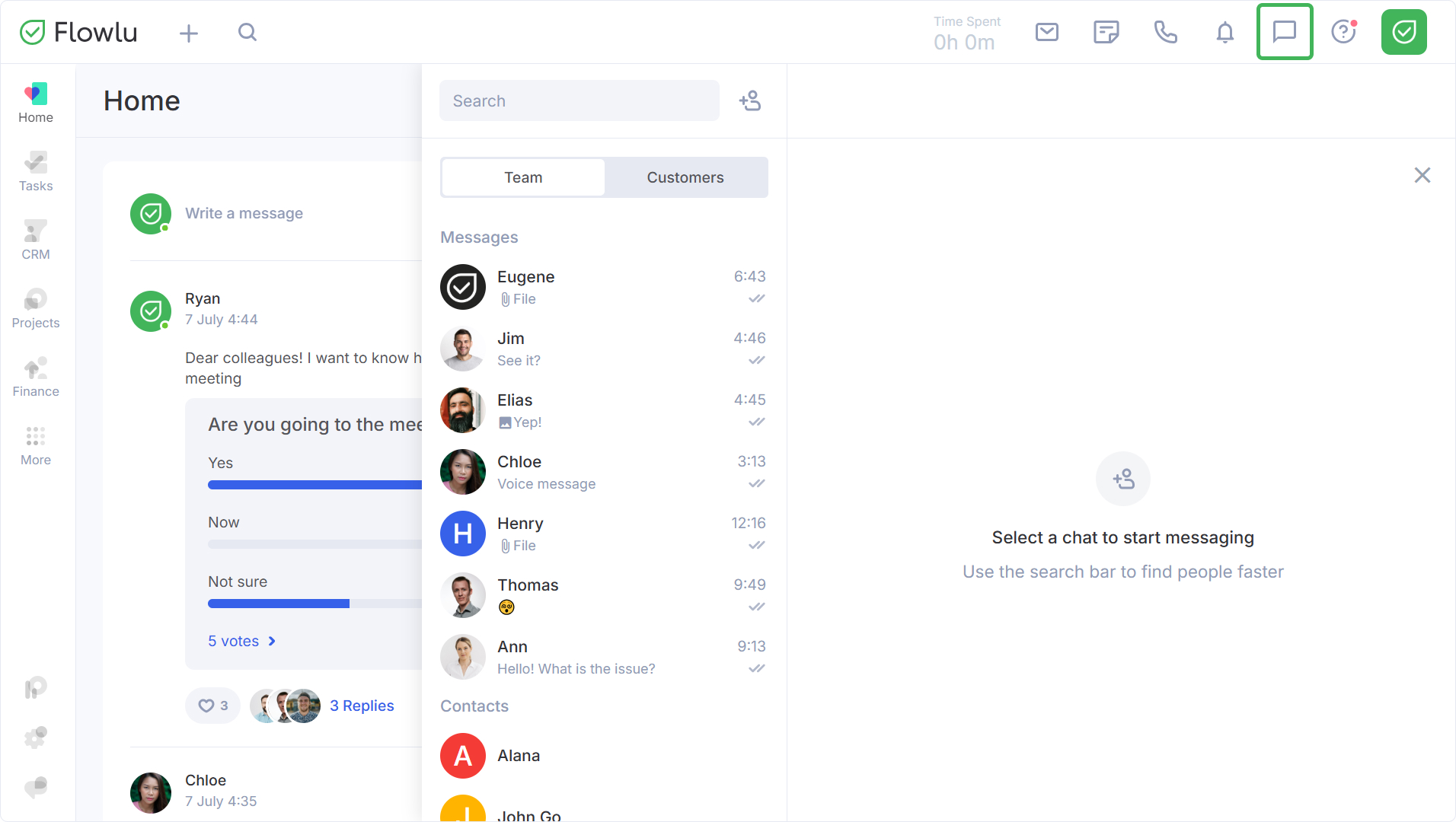
You can find the chat in the top right corner of your Flowlu account.
Private Chat
If you need to reach out your teammate, select this person in the list of contacts and click on his/her name to start a conversation. Please note that this list does not include people who don't have access to the Chat app.
Group Chat
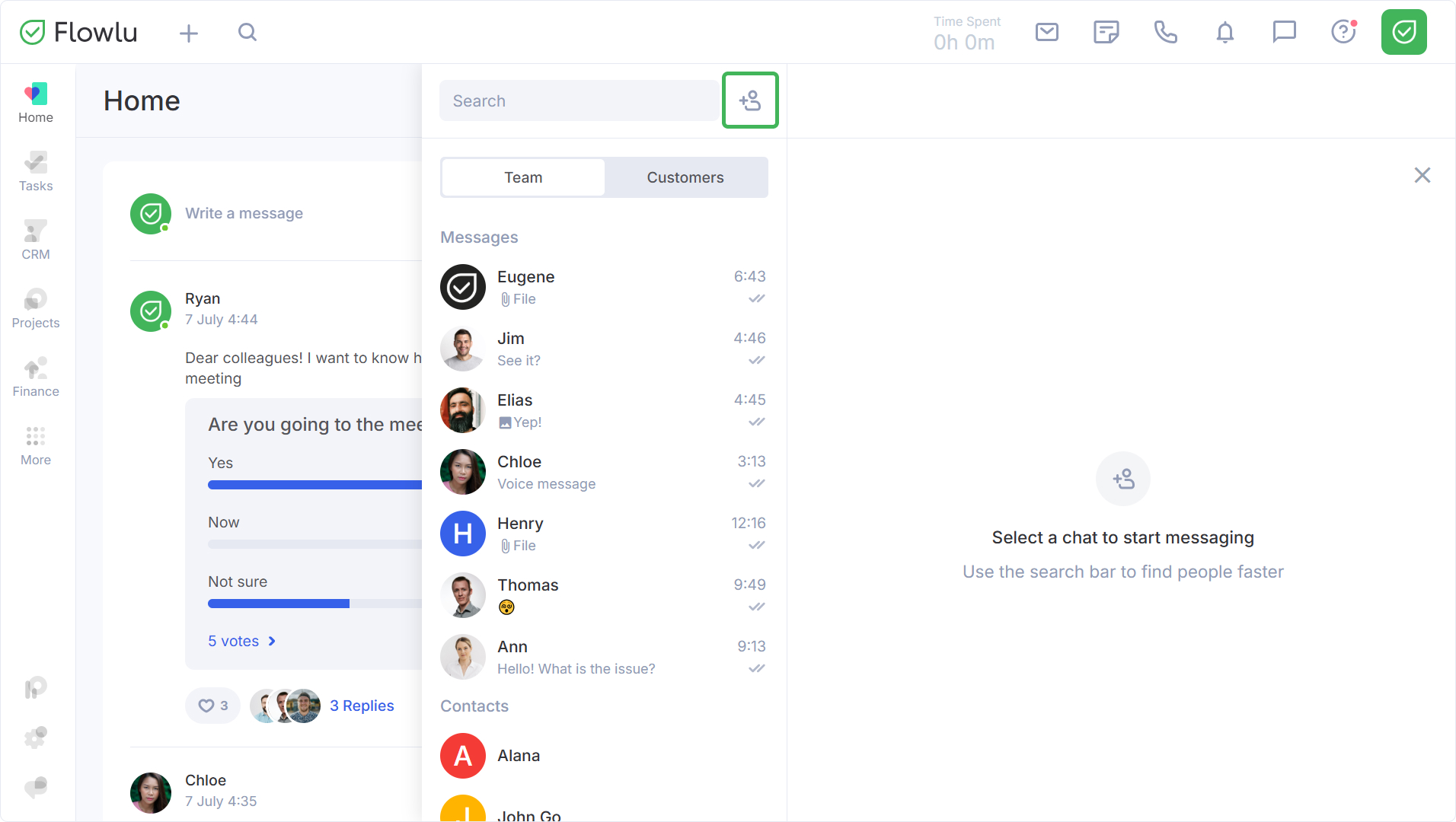
You can also create a group chat for several team members.
Click on the appropriate button.
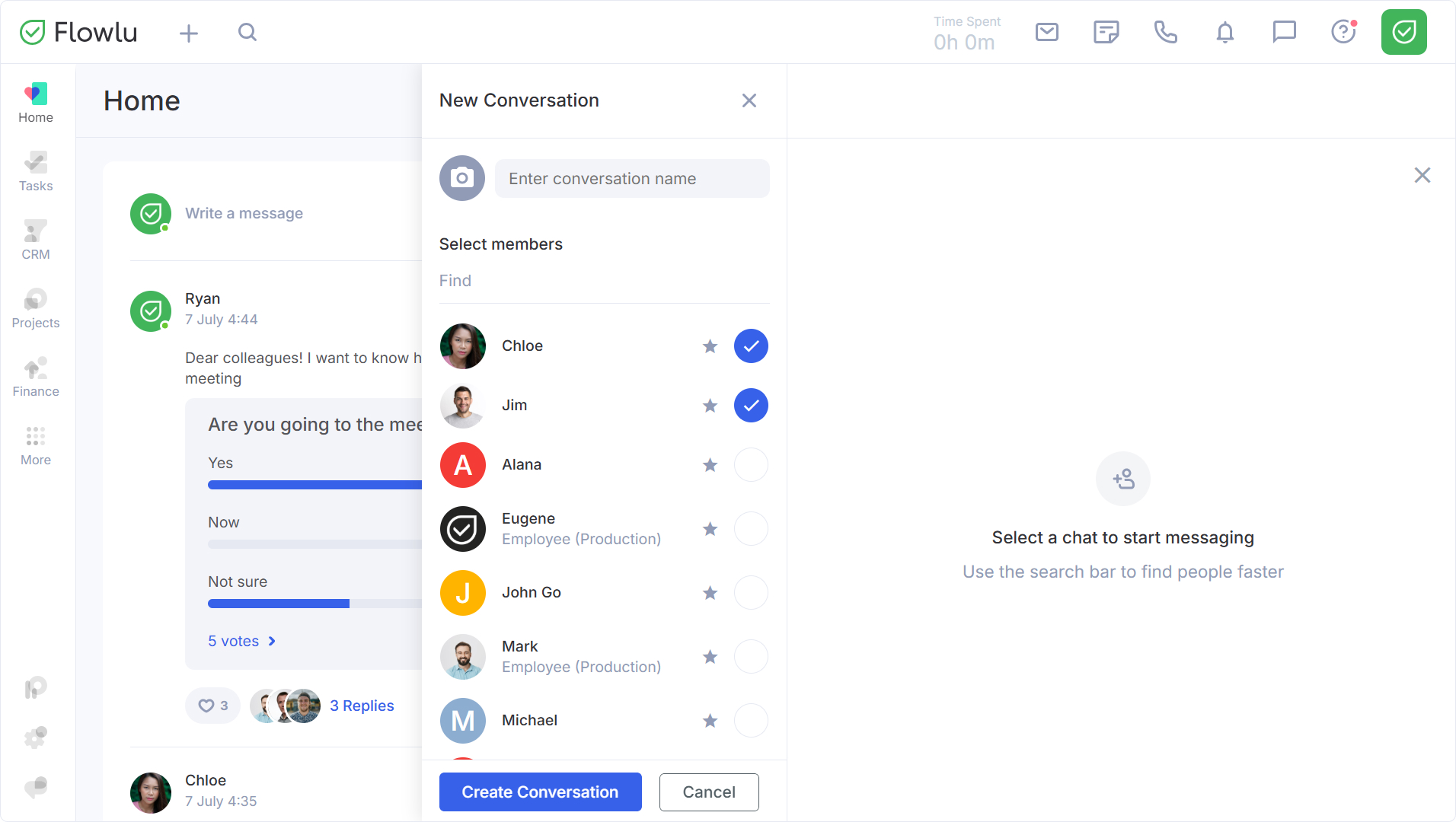
Indicate a name for your group chat, select a photo, chat admins (star sign). Select teammates and click "Create Conversation" to save your group chat.
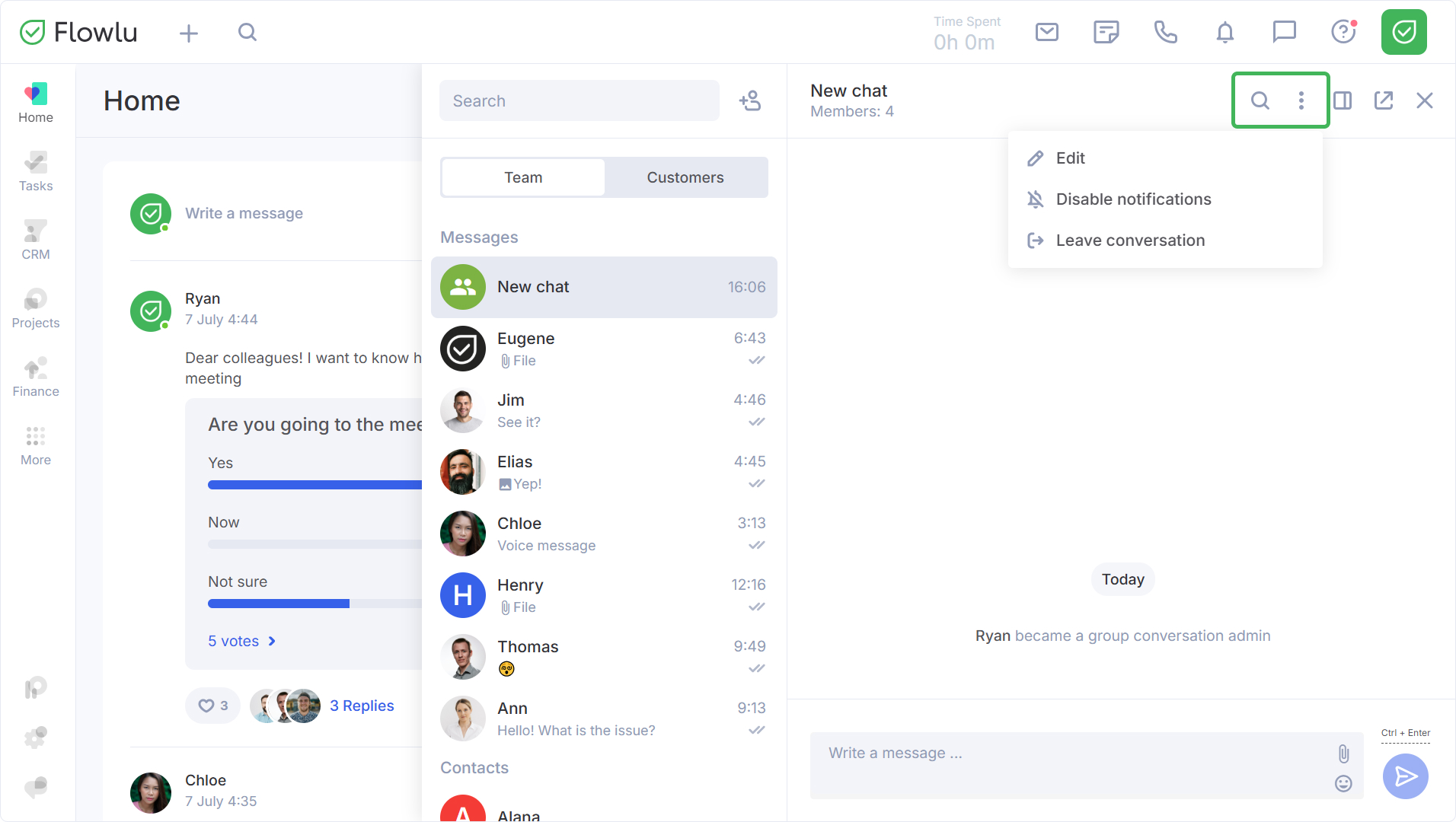
Once you create a new chat, you can search through its history, edit it, leave or mute the chat.
The chat allows you to send text messages, include emojis, pictures and files.
When someone sends a message, you can view the information about a new message next the to the chat icon. You can easily reply to messages, forward them, or make edits by clicking on the three-dot menu located next to your message.
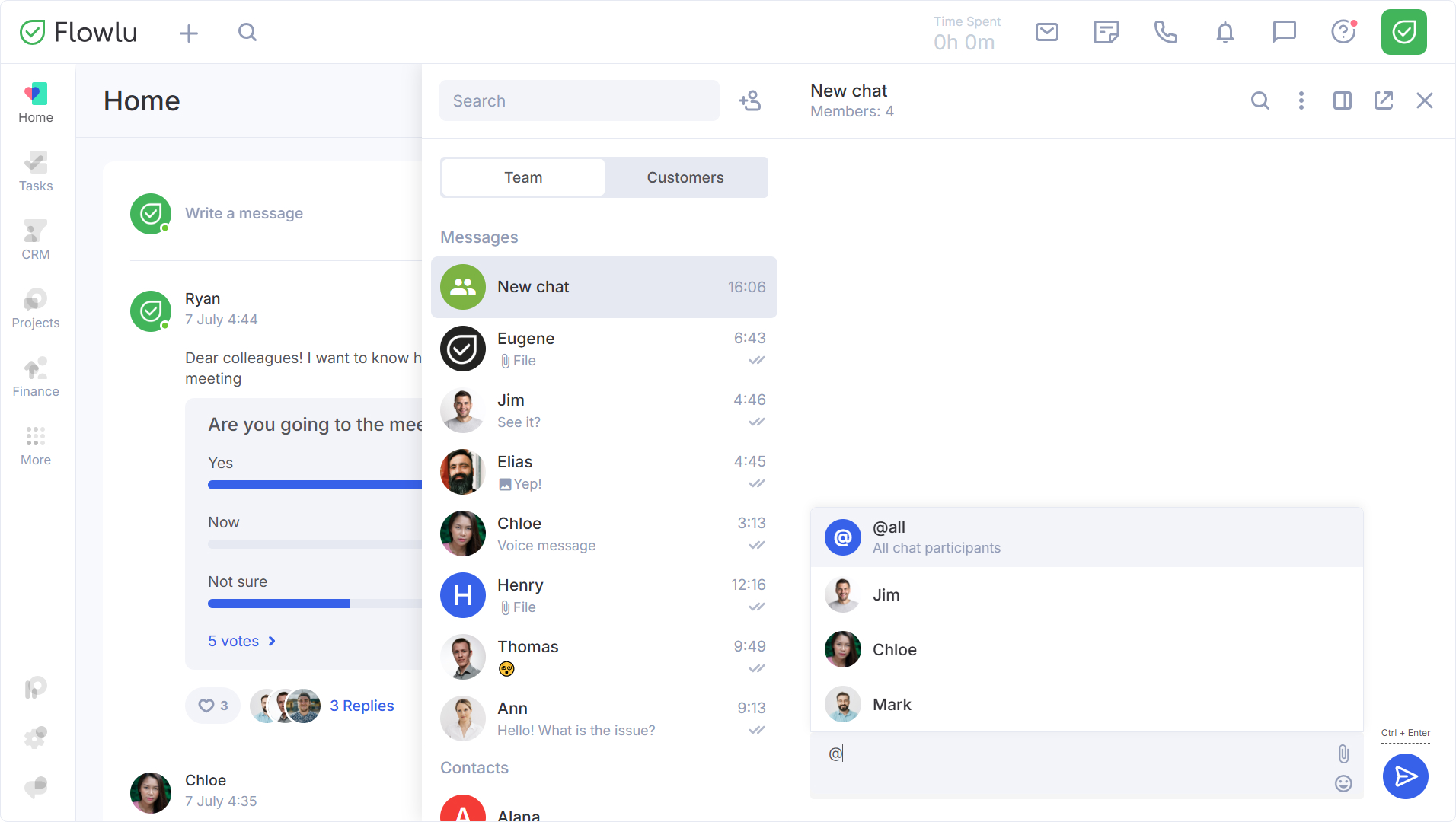
You can mention a chat participant by using the “@” symbol. Select @all to mention everyone, or select specific users.
Reactions to Chat Messages
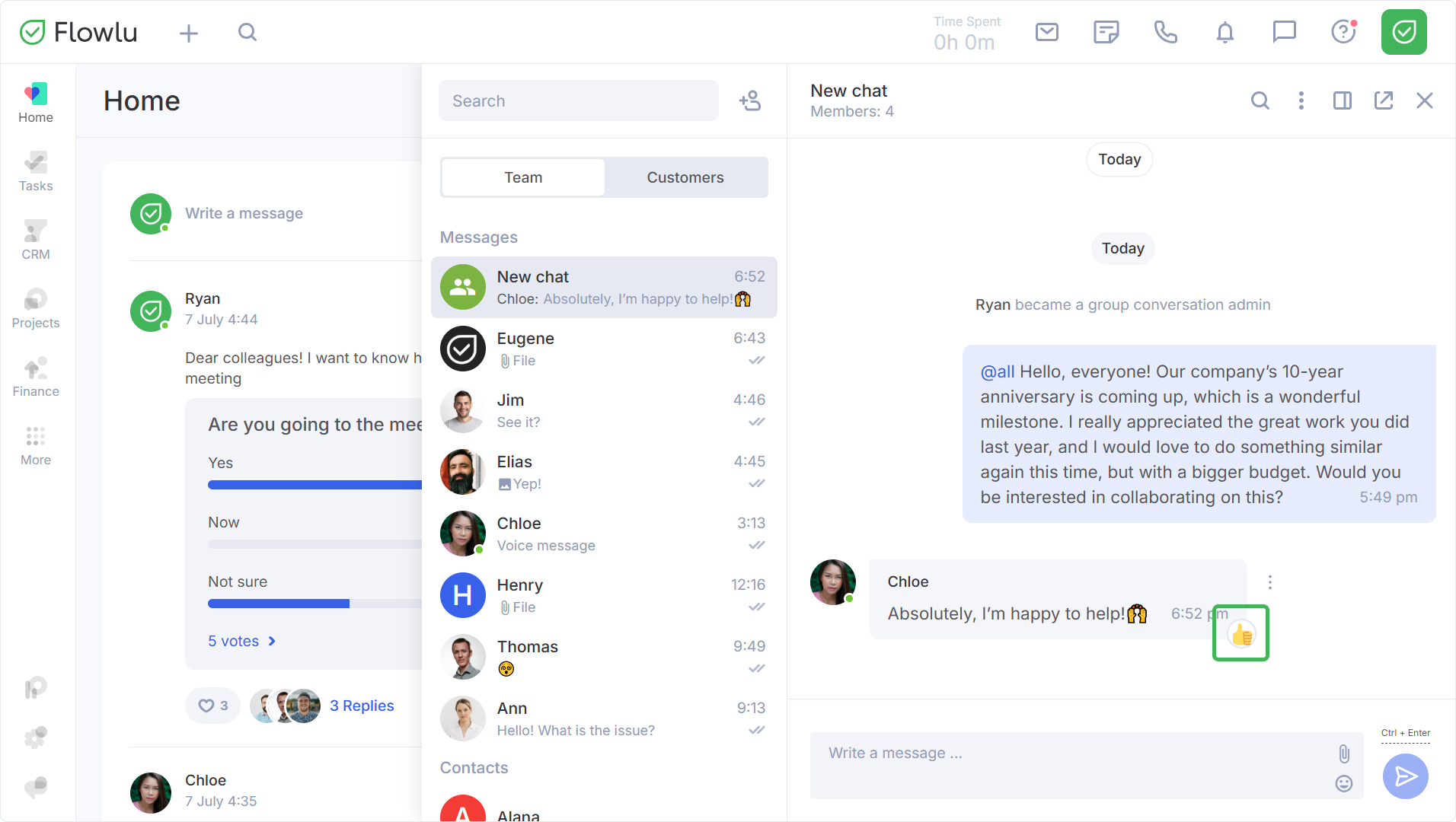
You can react to any message in a private chat or group chat with an emoji.
Tap the emoji next to the message to react quickly.
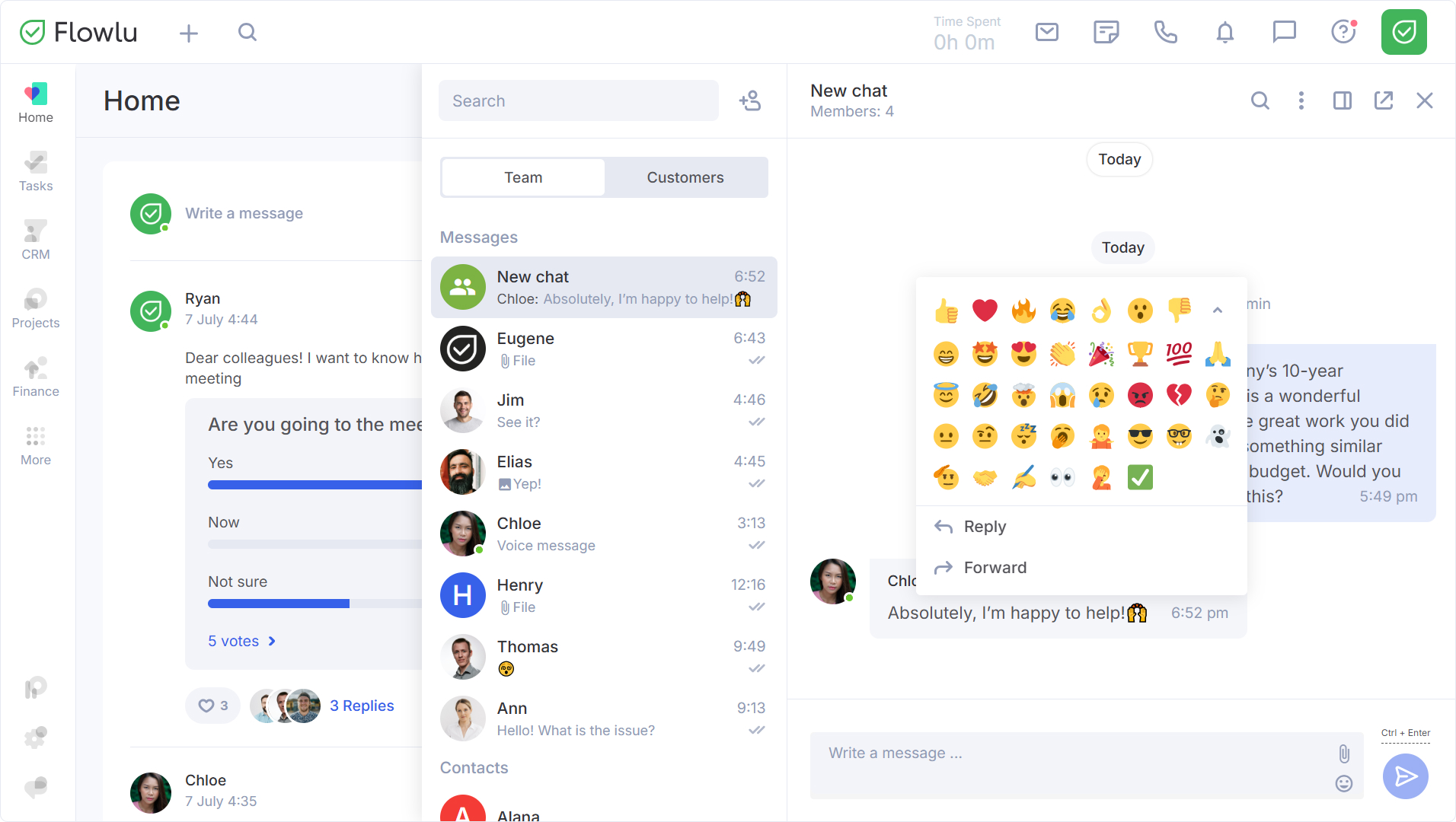
You can also click the three-dot icon next to it to choose from a list of emojis.
Voice Messages
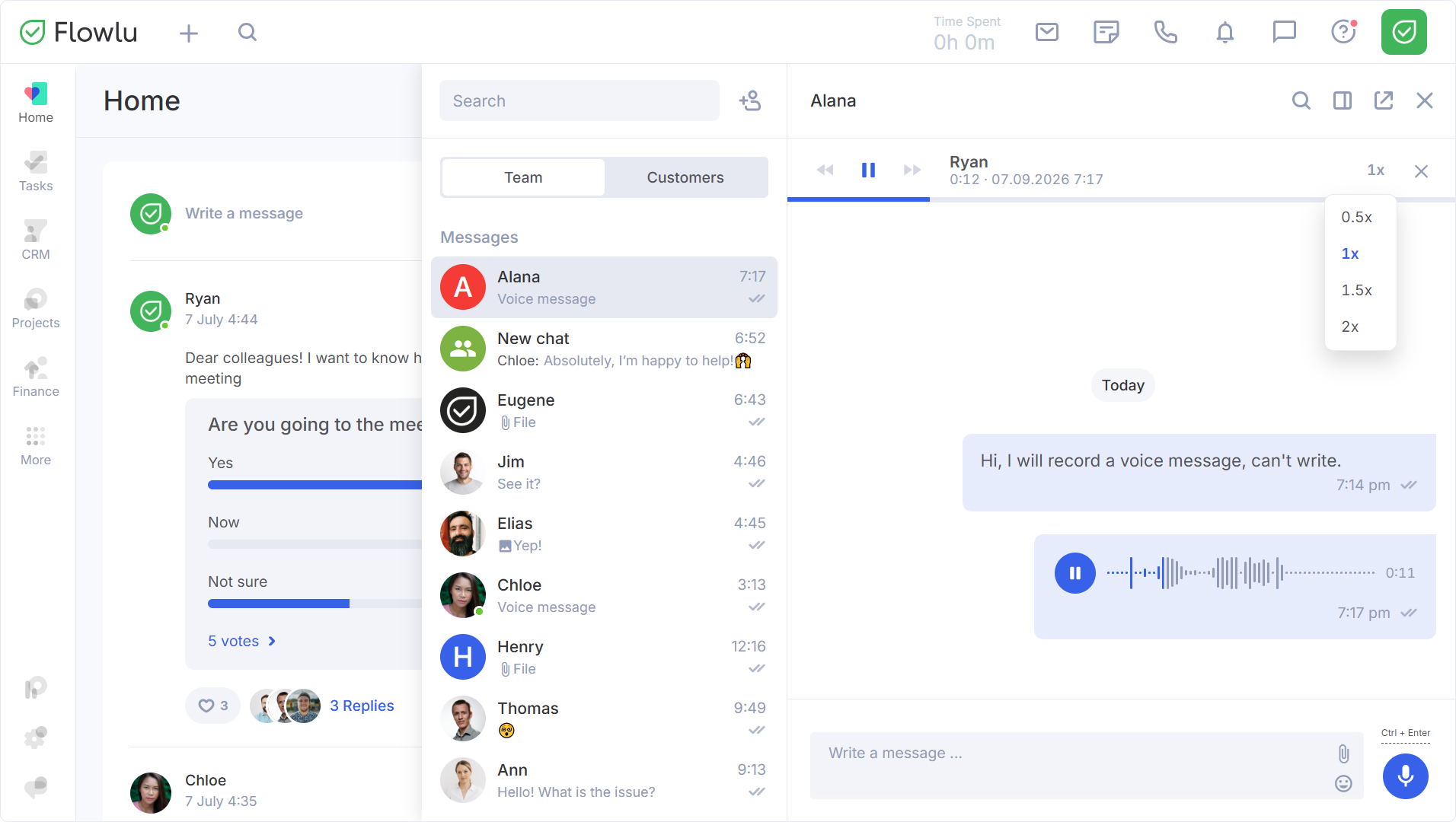
If you can't or don't want to type right now, you can easily record a voice message. Just tap the record button and start speaking. You can stop the recording, delete it, or send the voice message.
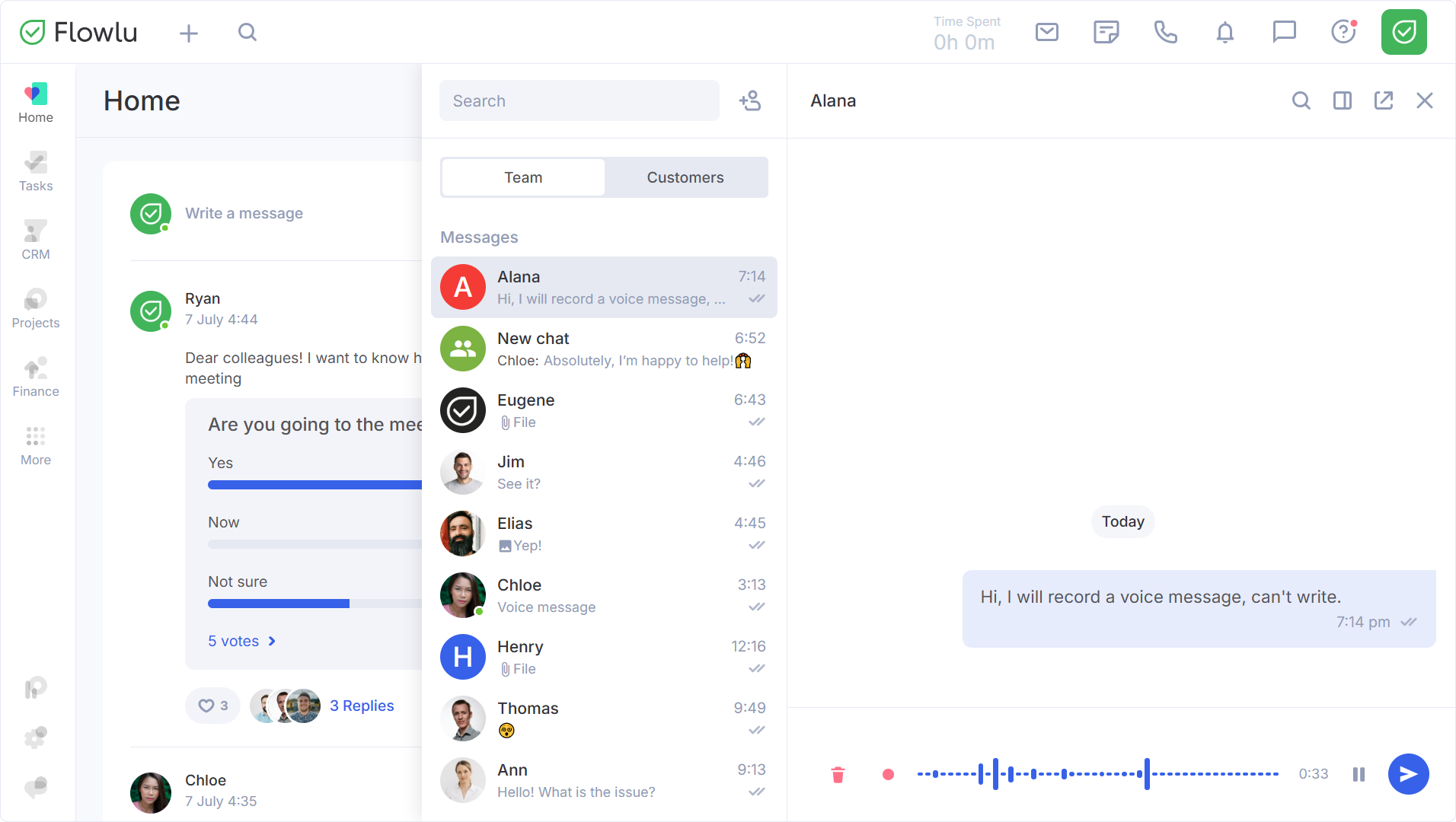
After sending a voice message, you can listen to it. You can play the recording at a slower or faster speed.
Note: sent voice messages are stored as files on the portal and take up available storage space. The amount of storage space is determined by your subscription plan.

