

Flowlu MCP Server
Flowlu's MCP server lets AI assistants like Claude, Cursor, and Windsurf work directly with your Flowlu data: creating deals, querying projects, updating tasks, pulling financial summaries, and more, all from a single conversation.
The Model Context Protocol (MCP) is an open standard that enables AI assistants to seamlessly interact with external services through a unified interface. Instead of manually transferring data, you can describe your task in natural language, and the AI will handle the interaction with the appropriate tool to complete it.
Capabilities and Available Modules
The Flowlu MCP server works through the platform API, performing all actions on behalf of the user associated with the provided API key. This guarantees that permissions, data access, and restrictions strictly follow your account configuration.
MCP provides access to all key platform modules. For the CRM, Projects, Tasks, Agile, and Time Tracking modules, the Flowlu MCP server has both read and write access. For the Finance, Products, Calendar, and Custom Fields modules, it has read-only access.
Preview Mode: Built-In Safety for Every Write
Before creating or updating any record in Flowlu, the AI shows you a full preview of exactly what it plans to write, field by field. Nothing is committed until you explicitly confirm. This applies to all write operations: creating records, updating records, and adding comments. Without your confirmation, no data is changed. If something looks wrong in the preview, you can correct your prompt and try again before anything is saved.
Available AI Tools
The Flowlu MCP server provides 11 specialized tools that AI uses to interact with your data:
Data Structure Navigation
- describe_modules: Provides an overview of all modules and their entities. The AI calls this to understand what's available in your Flowlu workspace before taking any action.
- describe_entity: Reveals the schema of a specific entity, including fields, types, descriptions, foreign keys, and available related lists. The AI uses this before creating or updating a record to make sure it gets the field names and formats right.
Data Retrieval
- list_records: Retrieves a list of records for any entity with search and pagination support (up to 100 per request). This is what runs when you ask something like "show me all open deals."
- get_record: Retrieves a single record by its unique ID. Used when you ask for details on a specific deal, task, or contact.
- list_related: Fetches linked records via aliases, for example subtasks on a task, or line items on an invoice.
- list_comments: Retrieves comments attached to a specific record. Used when you ask "what's the latest update on this deal?"
- list_files: Lists files attached to a specific record. Used when you ask "are there any documents on this task?"
- list_users: Displays a list of account users. The AI needs this to find the right person when you say "assign this to Maria" or "who's responsible for this task?"
Data Entry
- create_record: Creates a new record. Uses preview mode: without confirmation, the AI shows what it intends to create. It only saves the data when you confirm.
- update_record: Updates an existing record by ID, also using preview mode.
- create_comment: Adds a comment to a record, with preview before posting.
Limitations and Hard Limits
The Flowlu MCP server operates within the scope of standard API methods (list, get, create, and update) and is strictly governed by the permissions assigned to the owner's API key. While it is a powerful tool for data management, it has several technical boundaries:
- Finance, Products, Calendar, and Custom Fields are read-only. You can query data from these modules but cannot create or update records in them.
- The MCP does not trigger non-standard internal business processes or automatically kick off Flowlu workflow automation rules.
- There is no delete tool available; all data removal must be performed manually within the Flowlu UI.
- While you can list files and see their metadata, the AI cannot upload new files or read the actual contents of the documents.
- The MCP cannot be used to send emails or export data to CSV, Excel, or PDF formats.
- It does not provide access to Portal Settings, account configurations, or the setup of outgoing webhooks.
- You can list users, but you cannot create, update, or deactivate user accounts.
- Complex filtering and system-wide settings are still best managed directly through the Flowlu interface.
- Usage requires an external AI client that specifically supports the Model Context Protocol.
Connection Setup
To connect to the Flowlu MCP, first you need to create an API key. You can do this by going to account settings.
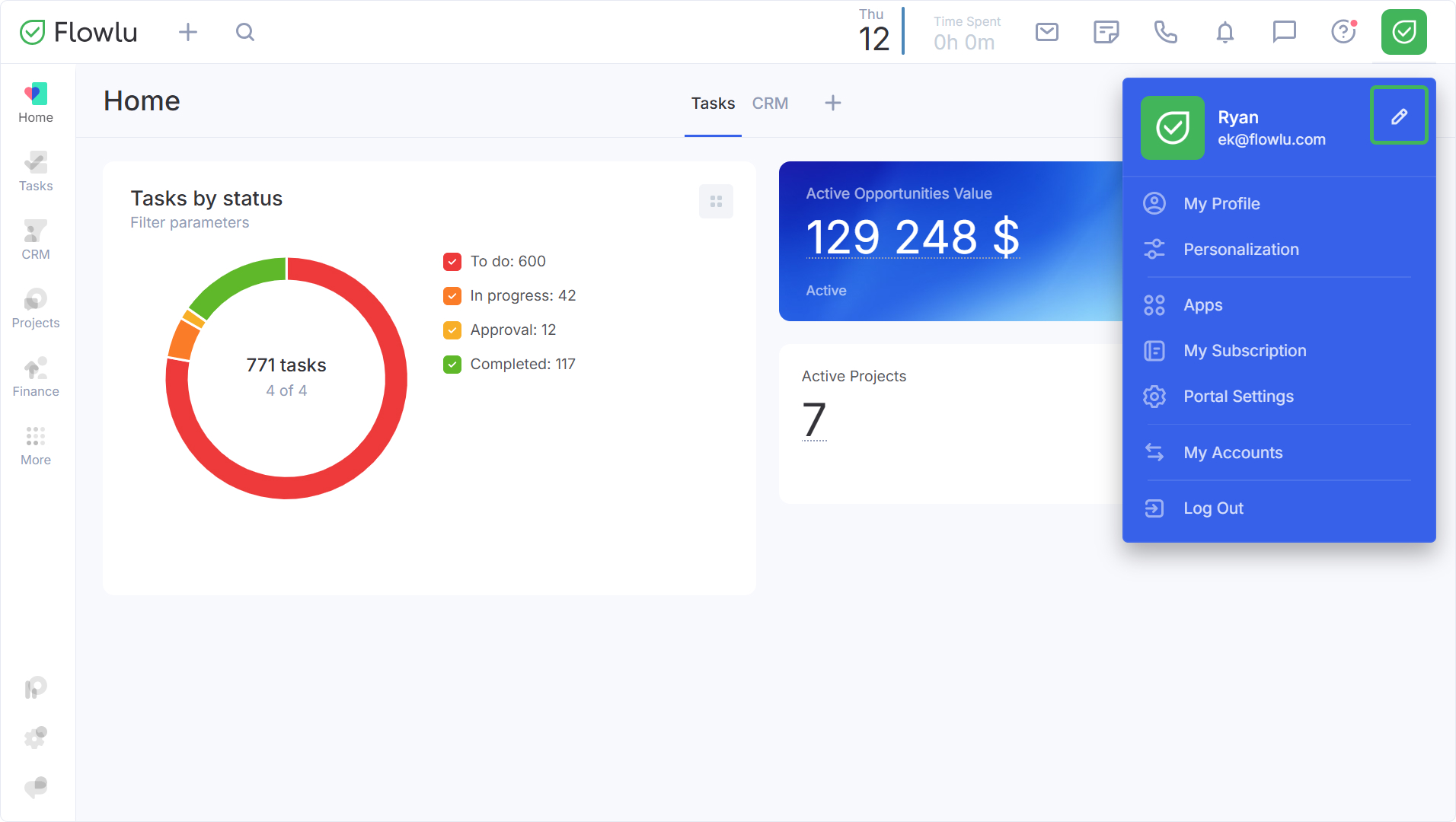
Next, go to the API Settings section.
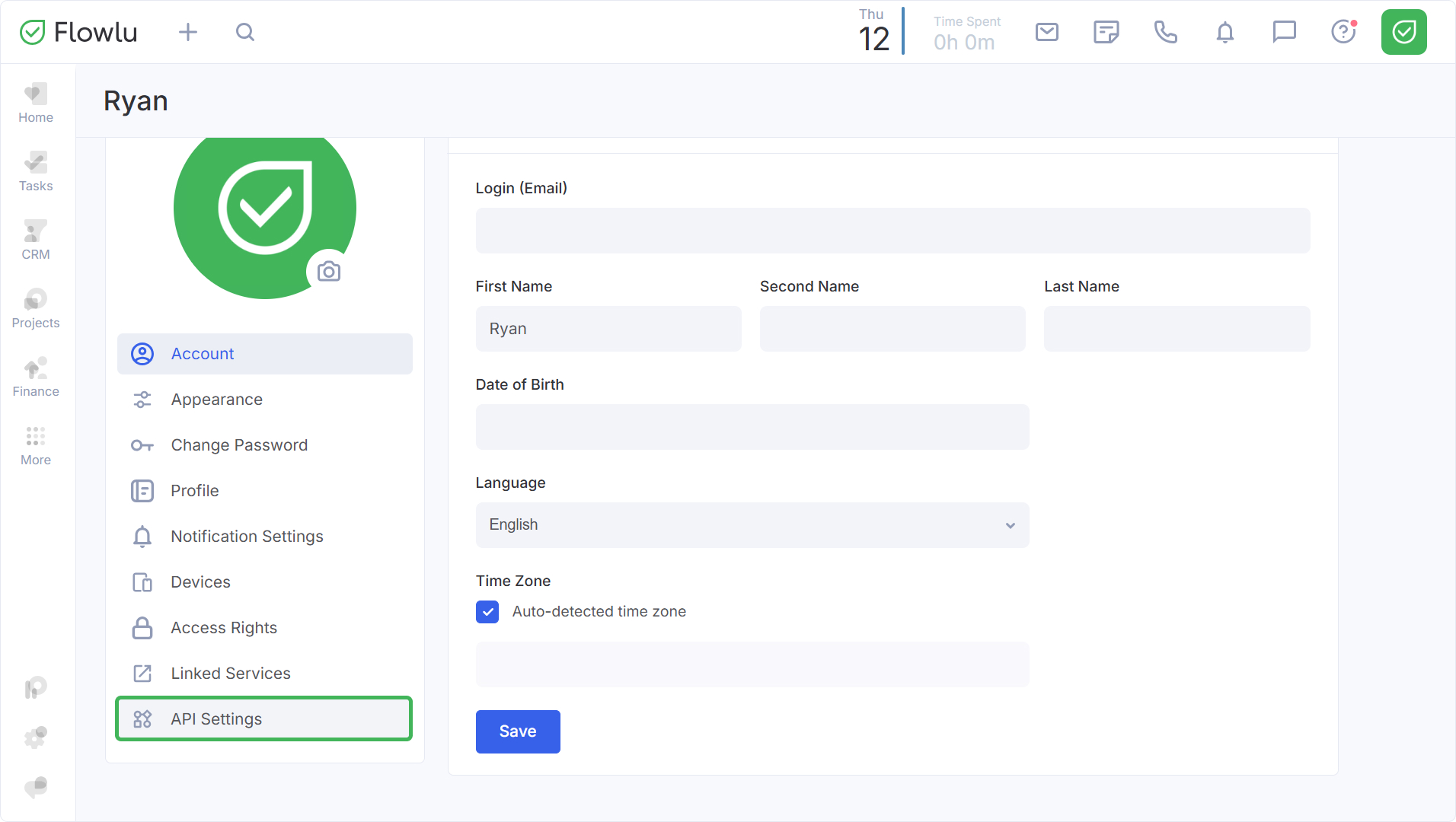
And click the Add button.
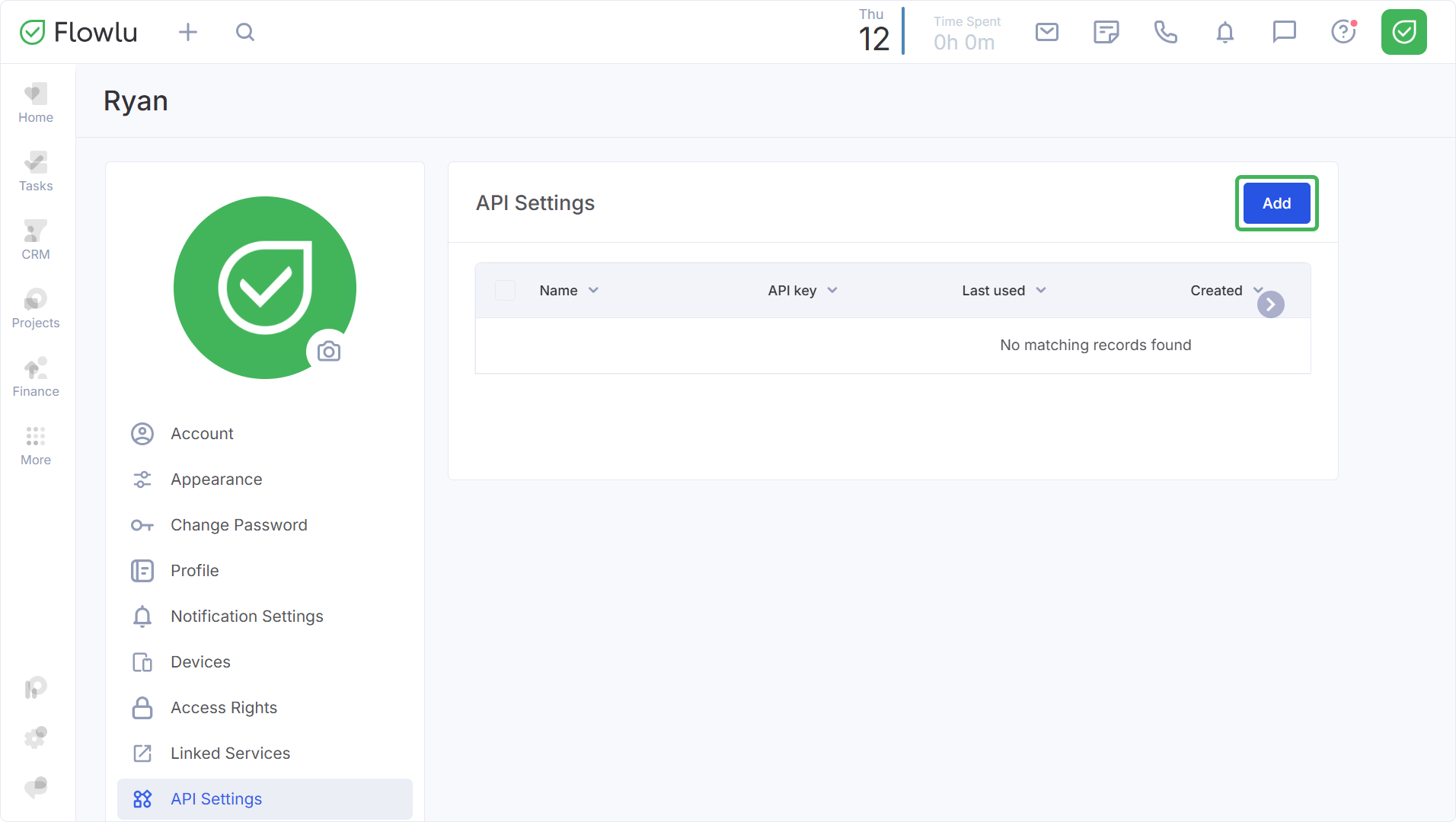
Enter the API key name, select the required applications, and then click the Save button.
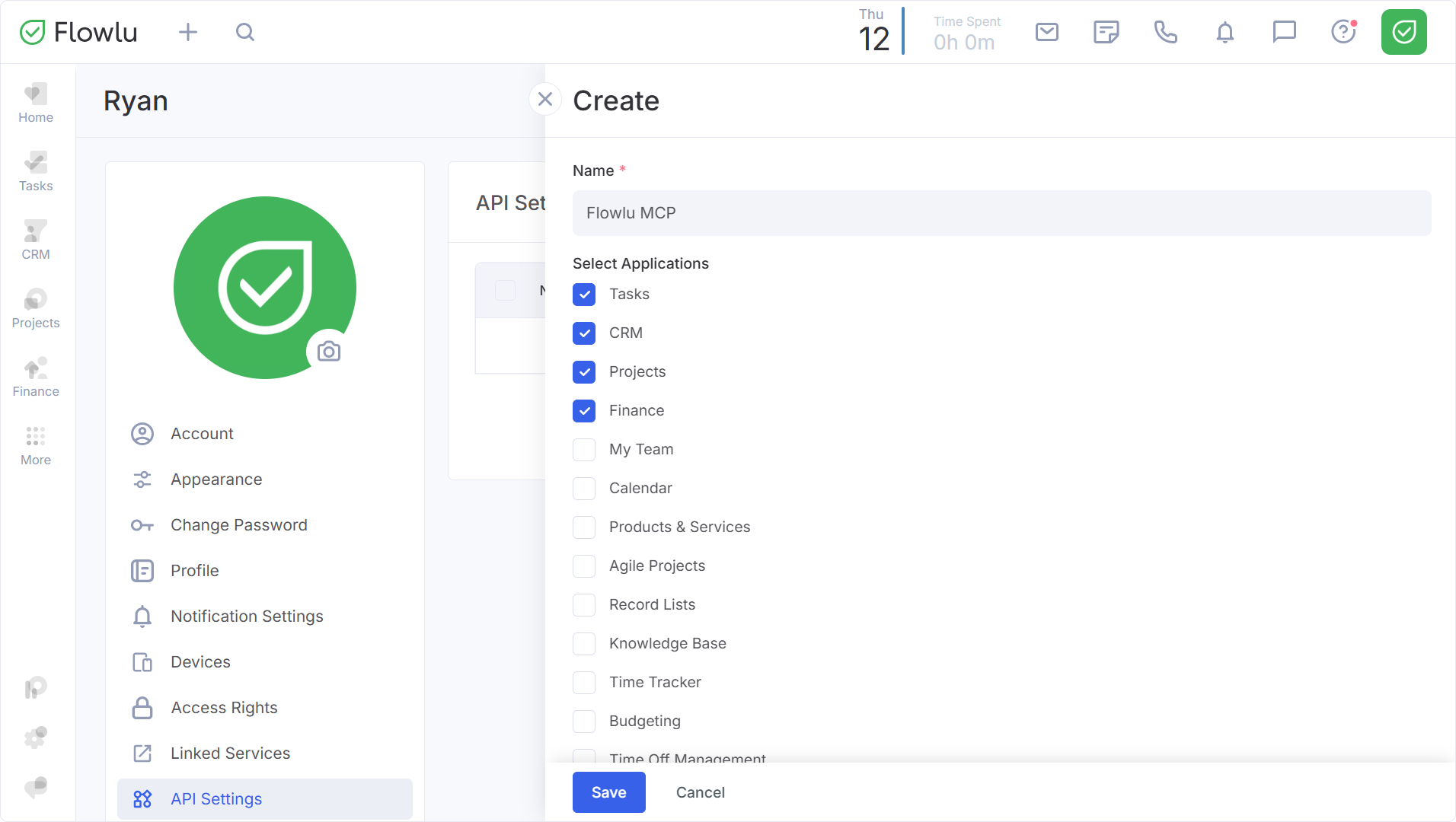
Save your API key.
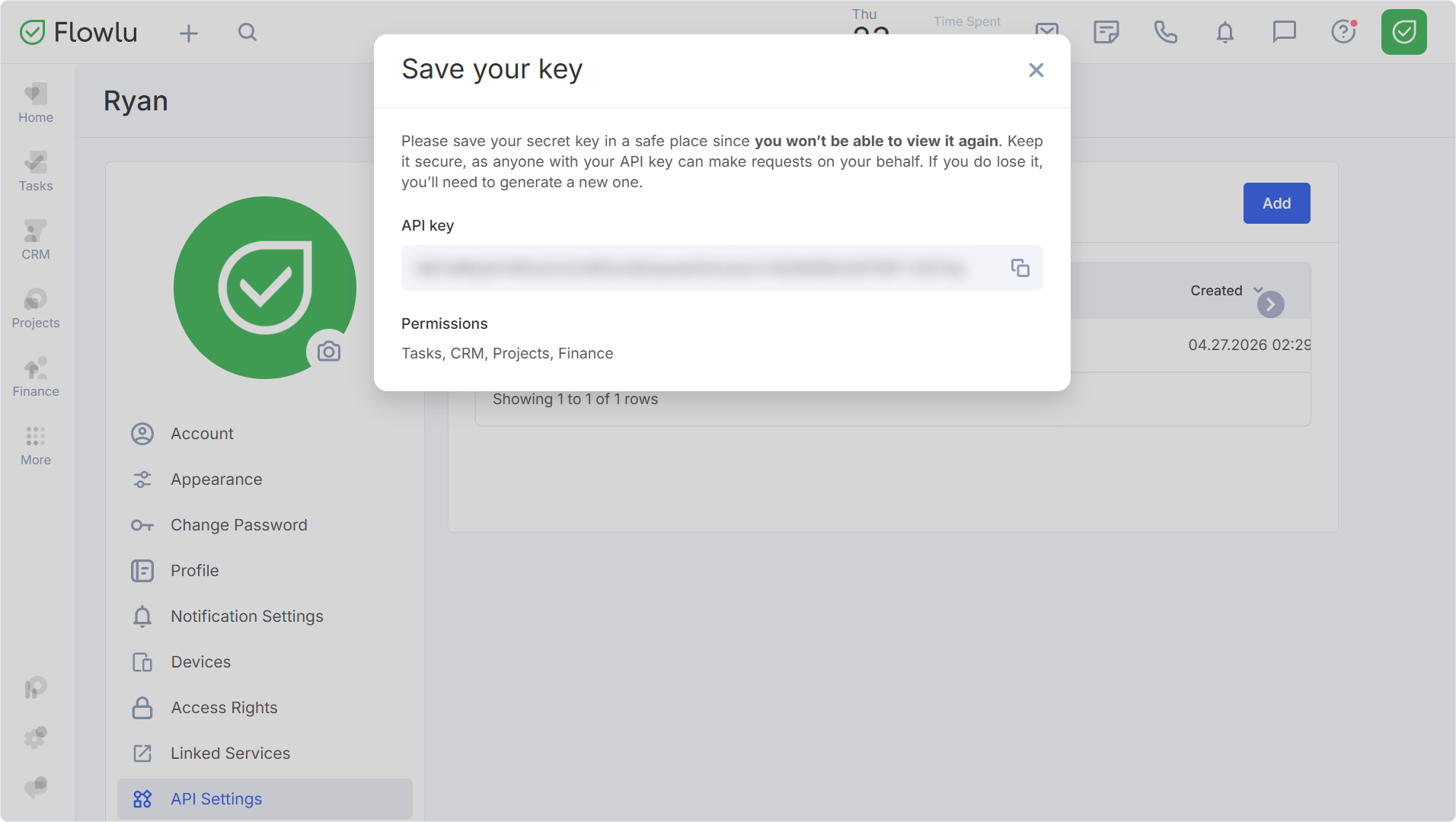
Note: You won't be able to view the API key again.
To configure MCP, you will also need the account code, which you can find in your browser's address bar. For example, if your address bar shows https://mycompany.flowlu.com, your account code is mycompany.
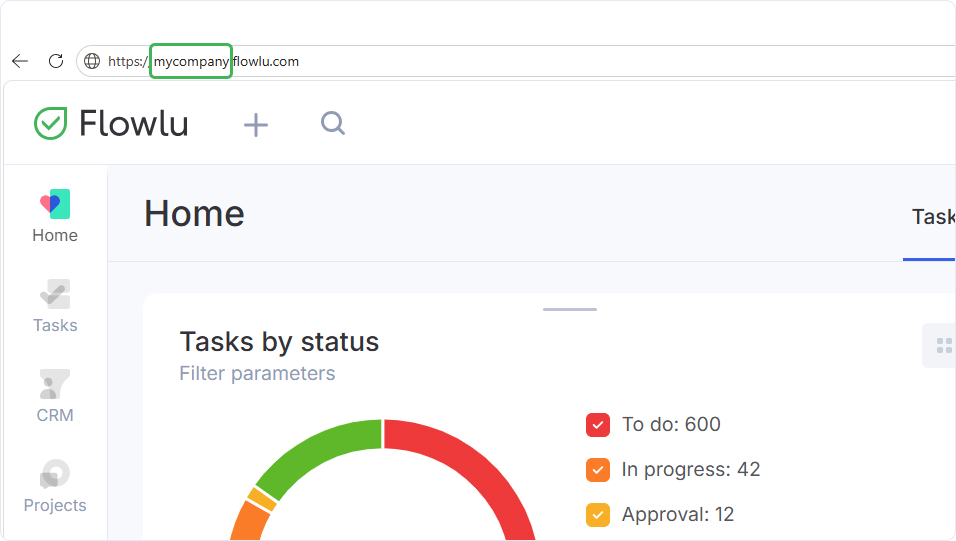
After that, you can add the Flowlu MCP configuration to your AI tool's settings. Paste your API key and account code in the configuration.
{
  "mcpServers": {
    "flowlu": {
      "url": "https://mcp.flowlu.com/mcp",
      "headers": {
        "x-account-code": "<your-account-code>",
        "Authorization": "Bearer <your-api-key>"
      }
    }
  }
}
A list of compatible tools and links to the MCP server setup documentation are provided below.
Compatible AI Tools
Flowlu MCP relies on static header authorization, a commonly supported approach. The following AI tools are ready to use without additional configuration.
| Tool | Company | Type |
| Claude Desktop | Anthropic | Desktop App |
| Claude Code | Anthropic | CLI |
| Cursor | Anysphere | AI Code Editor |
| Windsurf | Codeium | AI Code Editor |
| Codex | OpenAI | CLI + IDE Extension |
| VS Code Copilot | Microsoft | IDE Extension (v1.101+) |
| Continue | Open source | IDE Extension |
| Cline | Open source | IDE Extension |
Note: To connect to certain tools, you may also need to install Node.js on your computer.
FAQ
What happens if the AI makes a mistake?
Every create and update action goes through a preview step first. The AI presents what it's about to write, and nothing happens until you confirm. If something looks wrong, you simply don't confirm and correct the prompt instead.
Does this work with Claude on the web (claude.ai)?
Not currently. The web version of Claude does not support MCP connections. You'll need Claude Desktop (the app) or Claude Code (CLI). Cursor, Windsurf, VS Code Copilot, and other listed clients all work as well.
Are there rate limits?
The MCP server works through the Flowlu API, so standard API rate limits apply. For typical usage (creating records, running queries, pulling reports) you're unlikely to hit them.
Can I use MCP and the Flowlu web interface at the same time?
Yes. The MCP connection doesn't lock anything. You can have the Flowlu interface open in your browser while your AI assistant works through MCP. Changes made through either channel show up immediately.
Will MCP work with ChatGPT?
MCP works with any AI client that supports the protocol. As of now, the tested clients include Claude Desktop, Claude Code, Cursor, Windsurf, VS Code Copilot, Codex (OpenAI), Continue, and Cline. If ChatGPT or other tools add MCP support, Flowlu's server will work with them automatically.
If you have any issues or concerns, please contact our customer support via in-app chat or email us at [email protected]
