
Timesheets
Timesheets are available starting with Advanced plan.
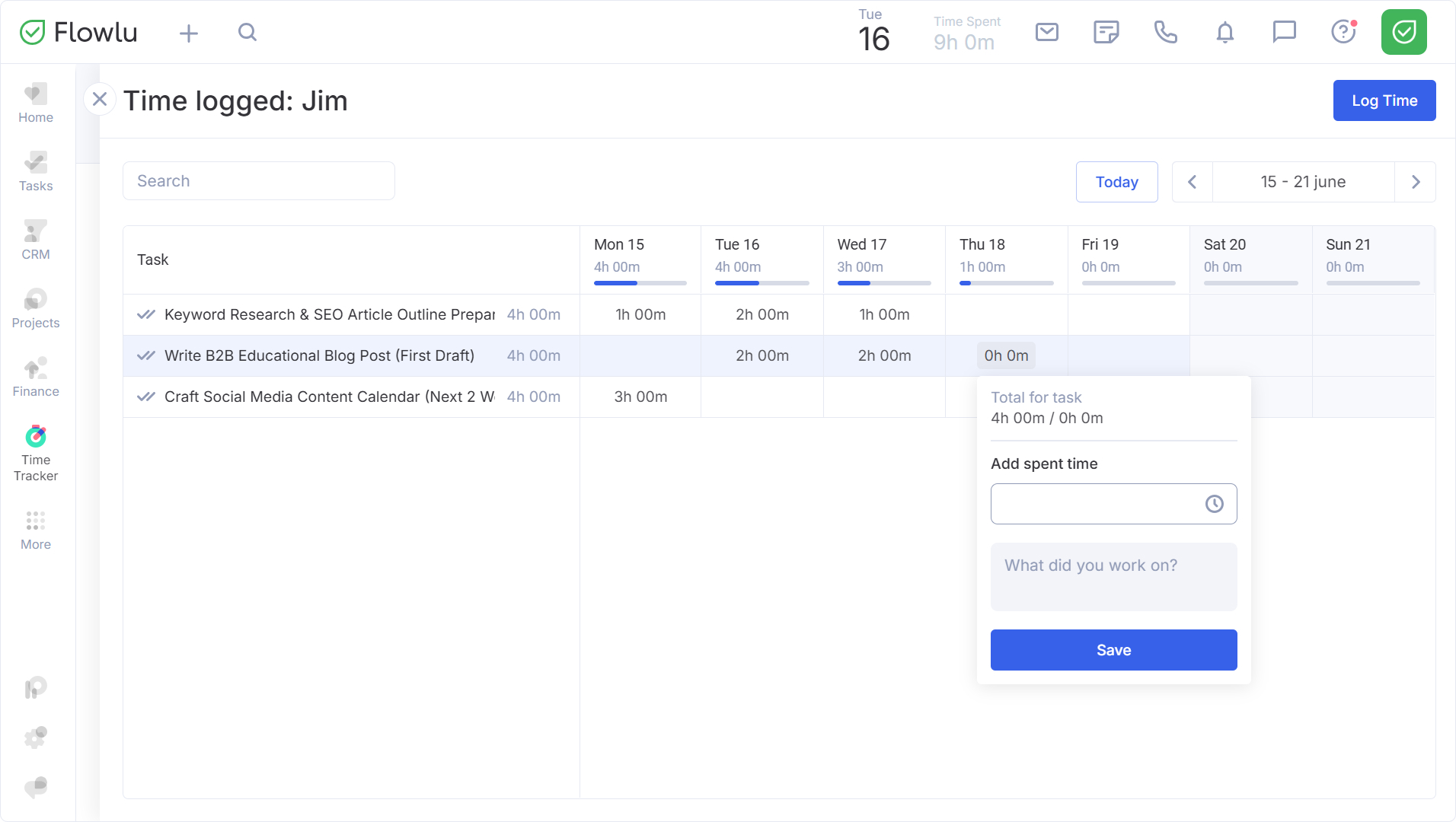
Timesheets gives you a weekly calendar view of time logged on tasks. Track task execution, spot overtime and undertime, and analyze individual performance at a glance.
You can also log time spent on tasks directly within the module.
Access Rights
Access rights are inherited from the Time Tracker module, which features three levels of access:
- Employee: only sees the My Time tab.
- Manager: can see all time logs and their relations to tasks.
- Administrator: has full access to the module.
How to Find Timesheets
To open Timesheets, select the Time Tracker module from the side menu and go to the Timesheets section.
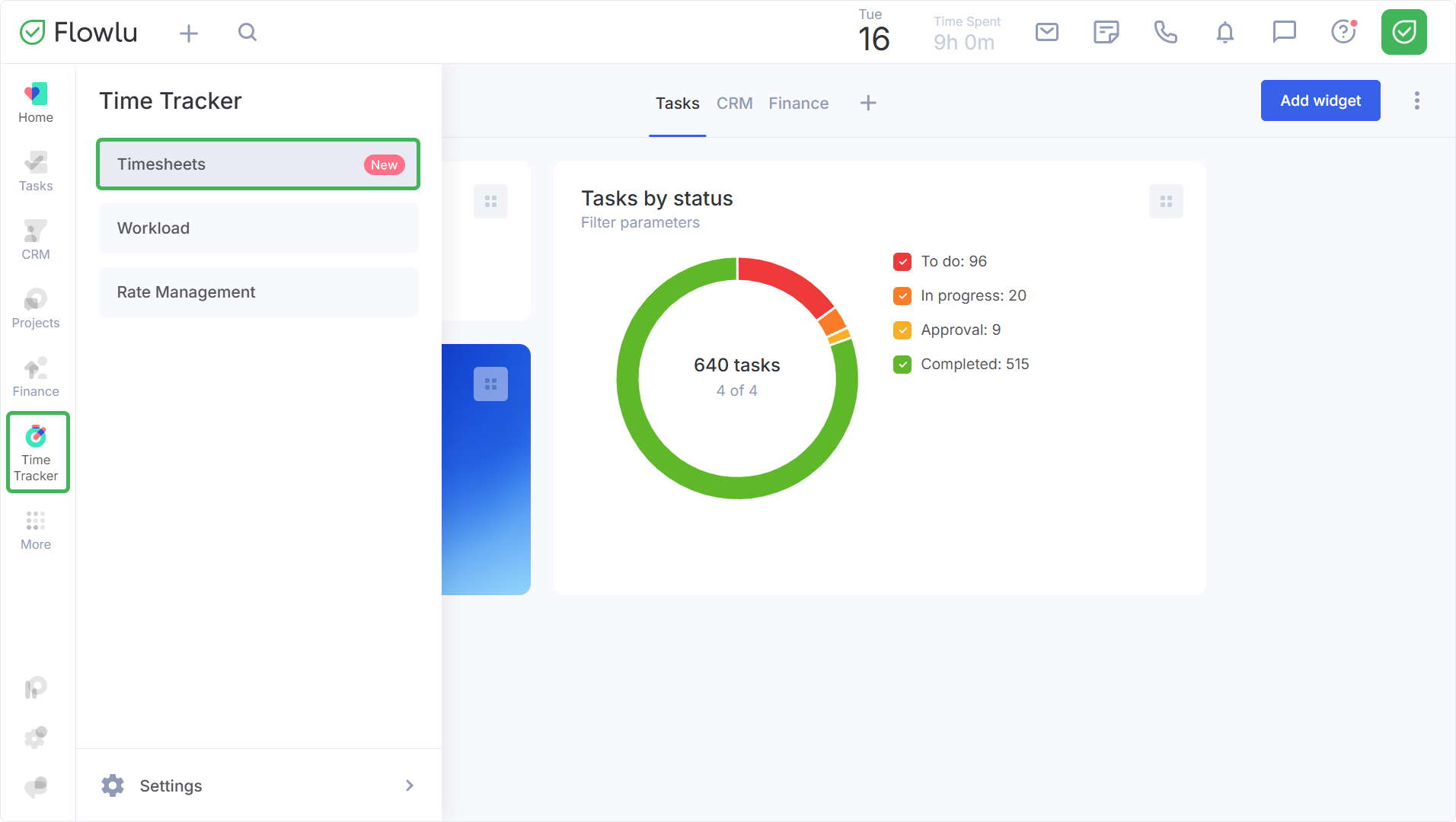
After navigating to Timesheets, three tabs are available:
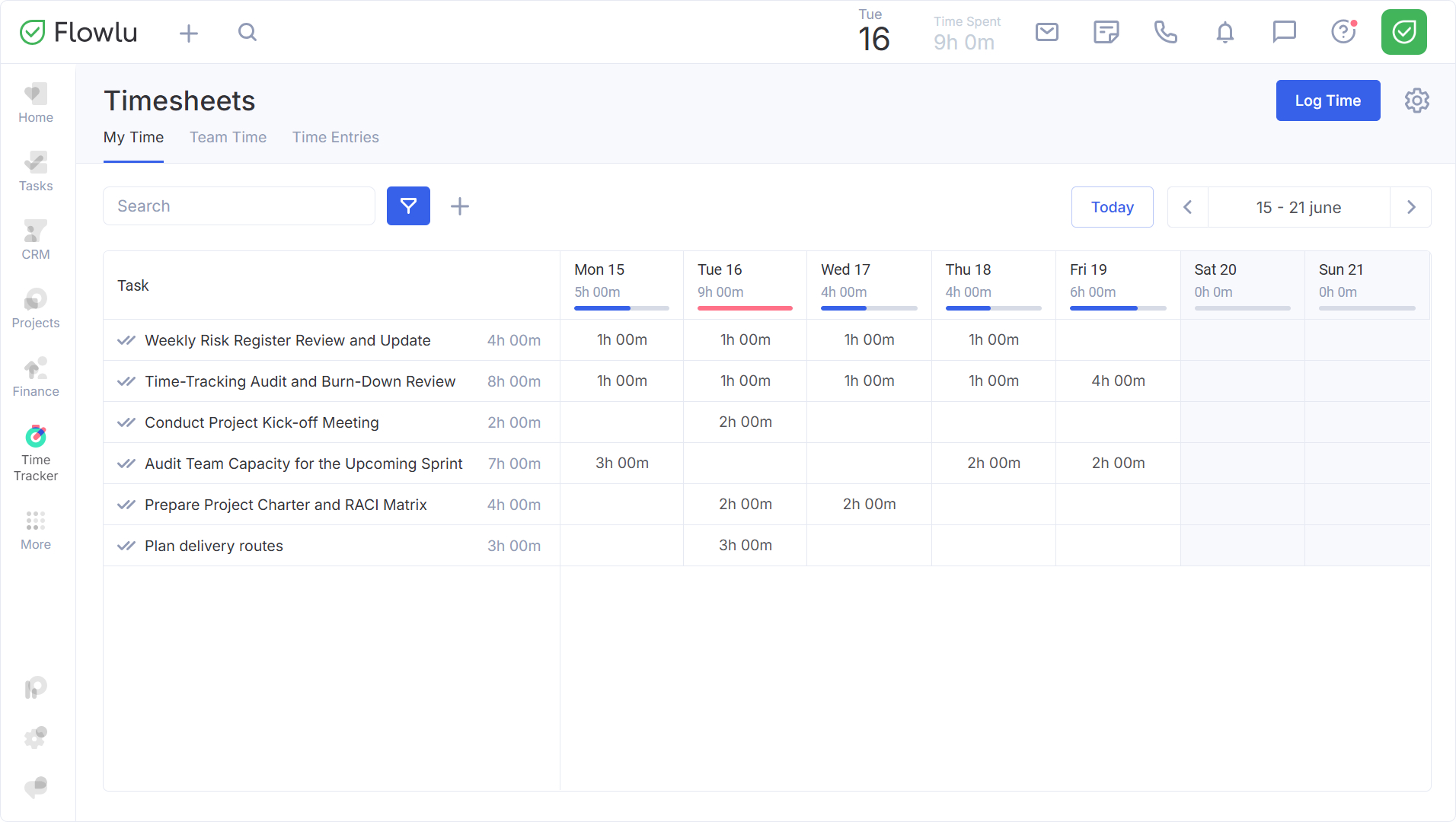
- My Time — your weekly calendar view of tasks and time entries.
- Team Time — a calendar display of the time spent by the entire company for the week.
- Time Entries — a complete list of all entries made.
My Time
The My Time tab gives you a weekly calendar view of your tasks and time entries for the current week.
There are two ways to log time:
- Inline — click any cell in the calendar to enter time directly on the task.
- Manually — click Log Time in the top right corner to open the entry form and fill in the task, time, date, and description.
Team Time
Team Time can only be viewed by Managers and Administrators of the Time Tracker module. You can read more about setting up access rights for the module here.
Entries are grouped by the following parameters:
- By assignee — the employee responsible for the task.
- By user — the author of the time entry.
To change the grouping, click on the slider icon to the left of the gear icon.
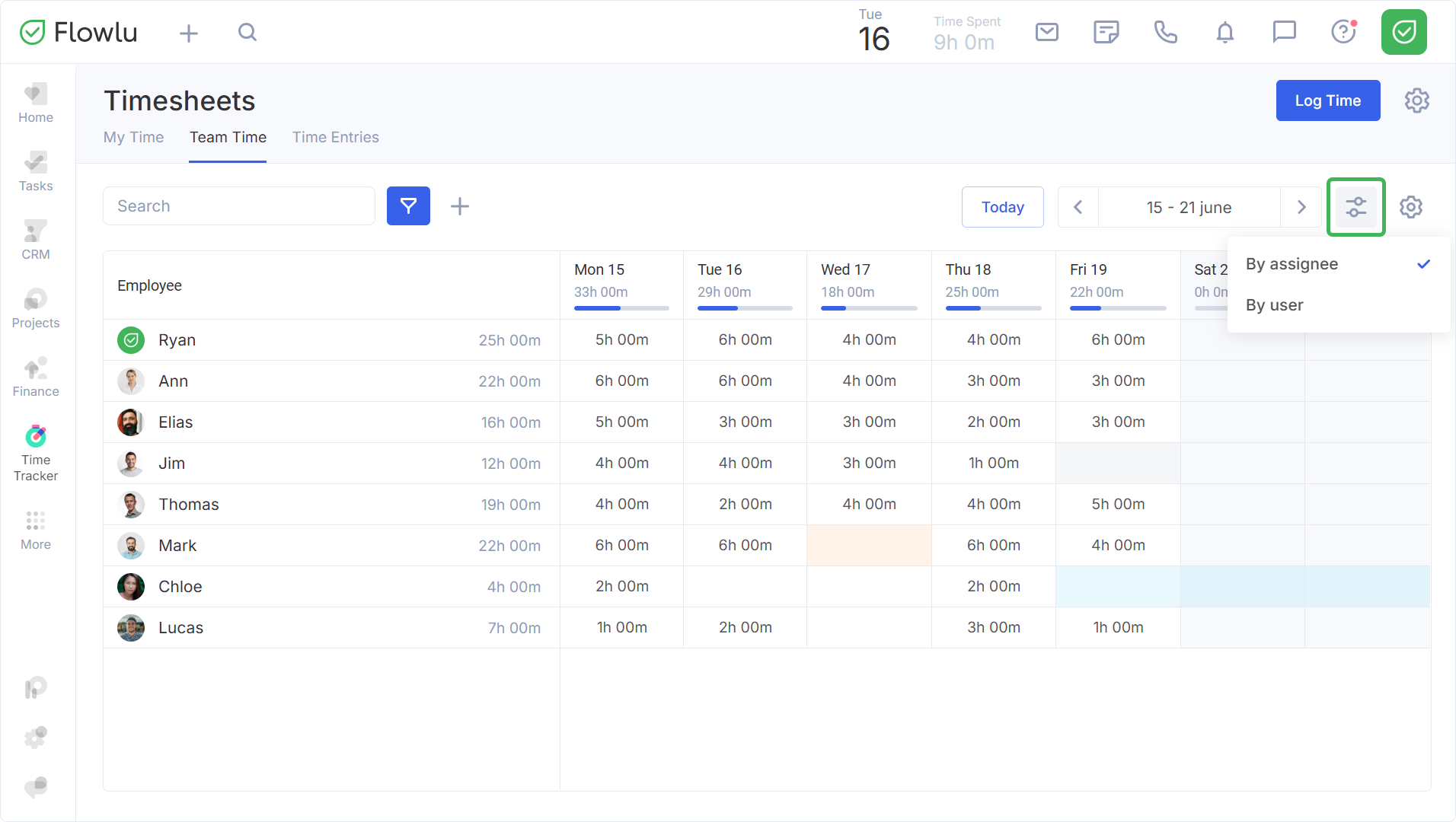
Team Time shows the time spent for the week and, similar to the team workload report, highlights overloads with color coding.
To the right of the employee, the total time spent for the week is displayed. In the table header, you can see the team's total time for the day and a progress indicator.
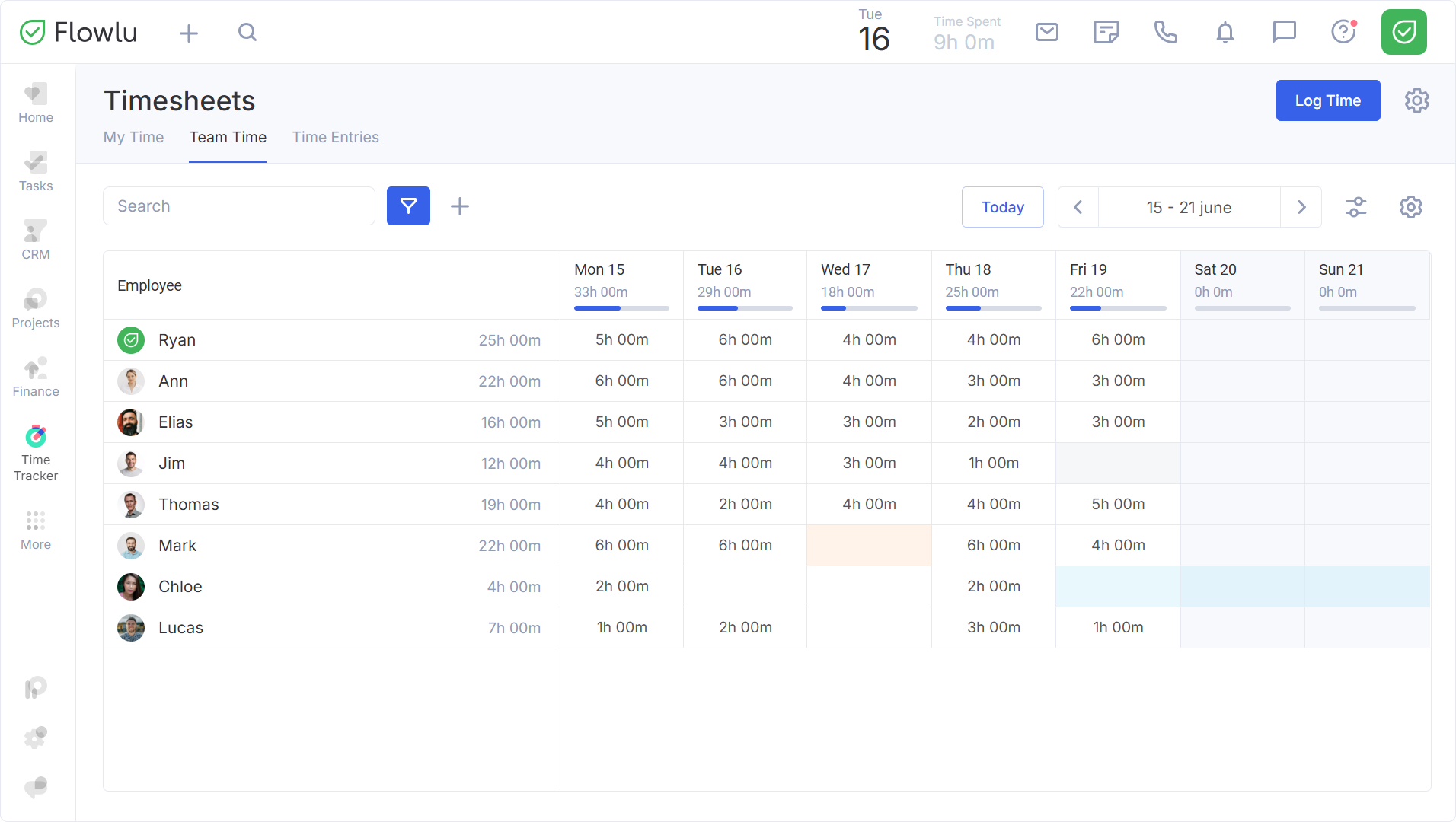
Important: The working time norm is calculated only for employees who have made entries for the selected day. If an employee has no entries, their norm is not included in the calculation. For the norm to be calculated across the entire team, every employee must submit a time entry, including a zero-hour entry if they did not work.
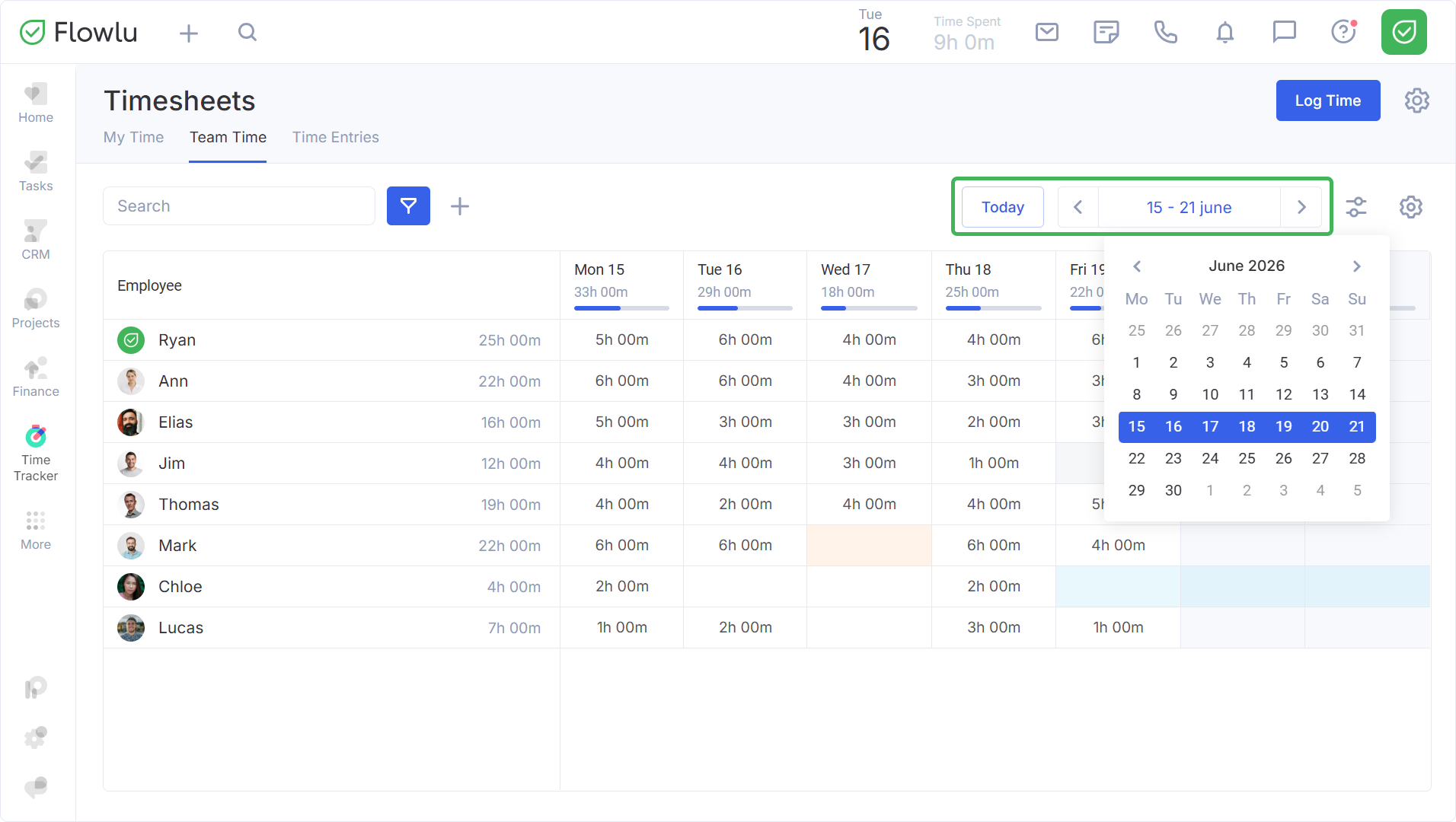
To navigate to the desired week, use the arrows above the table or click on the date to open the calendar. To return to the current date, click Today.
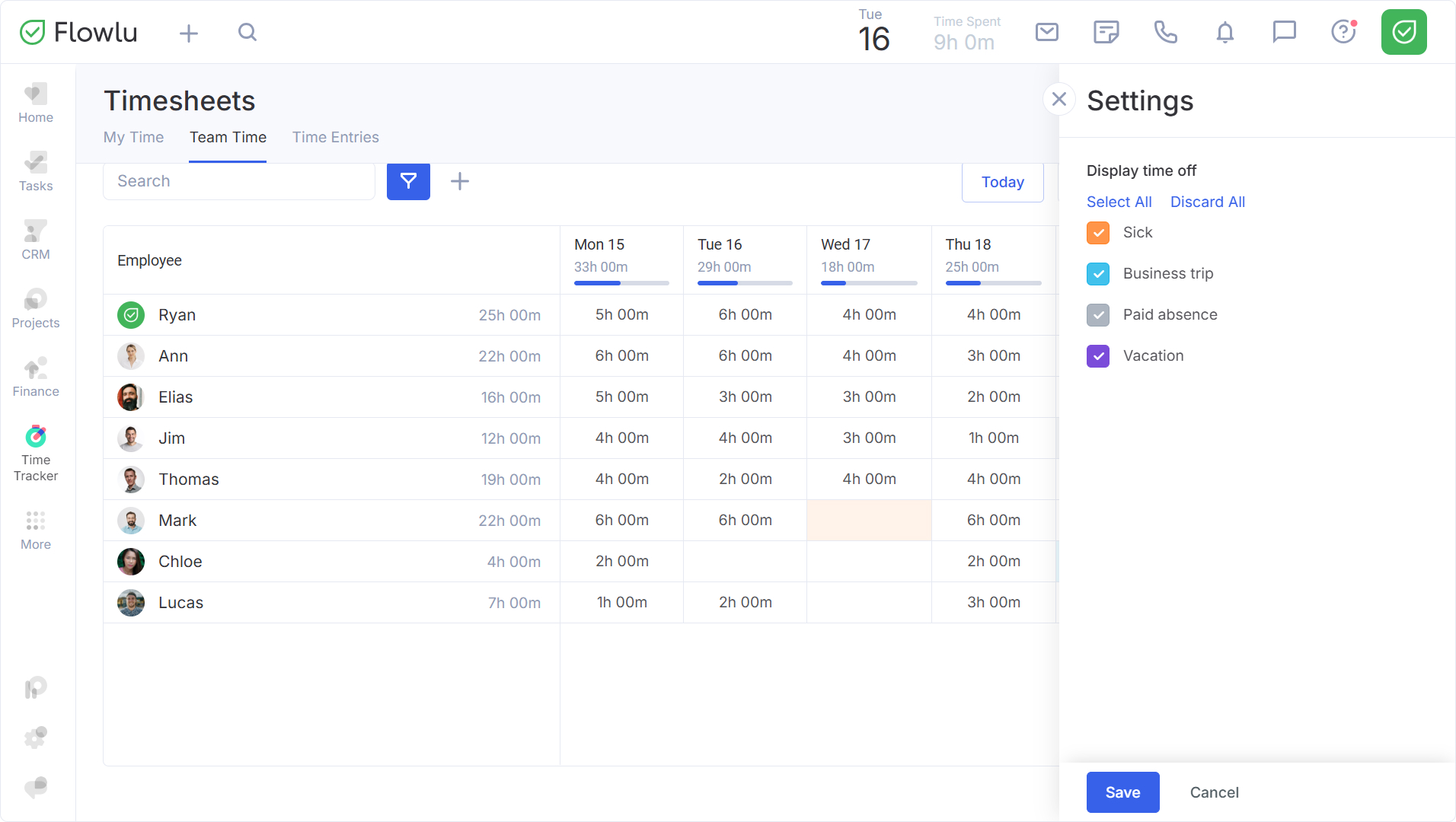
You can configure the display of employee absences in the table. To do this, click on the gear icon and select the types of absences you want to see.
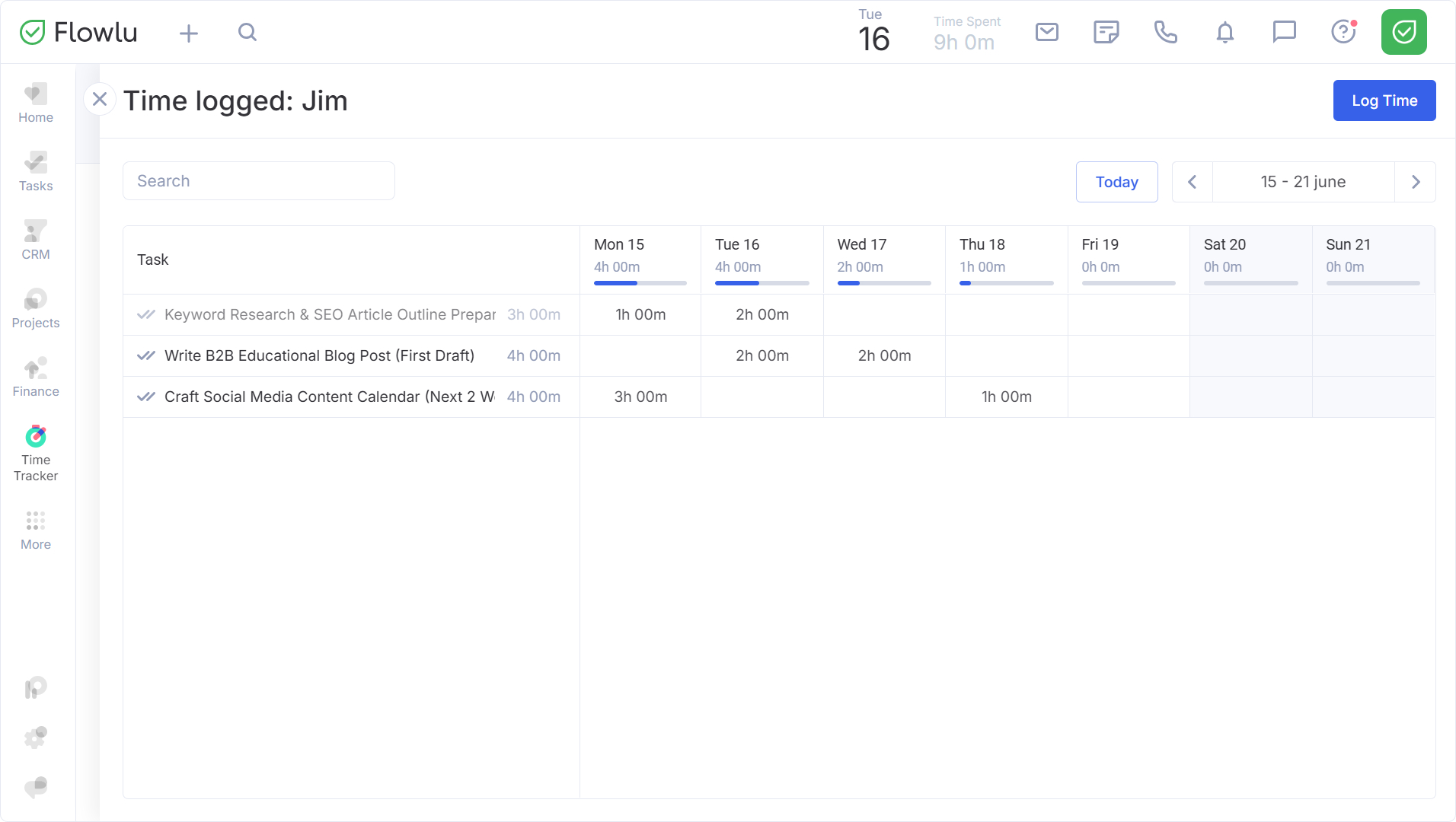
To view data for a specific employee, click on their row. The selected employee's sheet will open. The table will display:
- tasks in progress;
- completed tasks;
- tasks scheduled for this period;
- tasks where the user has logged time.
Completed tasks are highlighted in gray. To the right of the tasks, the total time spent on each task is indicated, and the header shows the total hours for the day and a progress indicator.
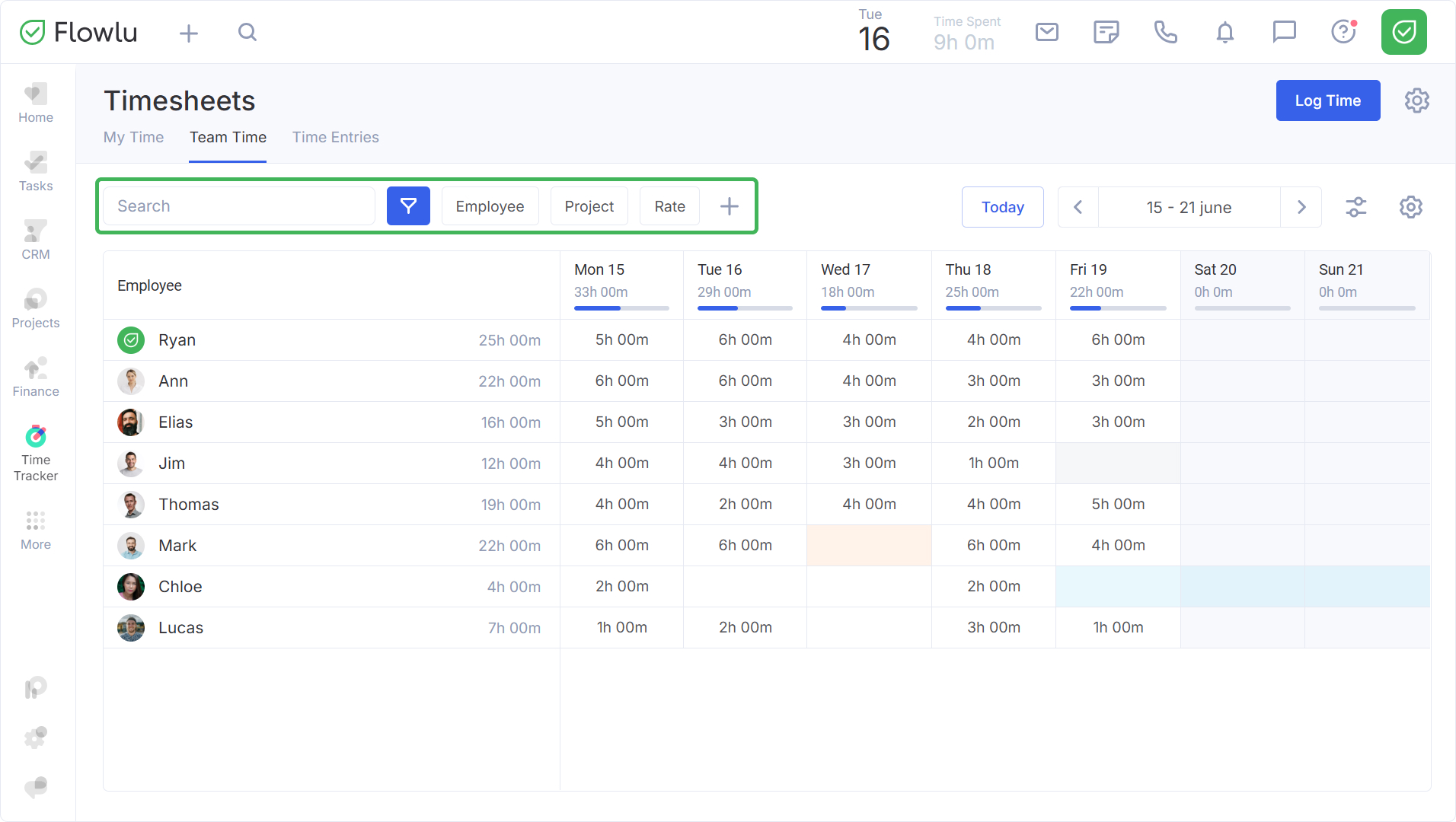
You can filter entries by employee, project, rate, and other parameters. The more fields you fill in, the more precise the results
Adding New Entries
Administrators and managers of the Time Tracker module can create new time entries for employees. There are two methods available directly within the module.
Method 1
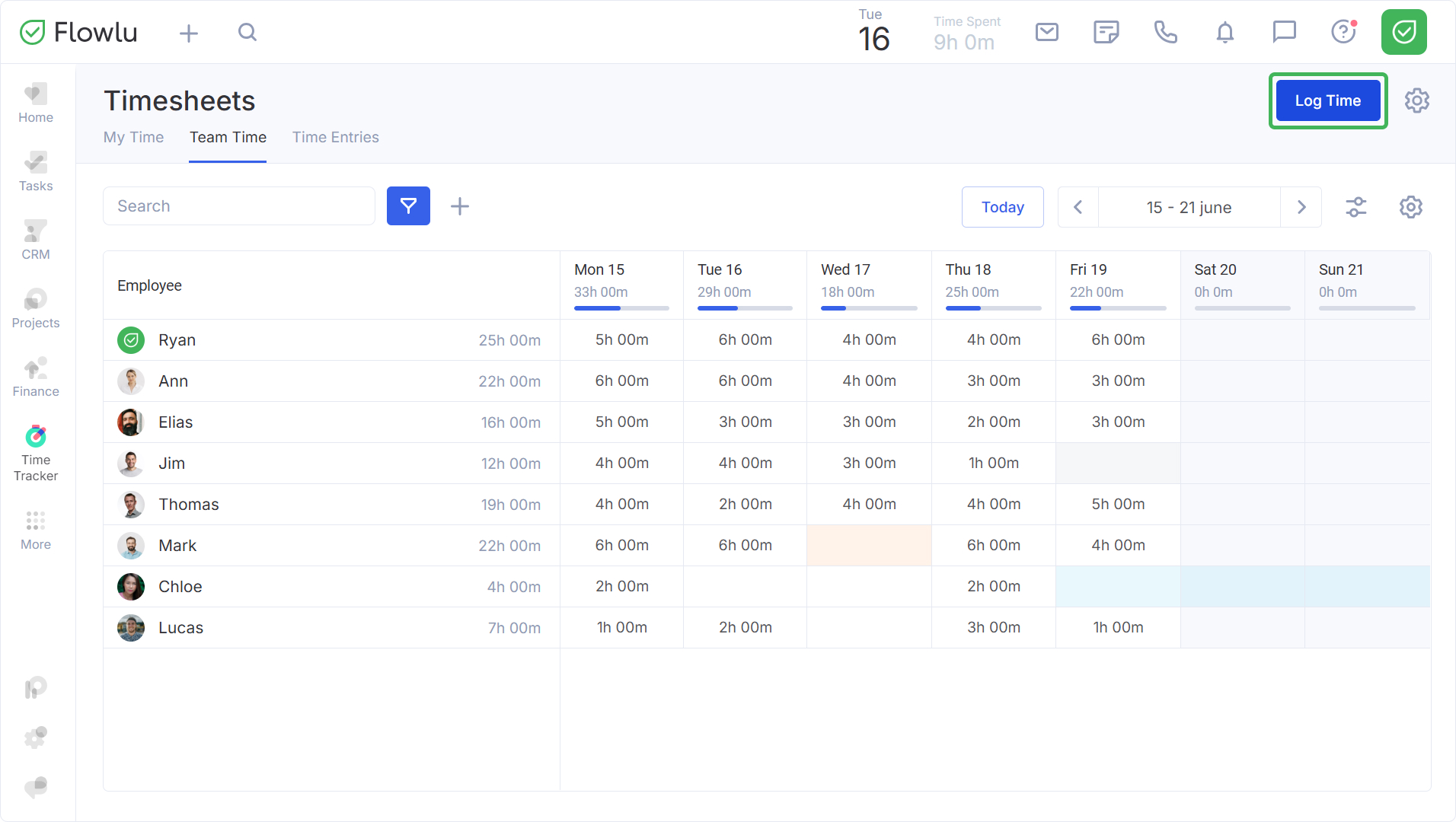
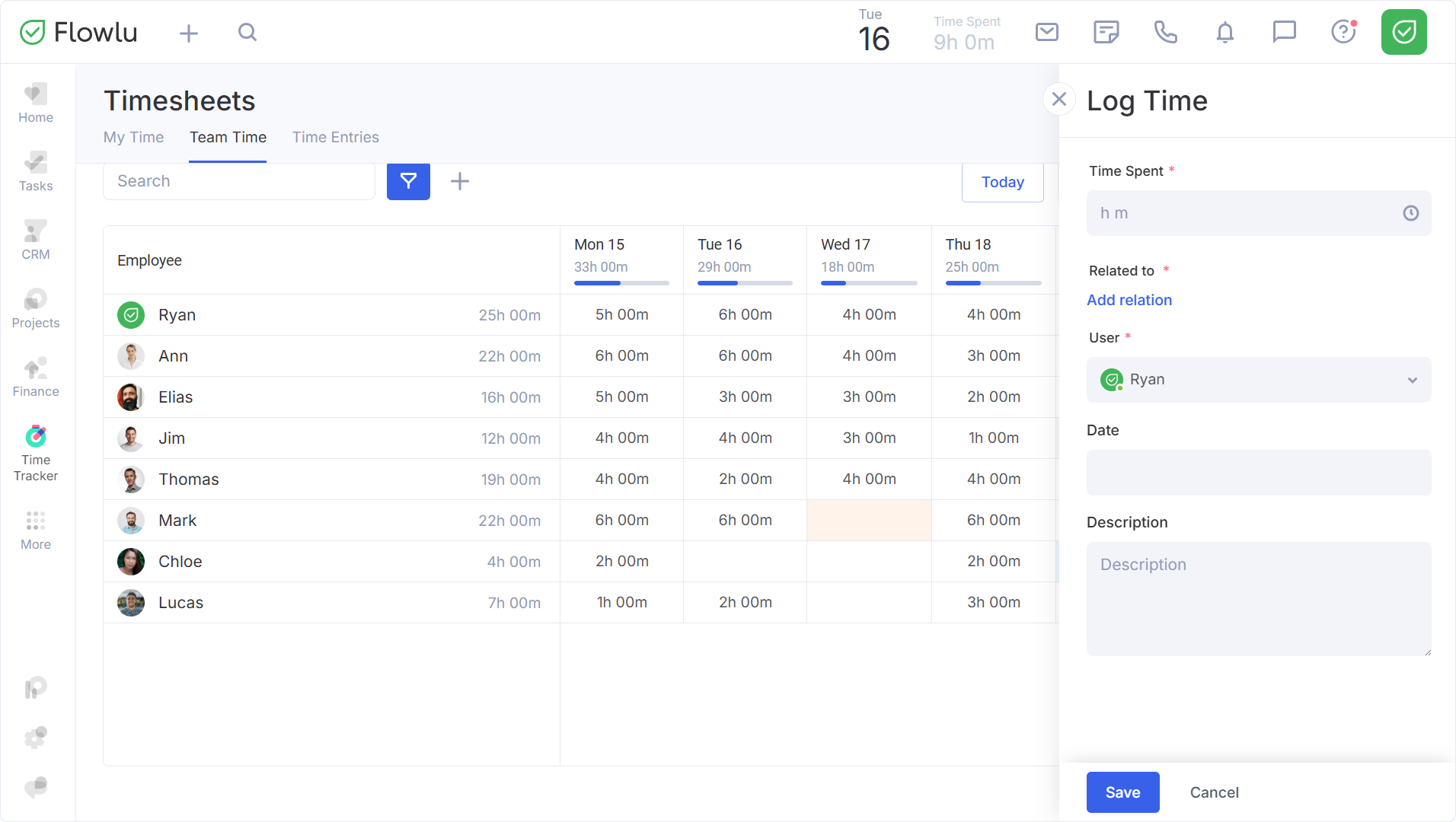
Click Log Time in the upper right corner. Specify the time spent, add a related task, and select the user. If necessary, set the date of the entry and add a description.
Method 2
Click on the row of the employee for whom you want to add an entry to open their sheet. Here, you can also click Log Time — in this case, the User field will be automatically populated with the employee you are creating the entry for. Alternatively, click on any cell in the employee's row and enter the time spent. The new entry will immediately appear in Team Time.