
How to Connect Telegram
The Telegram integration within the Communications module allows you to manage all chats inside your Flowlu account.
Key Features:
- Unified inbox: Manage all Telegram chats in a single place.
- Outbound messaging: Start conversations with clients without waiting for an incoming message.
- Automated sending: Send messages automatically using sales pipeline automation.
- Multi-account support: Work with multiple Telegram accounts simultaneously.
Install Telegram
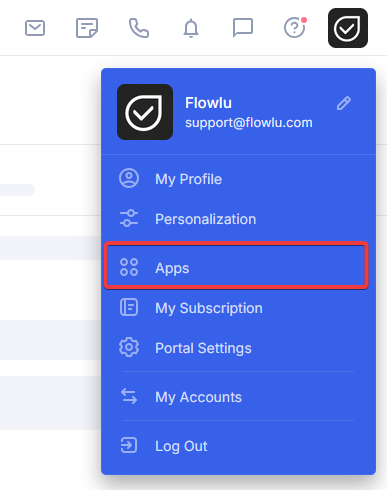
To install Telegram, you need to add the application to your account. Click your profile picture in the top-right corner and select Apps.
Note: in order to install apps you need Administrator access to Apps module. Access to different Flowlu modules can be changed by account administrator.
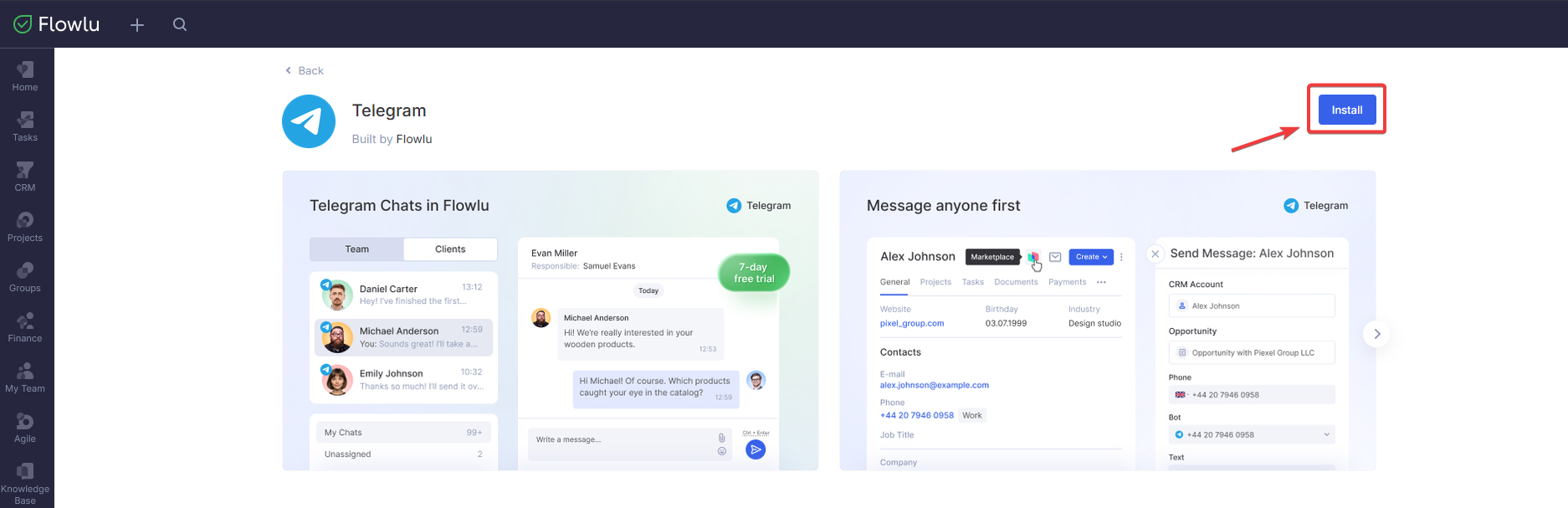
Go to Messaging category and select Telegram. Inside the app card, click Install.
Telegram requires Communications module is installed on your account. If it is not installed, go to Apps and install it first.
The application will request access to the following data:
- Communications module: Read, add, edit, and delete chats.
- User information: Read, add, edit, and delete current user data.
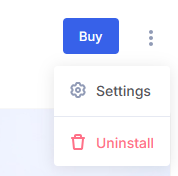
Once installed, open the application settings by clicking the three-dot button in the top-right corner.
In Roles and Permissions grant access to Telegram for specific User Roles. To configure access individually for each user, use the User Access Settings tab.
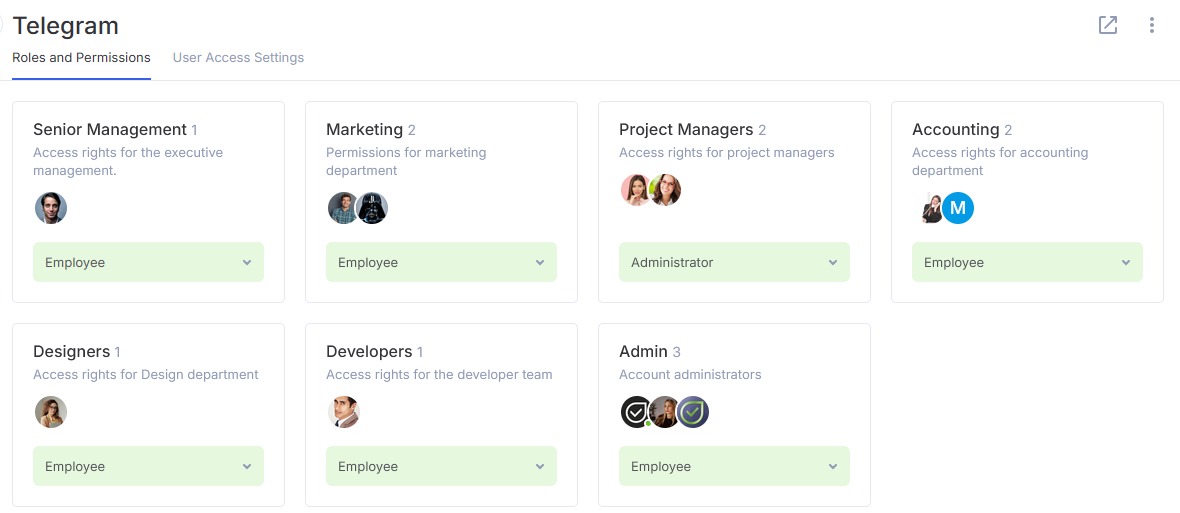
If you do not grant access to other employees, only the user who installed Telegram will have access to the app.
Connect your Telegram account
In the left sidebar, click on Communications icon
If you don't see the icon, click More to expand the list of installed apps.
In Communications, click Connect. In the opened list of available apps, select Telegram
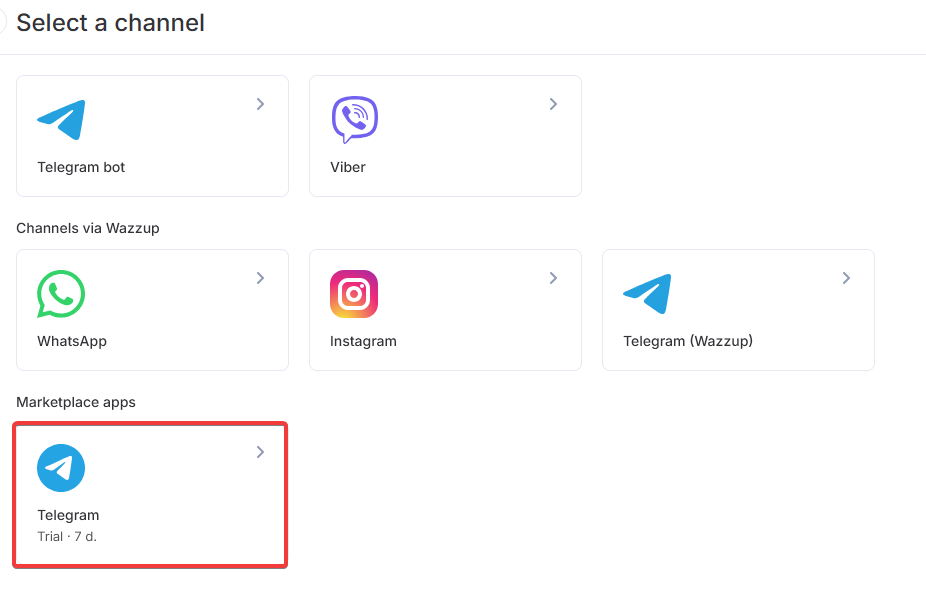
Create a name for this Telegram connection, such as Client Chats or Direct Messages.
A notification confirming the creation will appear, along with a QR code for connecting your Telegram account.
To scan the QR code using your mobile Telegram app, go to Settings → Devices → Add Device.
After a successful connection, you can change the following settings:
- Name
- Manager queue
- Sales pipeline
- Deal source
Working with Telegram in Flowlu
Once the account is connected, you can receive all Telegram messages inside Flowlu messenger under the Clients tab.
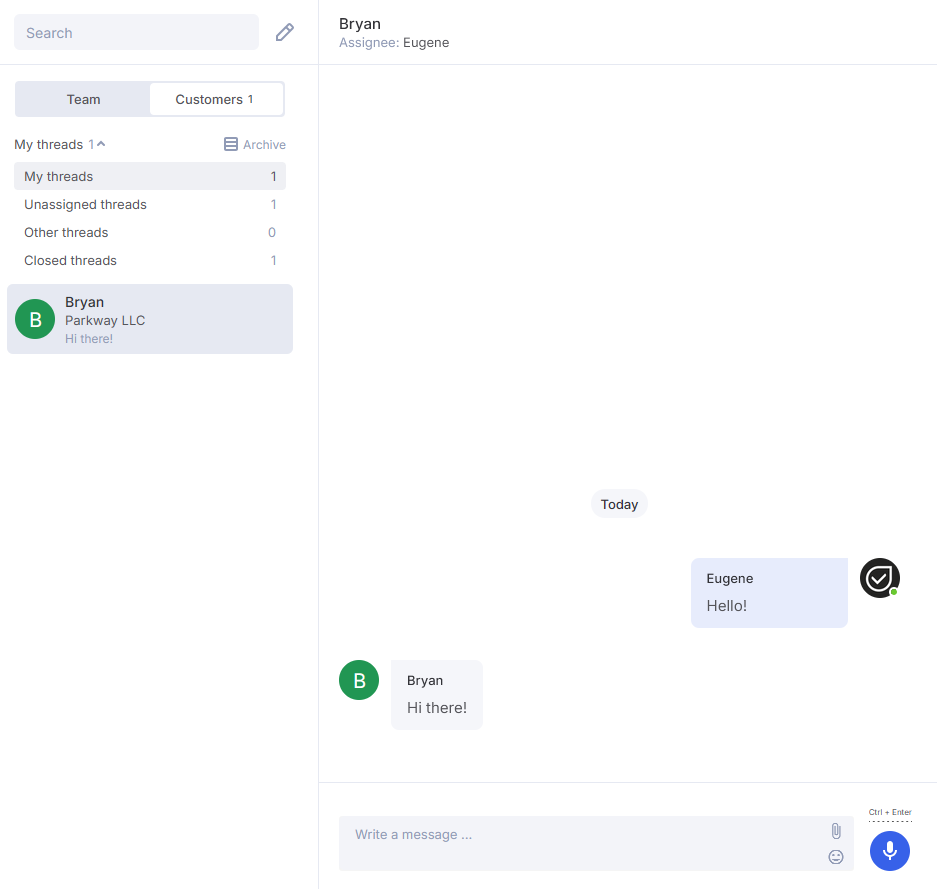
To send a message to a contact in Telegram via Flowlu, click the pen icon located to the right of the search bar.

A New message form will open. Enter the recipient's phone number, select the connected messenger, and compose your message. You can also choose whether to create a new Opportunity or CRM account from this contact.
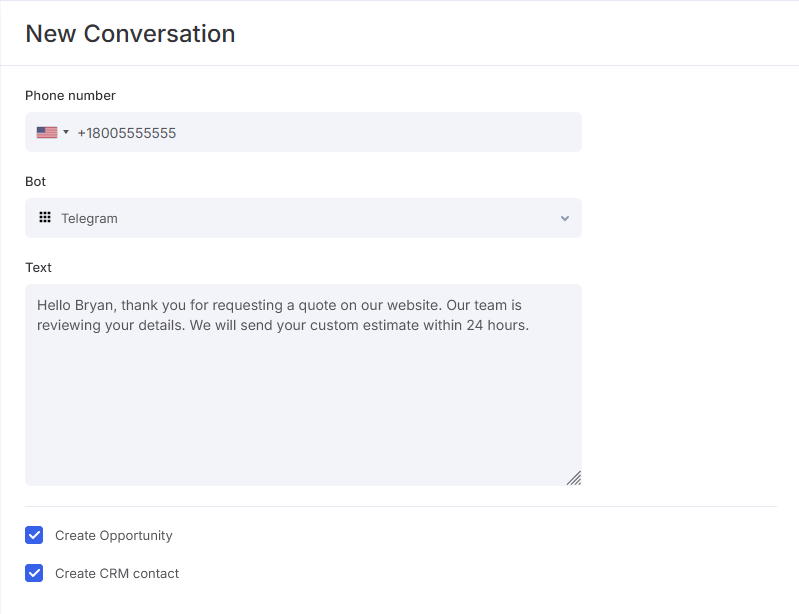
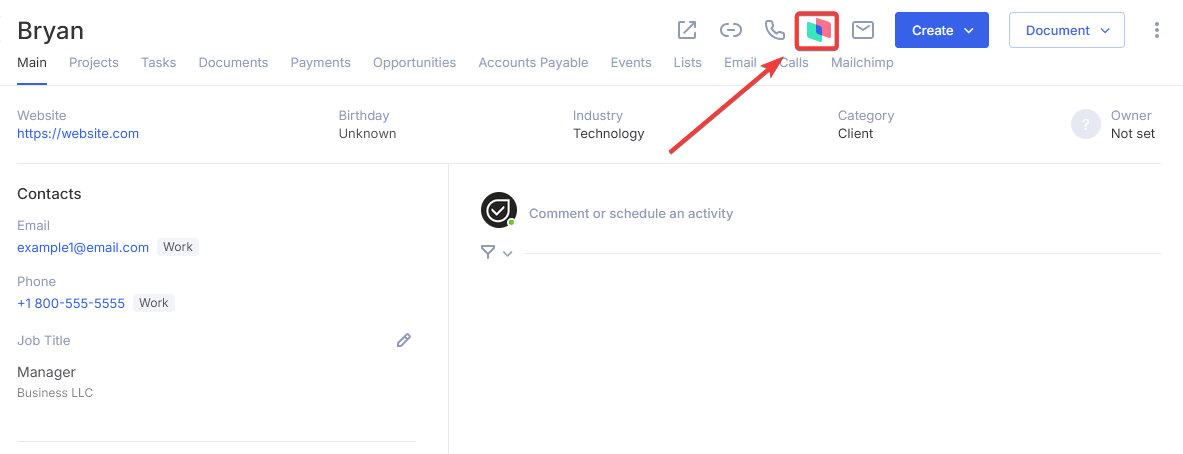
If a phone number is specified in the CRM account profile, you can send a message to this contact in Telegram via Flowlu. To do this, click the marketplace icon in the upper menu of the account profile.
If you disable Telegram integration, you won't be able to send or receive messages in Flowlu.
Automations in Telegram
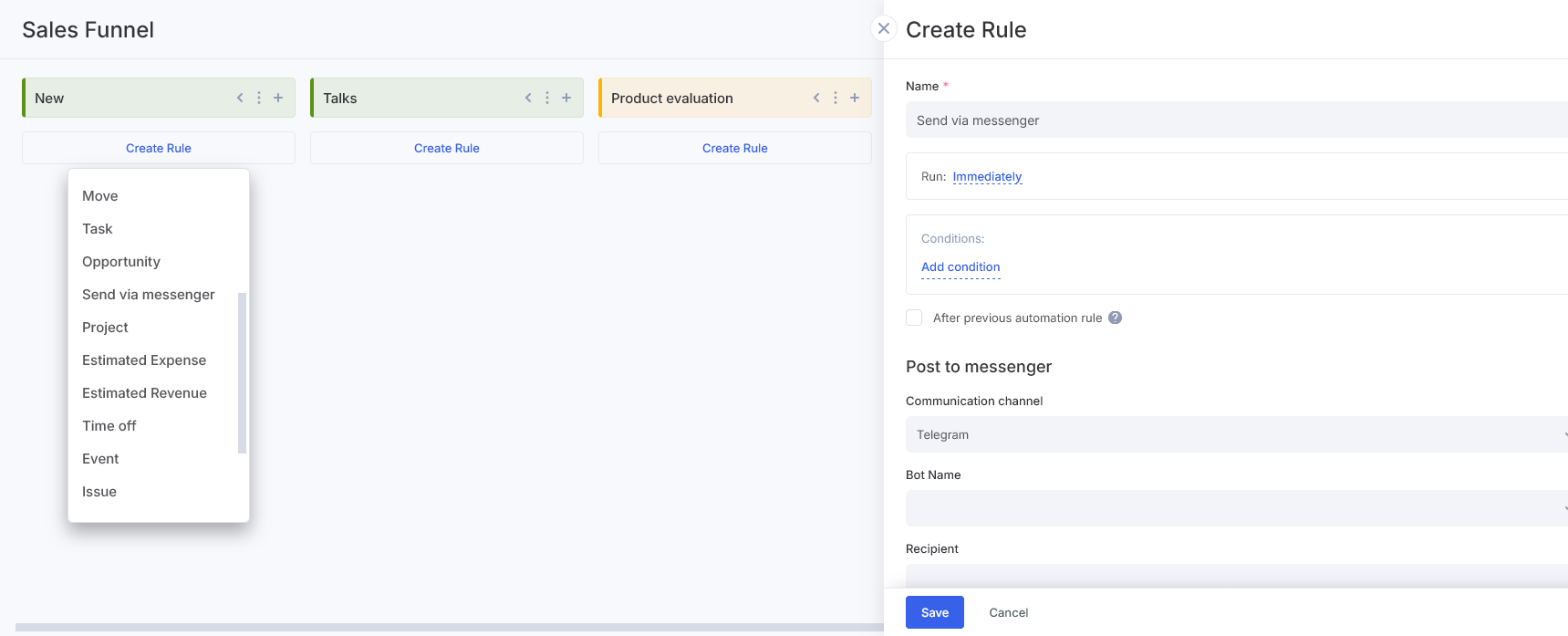
You can automate message delivery using Automation rules.
Navigate to the desired sales pipeline in CRM and open Automation. Click Create rule and select Send via Messenger. In the pop-up window, specify the trigger conditions and fill out the required fields.