

Project Knowledge Base
Each project can have its own knowledge base: SOPs, technical specifications, meeting notes, and team guidelines. These are full-featured articles complete with headers, nested hierarchy, version history, comments, and file attachments. They all can be contained directly within the project and accessible only to its team.
Where to Find It
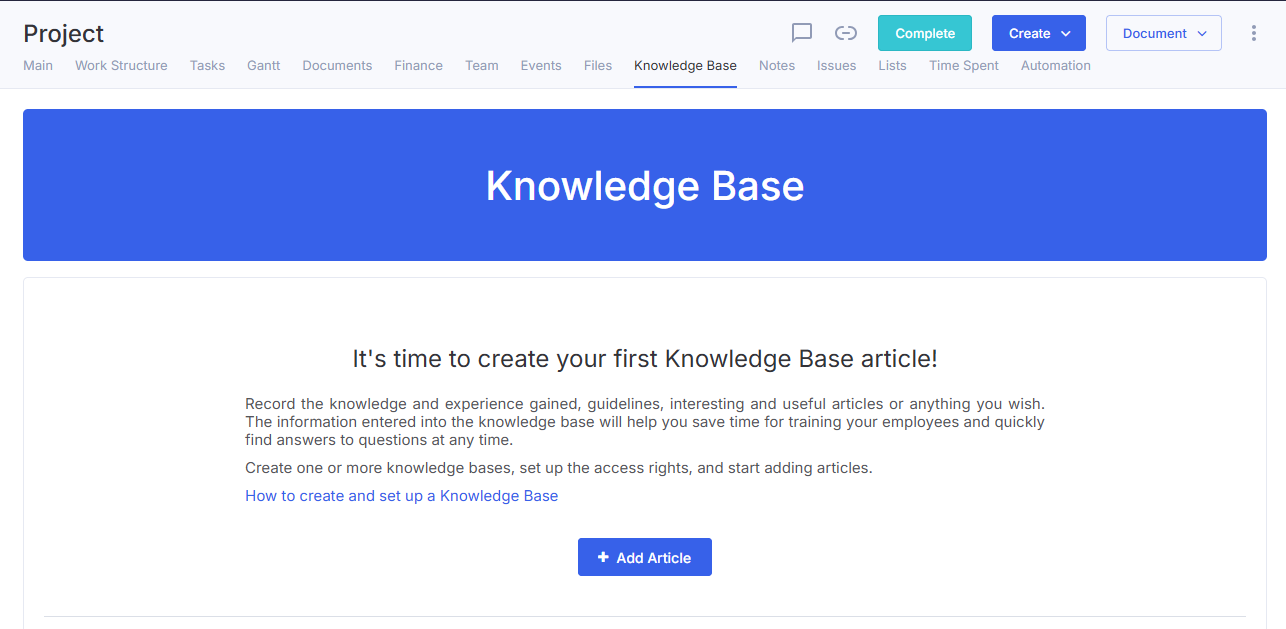
Open a project → click the Knowledge Base tab.
All knowledge bases across your projects are also aggregated in the Knowledge Base module under a separate Project Knowledge Bases tab. This tab appears as soon as there is at least one project knowledge base in your account. Knowledge bases from archived projects appear at the bottom of the list.
Getting Started
A project knowledge base is created automatically when you create your first article in the project:
- Open the project → click the Knowledge Base tab.
- Click Add Article.
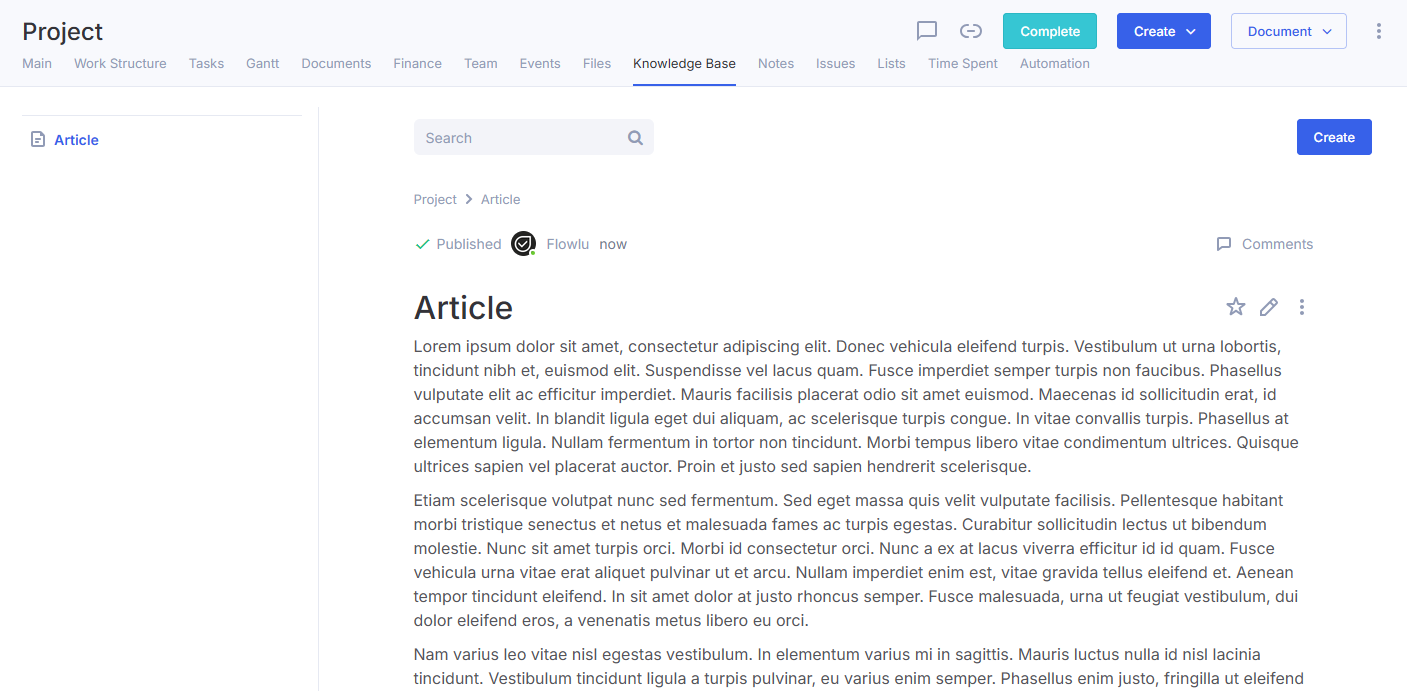
- Write your article and save it.
As long as a project has no articles, the knowledge base does not exist—the tab will show a quick prompt with Add Article button. If you close the editor without saving the article, the knowledge base will not be created.
The name of the knowledge base matches the project's name and updates automatically if the project is renamed.
Permissions and Visibility
Access to a project's knowledge base is determined by project roles—no manual permission setup is required. Whenever the project team, manager, or assistant changes, access rights update automatically.
Role | Permissions in Project Knowledge Base |
|---|---|
Projects Module Administrator | Full access across all project knowledge bases |
Project Manager, Manager Assistant | Full access: create, edit, move, and delete articles |
Project Team Member | Create and edit articles |
No role in the project | No access (cannot see the knowledge base) |
External Users (Client Portal) | No access (cannot see the knowledge base) |
To access the tab, users must also have access to the main Knowledge Base module (role must not be set to No Access)
Article Features
You can manage articles just like in a standard knowledge base:
- Create articles and nest them into a hierarchy (parent article must belong to the same knowledge base)
- Edit articles with full version history retention
- Reorganize articles within the structure tree
- Mark articles as Important (visible to everyone) or Favorite (visible only to you)
- Add comments and attach files
- Assign statuses and tags
- Copy and move articles to other knowledge bases
- Search within the project knowledge base via the main page search bar or within an open article
Standard Knowledge Base vs. Project Knowledge Base
Feature | Standard Knowledge Base | Project Knowledge Base |
|---|---|---|
Name | Custom | Matches project name |
Access Rights | Configured within the KB | Inherited from the project team |
External Publishing, Domain, Branding (CSS, Logo, Banner) | Supported | Not supported |
Article SEO Settings | Supported | Not supported |
Delete Entire Knowledge Base | Supported | Not supported (only individual articles can be deleted) |
Counts Toward Plan KB Limits | Yes | No |
What Happens When Projects Are Renamed, Archived, or Deleted
Action | Impact on Knowledge Base |
|---|---|
Renamed | Knowledge base is renamed automatically alongside the project |
Team, Manager, or Assistant Modified | Access rights update automatically |
Moved to Archive | Knowledge base remains accessible in read-only mode |
Deleted | Knowledge base remains read-only while in the Trash; fully restored if the project is restored |
Duplicated / Copied | The project copy menu includes a "Knowledge Base" checkbox—check it to copy all articles with their full hierarchy into the new project |
Knowledge bases are not transferred when creating a project from a template.
Frequently Asked Questions
I am a project member, but I cannot see the Knowledge Base tab.
Make sure you have access to the main Knowledge Base module. If you have access to the module but still cannot see the tab, this feature might not be included in your current subscription plan.
How does a Project Knowledge Base differ from Project Notes?
Notes are meant for short text entries. A knowledge base contains full articles with sections, nesting, version tracking, comments, and permissions.
Can I grant access to a project knowledge base to someone outside the project team?
No. You must add the person to the project team, as access cannot be granted separately.
How do I delete a project knowledge base?
You cannot delete an entire project knowledge base directly, you can either delete all of its articles individually or delete the project itself.
