

Adding products to Opportunities using Automations
Products can be added to an Opportunity not only manually, but also automatically using automation rules in the sales pipeline. For example, when an Opportunity moves to the Delivery stage, a delivery service can be added to it automatically; or, when a repeat Opportunity is created, all products from the original Opportunity can be transferred to it.
For product automation rules to work, the Products and Services module must be installed.
Enable products in Opportunities option must also be enabled in CRM module settings.
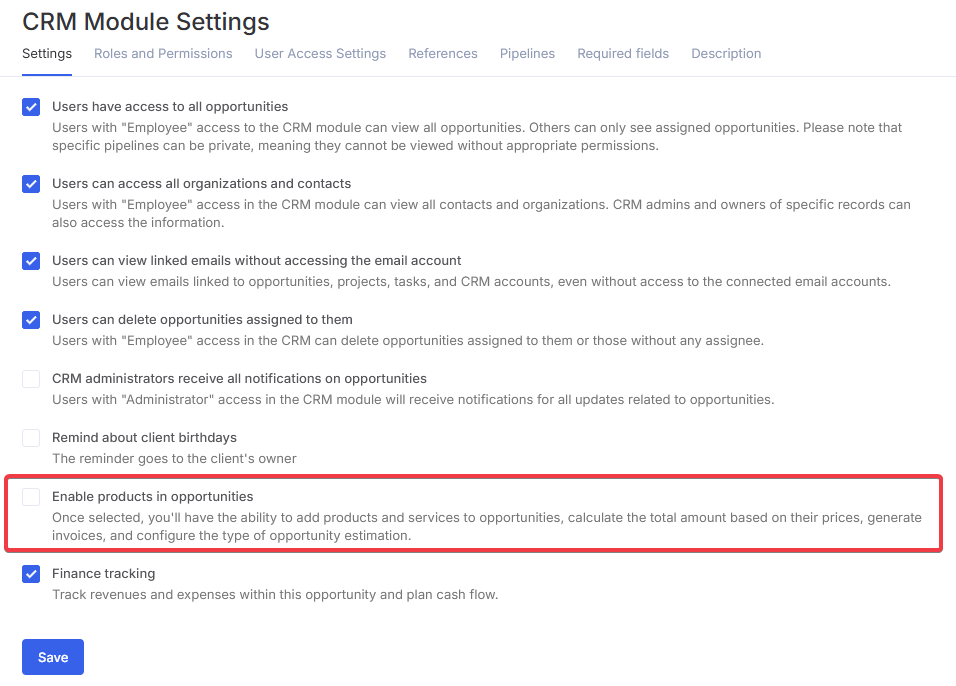
Adding products to an existing Opportunity
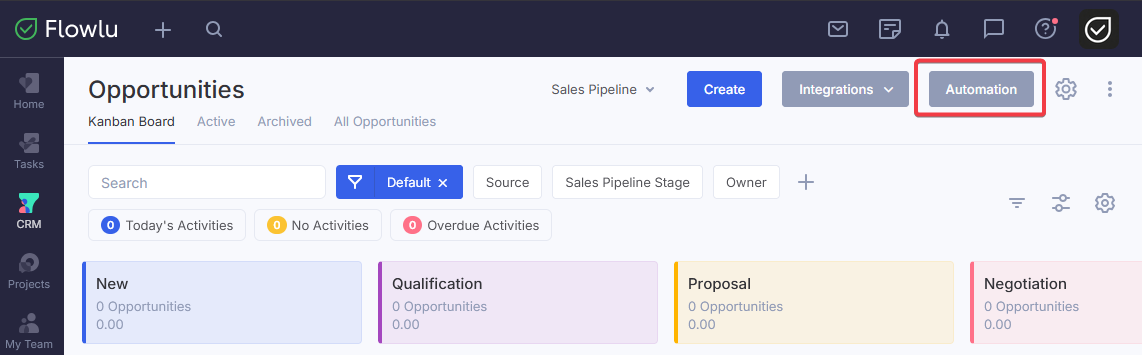
Use the Change field automation rule. To do this, go to the sales pipeline and click Automation rules.
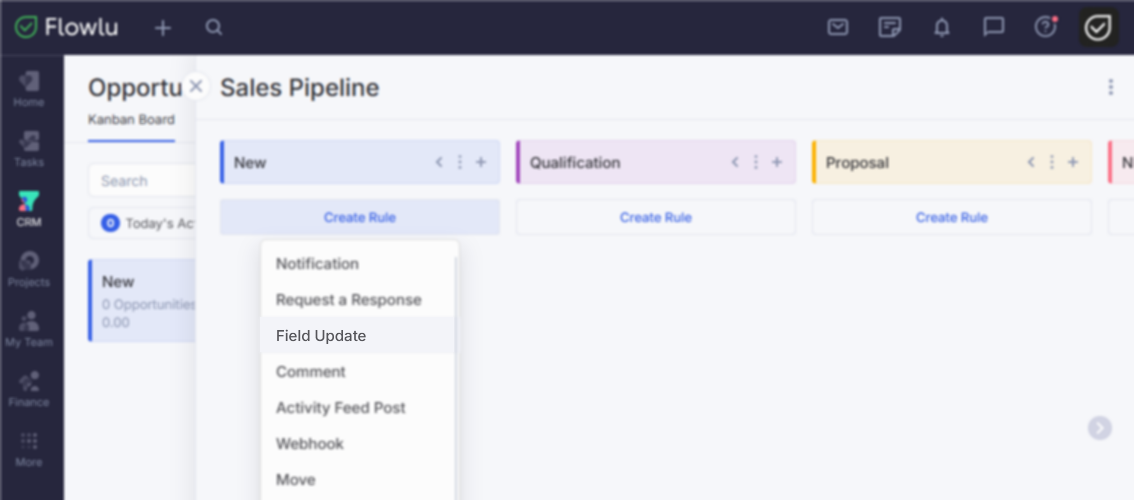
Select the required stage and add an automation rule Field Update.
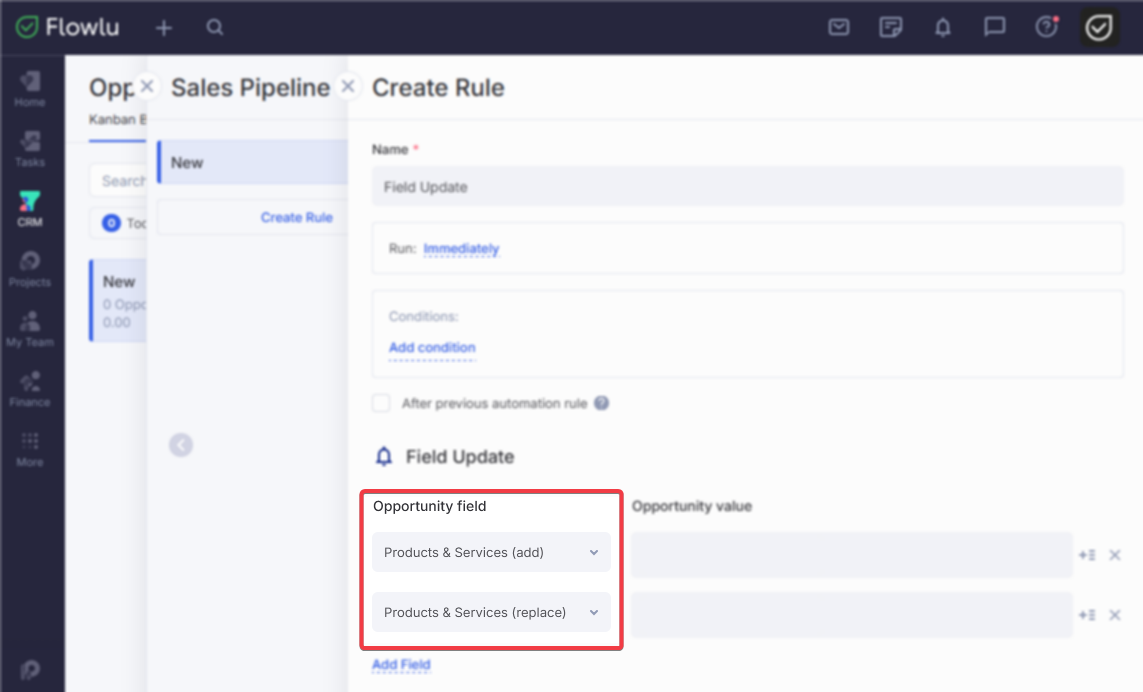
In the Opportunity field, select Products and services (add) or Products and services (replace)
In the Opportunity value field, select products from the catalog.
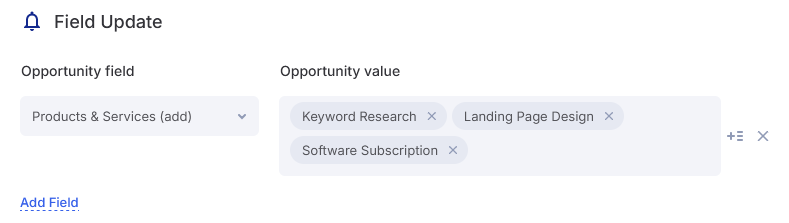
Set the conditions and execution time, then save the automation rule.
Difference between the fields
- “Products & Services (add)” — The selected products are added to Opportunity's existing items. A product that is already in the Opportunity is not added again.
- “Products & Services (replace)” — All existing Opportunity items, including those added manually are deleted and replaced with the selected items.
Note: Products are added with a quantity of 1 and the catalog price in Opportunity's currency and according to its price list. You can manually adjust the quantity and price in the Opportunity card after the automation rule runs. The Opportunity amount is recalculated automatically if automatic amount calculation is enabled.
Products in an automatically created Opportunity
Opportunity automation rule creates a new Opportunity and can populate it with products immediately. In the automation rule form, fill in the Products and services field. Two options are available, and they can be combined:
- Opportunity: Products and services — All items from the Opportunity that triggered the automation rule are copied to the new Opportunity: names, quantities, taxes, and row order, including rows added manually without using the catalog. The delivery fee and adjustment are also transferred. If Opportunities use different currencies, catalog item prices are converted to the new Opportunity's currency.
- Specific products from the catalog — These are added with a quantity of 1 and the catalog price in the new Opportunity's currency.
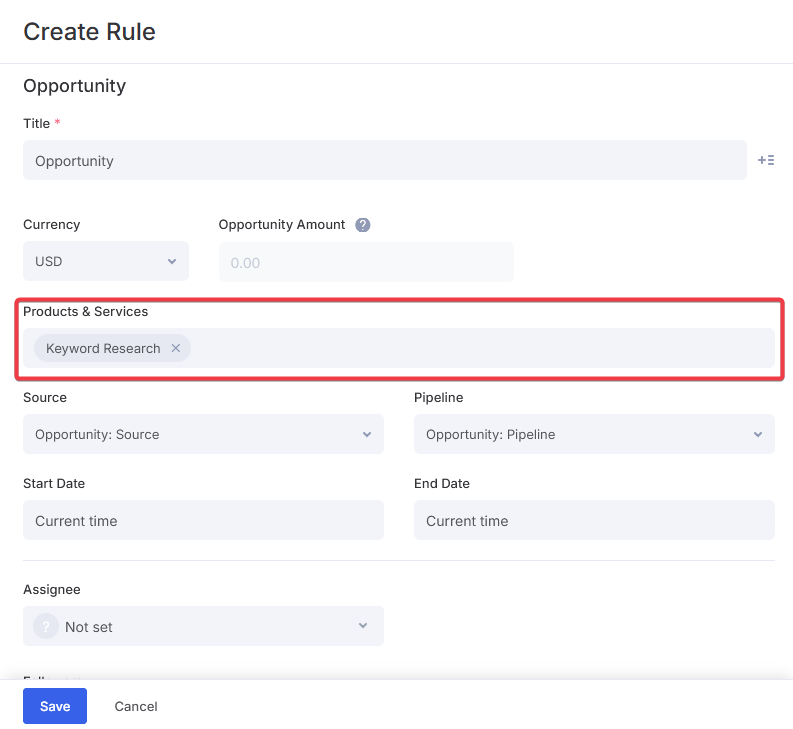
The new Opportunity's budget is determined as follows: if the Budget field is filled in in the automation rule, that value is used. Otherwise, the amount is calculated from the products if automatic Opportunity amount calculation is enabled.
