



15 Best iPad Productivity Apps in 2026: Top Free & Paid Tools for Work & Study

- Why iPad Productivity Apps Are Worth It
- What to Look for in Productivity Apps on iPad: Checklist
- Compare at a Glance: Top iPad Productivity Solutions
- Task Managers and Planners that Feel Natural on iPad and iPad Pro
- Project Management Apps for Teams on the Go
- Best Note‑Taking Apps with Apple Pencil Support
- Working with Files, Cloud Storage, and PDFs on iPad
- Calendar, Time & Focus Apps for Staying on Track
- Time Tracking and Focus Tools That Keep You in Flow
- iPad Pro Productivity Apps for Creative and Advanced Workflows
- How to Build Your iPad for Work Setup
- Stay Productive the Smart Way

File storage, task planning, or capturing creative ideas—modern digital tools simplify our routines so much that we shouldn’t ignore them. Apple’s brainchild creates a multifunctional digital environment through the use of software for any purpose.
In this guide, we’ve prepared a list of the most useful solutions. Our selection isn’t based on advertising but on in-depth analysis of reviewers' feedback from App Store ratings and reviews, as well as personal experience.
Why iPad Productivity Apps Are Worth It
Apple products, along with specialized iOS developments, have earned customers’ trust worldwide. That loyalty comes from both the hardware and its software advantages:
- All-in-one solutions. From time tracking to creating presentations, there’s almost no area where Apple’s ecosystem doesn’t offer ideas.
- Convenient interface. In-depth user experience research results in digital products with intuitive navigation and easy-to-navigate tools.
- Ongoing development support. Bugs noted by users in feedback are quickly fixed by development teams.
- Data security. One of the key values Apple delivers through its products—and the same high standards it requires from platform developers.
What to Look for in Productivity Apps on iPad: Checklist
Device features make iOS devices some of the most preferred assistants for work and study. People enjoy these key capabilities:
Apple Pencil Support
A thoughtfully designed feature that converts handwritten notes into typed text.
Whether you’re drafting documents or creating a logo, the device mimics smooth pressure and tilt, delivering a natural pen-like feel.
Split Screen
A powerful multitasking solution. With Split Screen, users can drag and drop items between programs without switching views. Two apps side by side keep your workflow moving smoothly.
Try it when working with digital organizers or email, for example.
Calendar and Task Sync
Go further and save valuable minutes by avoiding repetitive data entry across platforms. Synchronize tasks, deadlines, and reminders, and view schedules in one unified environment using GTD (Getting Things Done) planners. Project managers value this feature the most.
File Management Integration
iOS allows you to work with iCloud Drive, Dropbox, Google Drive, and OneDrive. Directly from the software, you can save files and documents for fast access and easy searching later.
Cross-Device Sync
Have multiple Apple devices? A unified, real-time updated environment connects your iPhone, Mac, and web access.
You can even work offline—auto-sync will handle updates once you reconnect.
Compare at a Glance: Top iPad Productivity Solutions
|
App |
Best For |
Key Features |
Pricing Type |
|
Todoist |
Individuals, freelancers, small teams |
Task organization, voice input, multiple views, habit automation |
Freemium |
|
Google Tasks |
Solo users |
Native integration, Gmail tasks, AI insights |
Free |
|
Flowlu |
Teams, small businesses, freelancers |
Projects + finances + CRM + dashboards |
Freemium |
|
Monday |
Teams, project‑oriented businesses |
Instant sync, automation, visual progress |
Paid (trial) |
|
ClickUp |
Teams, power users |
AI super‑agent, unified workspace, budgeting |
Freemium |
|
Goodnotes |
Individuals, students, creatives |
Infinite canvas, handwriting, PDF annotation |
Freemium |
|
Notability |
Students, professionals |
Handwriting + typing + audio, transcription |
Freemium |
|
Google Docs |
Individuals & teams |
Online & offline editing, Gemini AI |
Free |
|
Microsoft Word |
Business & professional docs |
Rich formatting, collaboration |
Freemium (365 for full) |
|
Google Calendar |
Schedule managers |
Events, notifications, tasks, sharing |
Free |
|
Microsoft Outlook |
Business users |
Email + calendar, AI Copilot assist |
Freemium (premium) |
|
Toggl Track |
Freelancers, consultants, teams |
Work‑tracking reports sync, Siri support |
Freemium |
|
Habit Tracker |
Individuals building routines |
Health sync, goals, reminders |
Free / in‑app purchases |
|
Notion |
Individuals, teams, knowledge workers |
Custom workspaces, database, Kanban/Calendar |
Freemium |
|
Obsidian |
Knowledge base builders |
Linked notes, graph visualization, plugins |
Freemium |
Task Managers and Planners that Feel Natural on iPad and iPad Pro
The App Store offers plenty of high-quality solutions with a 4.8+ rating and over 100K reviews (as of February 2026). Here are two notable top iPad productivity apps examples:
1. Todoist
A personal and professional efficiency-focused tool with a 50+ million user audience.
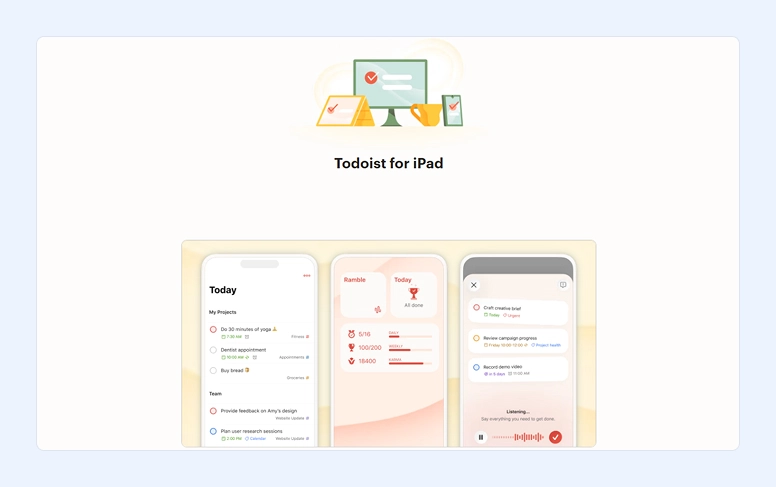
Best for: Individuals, freelancers, small teams.
What it allows you to do:
- Organize your tasks
- Capture ideas through voice
- Provide flexible project views: list, board, or calendar
- Build good habits with automation rules.
What feature users appreciate most: Quick task capture with smart input—just describe your task in natural language, and the digital algorithm organizes it into the correct project and due date. Todoist also supports Siri integration.
2. Google Tasks
A reliable task manager trusted by most Google product audiences.
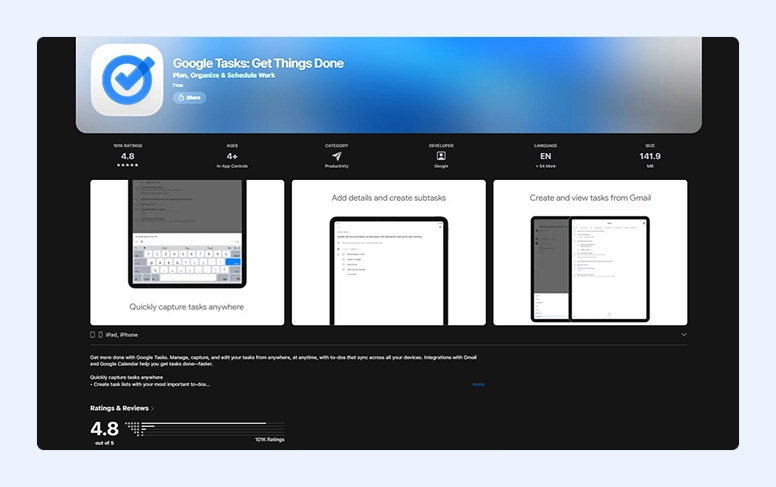
Best for: Solo users.
What it allows you to do:
- Quickly and easily integrate with Workspace tools (Calendar, Drive, etc.) on any device
- Create tasks directly from Gmail
- Use AI for insights and analysis
- Prioritize tasks and send notifications.
What feature users appreciate most: The platform provides a familiar and super convenient environment across all Google products that people already trust.
Project Management Apps for Teams on the Go
The next two major iPad-optimized platforms come from more complex SaaS products. They represent all-in-one solutions for task and project management for solopreneurs, growing teams, and large organizations.
3. Flowlu
A full-suite business management platform with all the tools for running projects. This is one of the most preferred solutions for work.
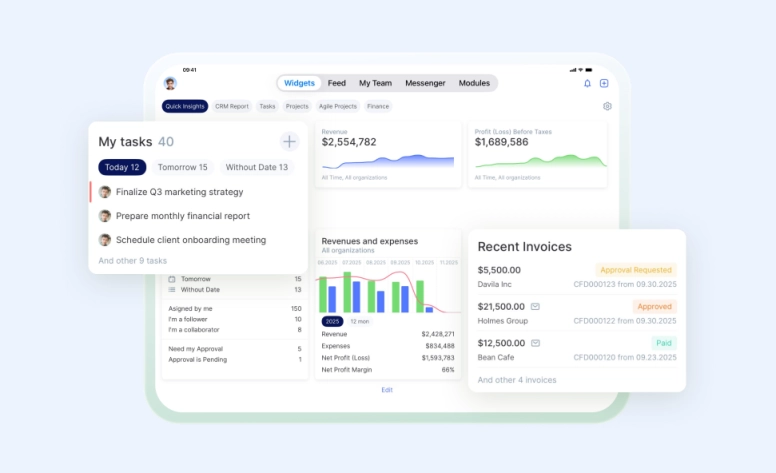
Best for: Teams, small businesses, and freelancers wanting all‑in‑one.
What it allows you to do:
- Manage not only tasks and projects but also control and track finances instantly.
- Operate different accounts for multiple businesses and switch between them seamlessly.
- Create group channels for instant team communication.
- Tie expenses and integrate CRM data with specific projects.
- Invite outsourced employees or customers via Client Portal.
- Use document templates to create invoices, personalized business offers, and other letters.
- Track project progress on a custom dashboard with KPI widgets.
- Save your ideas in a Knowledge Base.
What feature users appreciate most: Flowlu is an all-in-one business management platform with easy-to-use tools and a clearly structured set of features. Customers value that they don’t need to dig through manuals and guides to start working.

4. Monday
One of the top platforms that creates a central work hub for team collaboration.
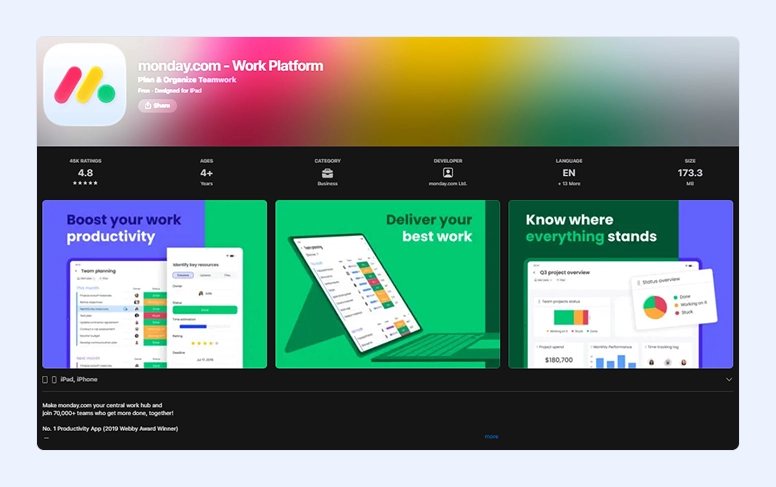
Best for: Teams, project‑oriented businesses.
What it allows you to do:
- Keep all work scope in one place and sync it live
- Visualize your team’s progress across complex projects
- Automate routine processes
- Customize almost every element.
What feature users appreciate most: Monday turns your iPad into a mobile workspace where all team members stay connected without interruptions and bugs.
5. ClickUp
The developers position their solution as the world’s most effective platform. And indeed, ClickUp offers a wide range of tools to manage your business efficiently.
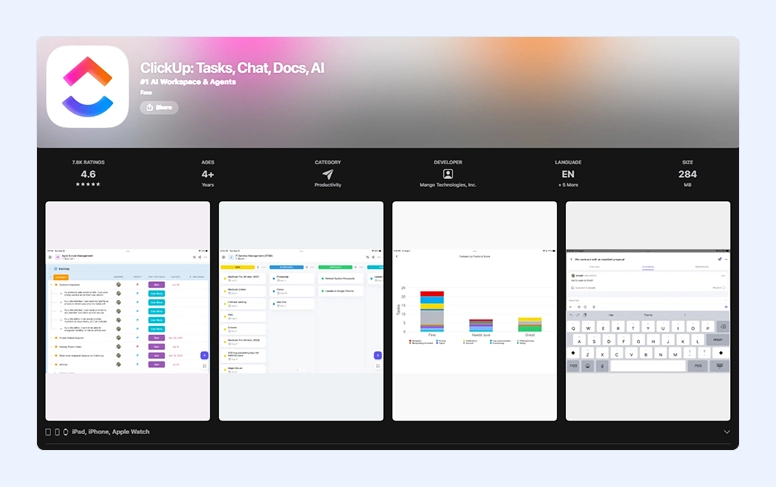
Best for: Teams, business, and power users.
What it allows you to do:
- Deploy a personal AI super-agent to manage customer relationships and close deals faster
- Work in a unified workspace to manage projects and tasks
- Collaborate with your team online
- Control budgeting
- Approve files and documents.
What feature users appreciate most: You don’t have to pay separately for each feature, and the built-in AI agent significantly speeds up work while helping keep teams accountable.
Best Note‑Taking Apps with Apple Pencil Support
The next group helps everyone capture great ideas wherever they are. These programs combine convenient tools for quick, practical drafts with more deliberate creative work using handwriting and AI technologies.
6. Goodnotes
Literally, it’s a thoughtfully designed digital notebook with strong AI support.
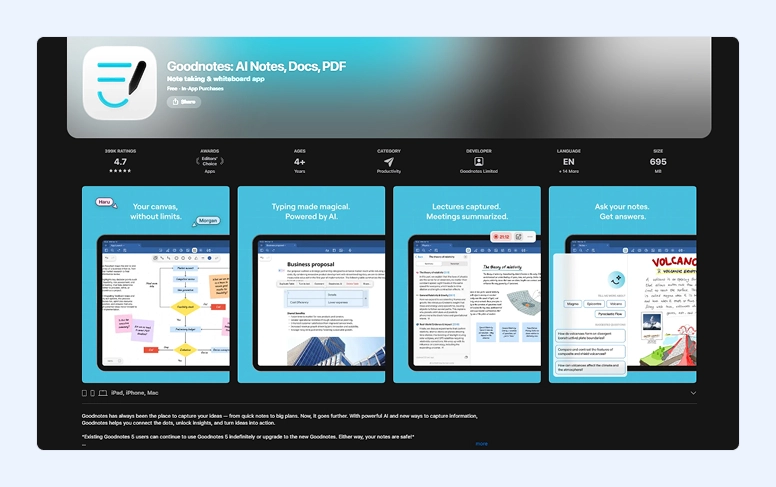
Best for: Individuals, students, creatives.
What it allows you to do:
- Use an infinite canvas for mind maps, diagrams, and other visual content
- Transcribe conversations
- Create documents with inline blocks and present notes on an external screen
- Employ a laser pointer during presentations.
What feature users appreciate most: A true pen-on-paper experience combined with powerful PDF annotation tools and flexible content organization.
7. Notability
Another highly rated, AI-supported platform for writing, typing, annotating, and drawing for work or learning.
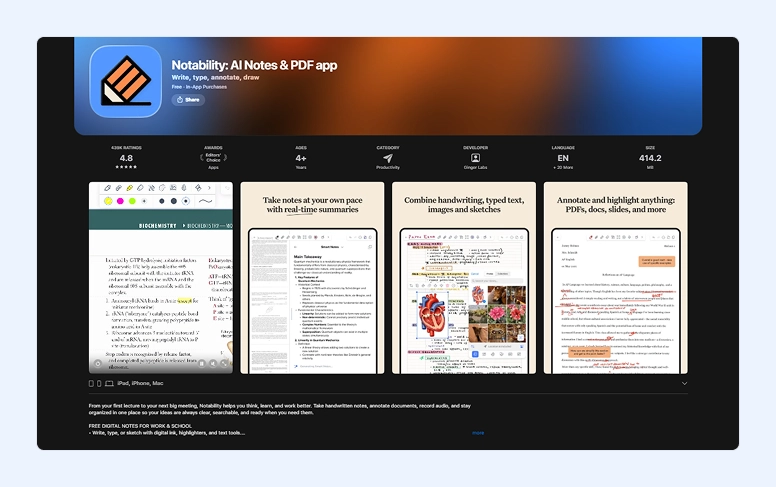
Best for: Students, professionals taking notes.
What it allows you to do:
- Combine typed text with handwritten drafts or photos
- Record calls and meetings and transcribe them into text
- Perform side-by-side editing
- Quickly search for needed information through handwriting.
What feature users appreciate most: Notability combines handwriting, typing, and audio recording into one flexible, interactive note-taking experience.
Working with Files, Cloud Storage, and PDFs on iPad
This group of software is similar to the paper table and bookshelf in your home—just in digital form. People download them to keep all documents properly formatted and well organized.
8. Google Docs
It remains one of the most widely known tools, earning users’ trust through the familiar ecosystem. Its long history has helped create a reliable shared environment for editing, storage, and live collaboration.
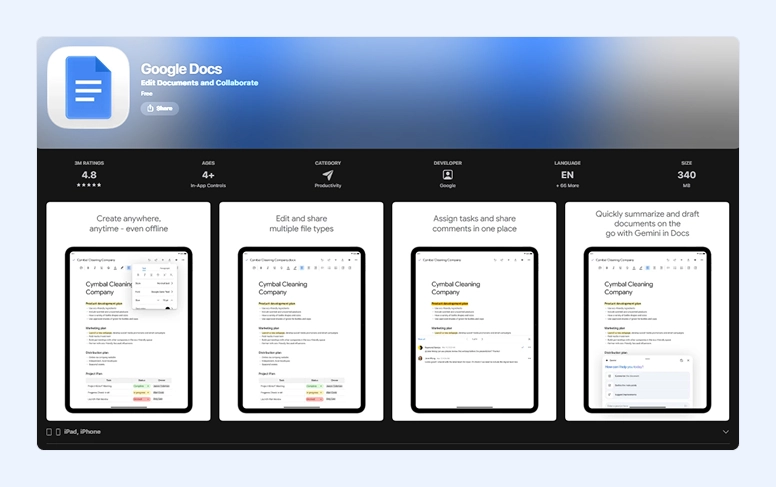
Best for: Individuals and teams collaborating on text.
What it allows you to do:
- Work together on the same file
- Capture ideas even when offline
- Open and edit files in different formats
- Try Gemini AI in your documents for corrections and helpful style suggestions.
What feature users appreciate most: It works reliably within the Workspace ecosystem and saves progress even with an unstable internet connection.
9. Microsoft Word
Another giant in the digital world of document creation and editing. It helps users get started on professional documents with structured text and easily added visual elements.
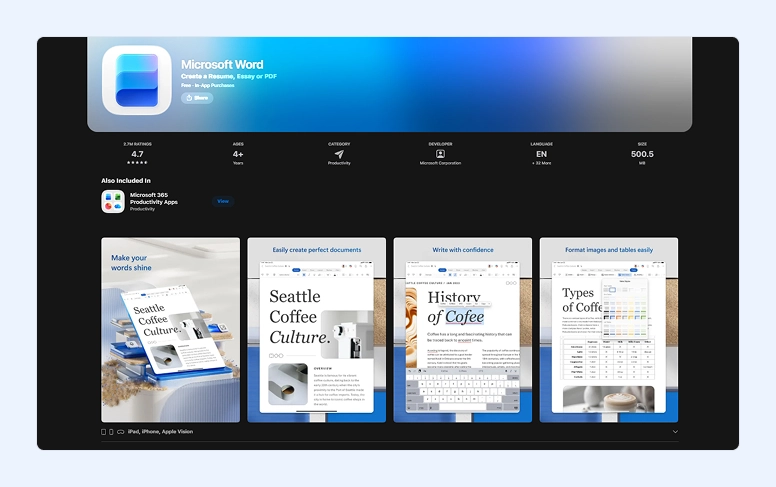
Best for: Business, professionals, detailed documents.
What it allows you to do:
-
Create any type of document: letters, resumes, notes, blogs—whatever you need for work and live
-
Use rich layout and formatting options
-
Collaborate with team from anywhere
-
Share files and invite colleagues to work on them together online.
What feature users appreciate most: Microsoft Word maintains high standards while preserving its familiar, well-loved interface. Meanwhile, it continues to evolve with regular updates that improve usability.
Calendar, Time & Focus Apps for Staying on Track
Perhaps our hours are the most precious resource in any productivity strategy. Modern developments have moved time-management tools into the digital space to help people control daily routines and use every minute as efficiently as possible.
10. Google Calendar
Digital planners are far more than something you hang on the wall to check whether it’s Friday already. A famous company, with its long experience in digital tools, has turned scheduling into a powerful planning system.
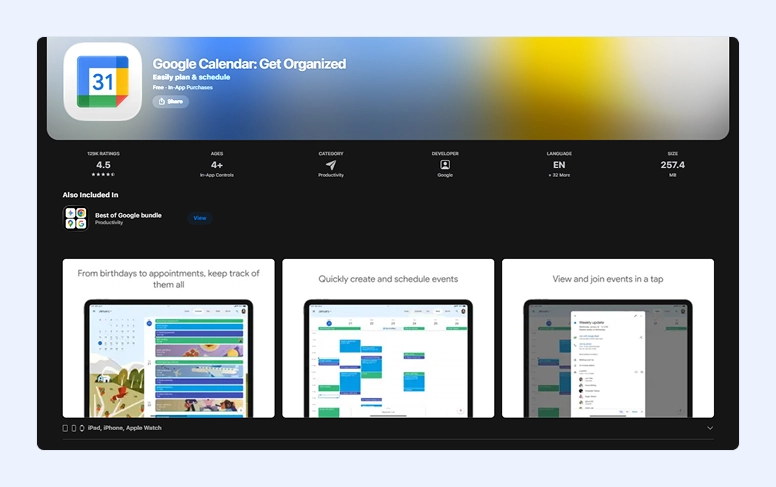
Best for: Anyone managing schedules.
What it allows you to do:
- Add events and get notifications—whether you’ve booked a restaurant or scheduled a meeting with the team
- Share your plans with family, friends, and coworkers
- Create tasks alongside events directly in the digital organizer
- Attach notes to specific days or activities.
What feature users appreciate most: In reviews, people often describe Google Calendar with two words: reliable and simple. While it may look minimal, a huge amount of work goes into maintaining the smooth operation and stability that millions of users rely on every day.
11. Microsoft Outlook
One place to store your schedules, and email accounts. Outlook brings together years of company experience to create a workspace designed for peak performance.
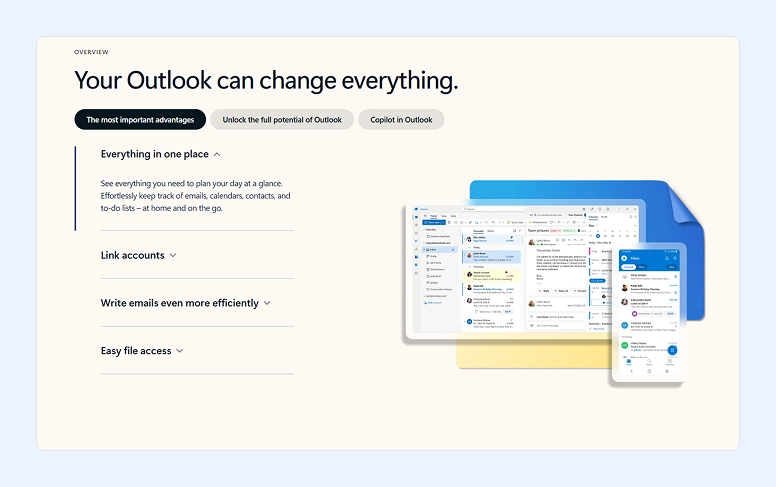
Best for: Business users.
What it allows you to do:
- Use a smart inbox to sort truly important messages
- Share your meeting schedules
- Attach files from different cloud services, such as OneDrive or Dropbox
- Summarize long texts with AI Copilot assistance
- Improve your writing with tips and suggestions from the AI helper.
What feature users appreciate most: The program offers the same functionality as the desktop version and works just as smoothly on mobile.
Time Tracking and Focus Tools That Keep You in Flow
These tools help track your personal record in a working “marathon.” Apps like these allow you to measure your productivity in real stats—minutes and hours, to be exact. Find out how long you change printer filters or write a monthly report.
12. Toggl Track
Developers promise that with their free tool, you won’t lose track of your day anymore.
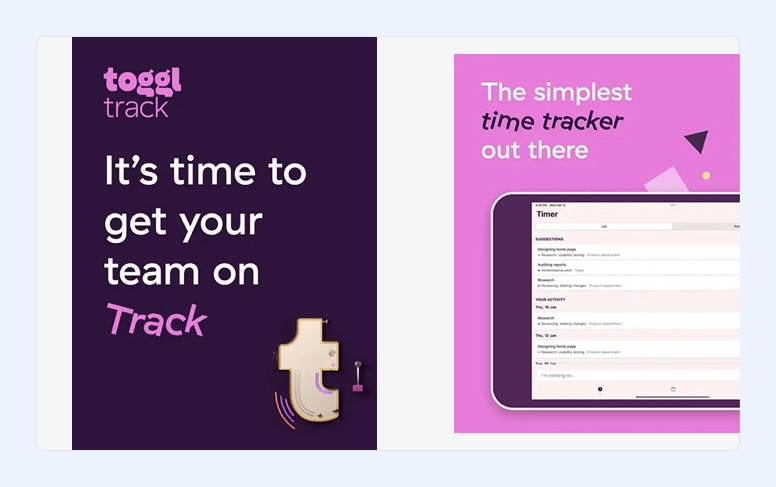
Best for: Freelancers, consultants, teams tracking working hours.
What it allows you to do:
- Get a snapshot of your day with time-spending reports
- Sync your progress across all devices
- Customize schedule entries with tasks and projects
- Integrate it with planner events
- Ask Siri for help.
What feature users appreciate most: The app literally changes lives! It’s simple, well-designed, and extremely useful for seeing which activities you spend your precious moment on.
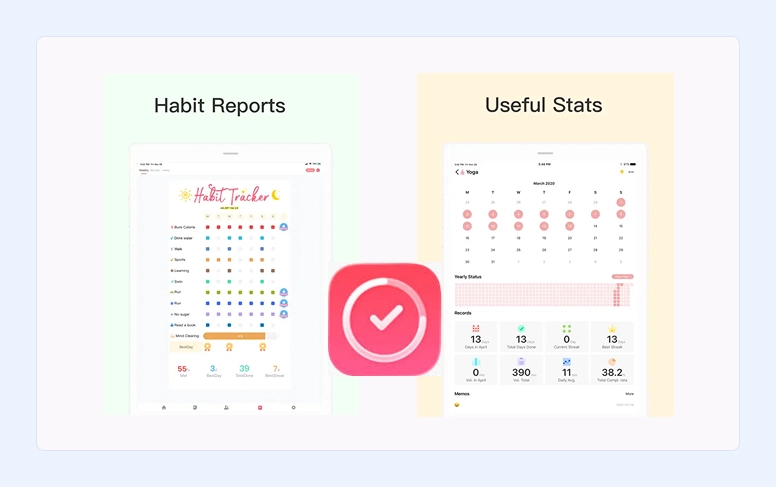
13. Habit Tracker
Another app with high ratings from grateful users. Track each moment of your life to see where procrastination hurts your efficiency and health.
Best for: Individuals building routines.
What it allows you to do:
- Sync with Apple Health—track sleep, exercise, calories, and more
- Create positive routines to quit bad habits
- Set goals to track your progress (in minutes or daily workout amounts)
- Get stats and reports
- Set multiple reminders.
What feature users appreciate most: People often start using it as a simple reminder but end up finding an effective solution for maintaining work-life balance. Activity bars are always with you, showing real progress and motivating you to achieve more.
iPad Pro Productivity Apps for Creative and Advanced Workflows
If you’re searching for something more advanced, we recommend exploring the next two developments. They combine planning and note-taking across diverse fields, offering many unusual features and tools to express your creativity during the work process.
14. Notion
For personal needs or team collaboration, this software provides tools for multiple workflows. Not a typical app, it works like Lego—what details to include is entirely up to your needs. “Beautifully organized life” is a very accurate description of this solution.
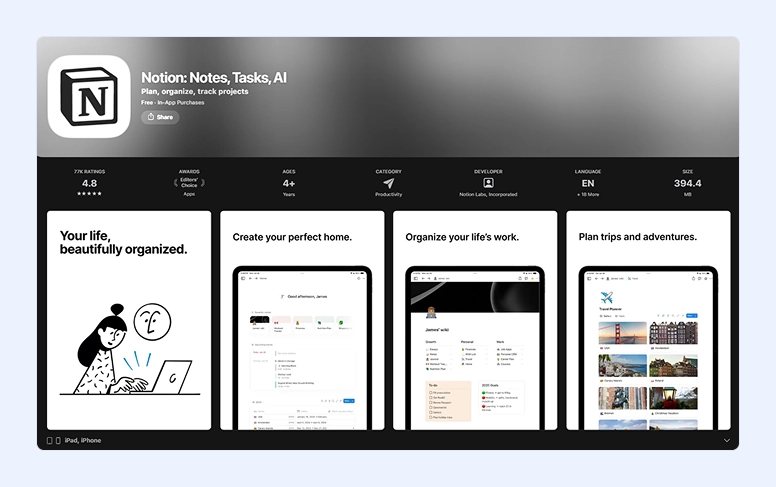
Best for: Individuals, teams, knowledge work.
What unusual in Notion you can do:
- Build your own workspace from pieces: even CRM systems, project trackers, habit logs, or content calendars
- Create custom blocks for text, images, tables, and much more
- Change database views and see your data as a table, Kanban board, list, or gallery
- Nest pages endlessly
- Create your own templates for workflow.
What feature users appreciate most: Notion converts personal experience into a knowledge storage system and gives a creative perspective on workflows, especially for project management.
Put the pieces into a creative workspace with Notion.
15. Obsidian
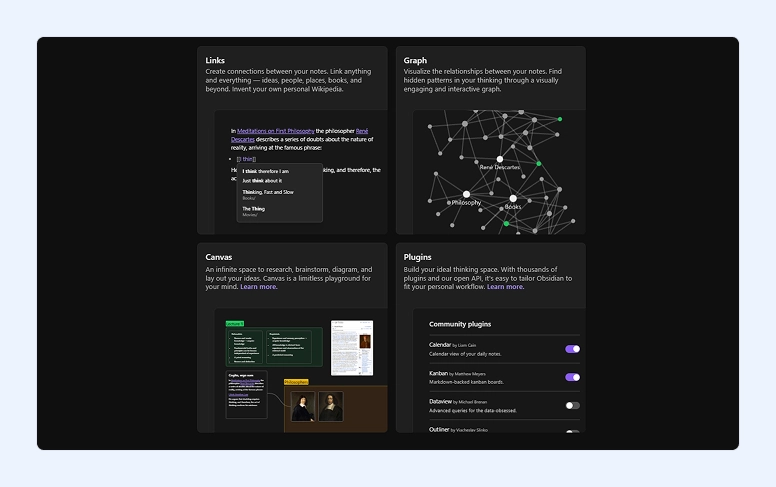
Specially focused on capturing ideas and managing complex projects, Obsidian’s key strength is flexibility. Developers even call it “your second brain”—let’s explore its power.
Best for: Individuals who want a personal knowledge base.
What unusual in Obsidian you can do:
- Design your own system
- Build a web of linked thoughts
- Visualize a dynamic graph of your notes and their connections
- Apply plugins to turn notes into task managers, Kanban boards, daily journals, or even spaced repetition flashcards
- Customize every detail
- Embed not only text, but also images, PDFs, code, or tables.
What feature users appreciate most: You don’t just work with the program—you explore it. With its rich functionality and unusual implementation, you can create a digital copy of your brain, storing ideas, thoughts, and insights.
Create a mind network with Obsidian.
How to Build Your iPad for Work Setup
To make improvements across as many areas as possible with maximum effectiveness, start by examining your daily habits and activities. Visualize a typical day and ask yourself, “What does my day look like?”
Maybe you’re always in meetings and frequently interact with clients in person. In this case, choose tools with strong scheduling features to plan all your appointments and avoid missing important moments or locations. It’s also useful to set up note-taking digital assistants. Not that we need to remind you, but one of the essential rules of an efficient meeting is to always make brief records of the conversation.
On the other hand, you may not need many communication tools if your work is mostly focused on programming, for example. Then consider downloading a time-tracker to monitor average task completion durations and identify which operations are your strengths.
Designers and other creative professionals value software that allows them to store their work. Look for a secure place with offline functionality available and 24/7 access from any location and device. Also, set up something that will be at your fingertips whenever inspiration strikes and you get an insight.
Stay Productive the Smart Way
Even though we spend about 19 hours daily on screens, make this interaction as useful as possible. Remember that iPads are designed not just to give you a more convenient format to watch series or scroll feeds but to serve as an irreplaceable helper for work and self-development. So make this tool truly meaningful.
The App Store is an infinite field for exploration and growth. Modern developers offer unexpected solutions to ordinary daily operations. So, try the best free work-management apps for iPads we’ve described, or search for other options that turn useless pastimes into effective and super-creative day organization.
If you’re a business owner, consider moving your team to a digital workspace as well. There are plenty of solutions that let you create a productive environment where each team member feels comfortable—and can maintain privacy.
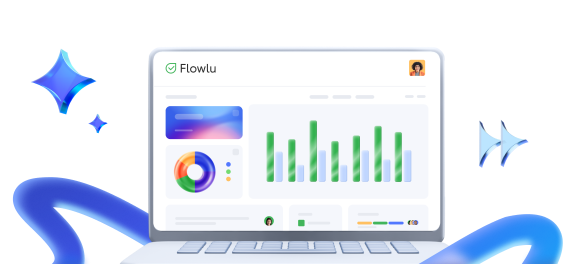
For example, Flowlu is a platform that respects each employee’s personal workspace while giving administrators flexible management options. With Flowlu, you can set access rights and roles, and teammates work in their own accounts within those permissions. It also offers a wide range of tools for productive work: task and project management, time tracking, KPI widgets, reports, knowledge base, and more.
Organize your workflow and improve operational effectiveness with the right digital solutions.
Of course, in many cases a handy device can replace a laptop for work, but it depends on your workflow and the apps you rely on.
The iPad works excellently in creative fields, task management, collaboration, and communication.
It’s still inferior to a laptop if you’re handling heavy multitasking or using more resource-intensive applications — for example, coding, data analysis, full-scale video editing, and similar tasks.
Choose a Mac as your laptop to handle all hardware-related difficulties.
If you’re a solo worker, start with 2–4 tools that cover your needs in document storage, activities planning, and note-tacking.
For business teams, we recommend deciding on complex all-in-one systems like Flowlu.
Yes. This device, combined with a secure, reputable workplace and good IT practices, are safe for business operations—suitable for task management, CRM, project tracking, collaboration, and even financial operations.