




Best Productivity Apps for Android in 2026


It’s important to remember that being productive isn’t something that you do for others. It should be something that you do for yourself. After all, if you make the most out of your work time, you’ll still have energy to spend on your free time doing the things you love most.
Today, we decided to take a look at the best Android productivity apps in 2026. Why? It’s simple—you need a tool that can help you organize your day or schedule, manage your tasks, and collaborate with your team.
Why You Need Productivity Apps
It doesn’t matter if you’re a student, an employee, or a business owner. Everyone can benefit from this kind of app. Ultimately, these tools are designed to:
- Streamline your workflows, even if you’re not at a PC
- Minimize distractions with notifications right from your pocket
- Increase output with the quick assistance of AI tools
- Always stay in touch with your team through video or text chats.
To make sure you find the right app for you, we’ve divided the top productivity apps for Android into 3 different categories: individual work, team collaboration, and project management.
15 Must-Have Android Apps for Productivity
Android apps have challenged the notion that productivity requires a desktop computer. We’ve prepared a list of the best Android productivity apps to help you streamline tasks, track time, take notes, edit and save documents, and even manage projects from your phone. Browse the corresponding category to find the best tool for solo or teamwork.
Apps for Personal Work
If you’re looking for the apps and tools to help with your work, here are a few that can be really handy—and the best part is, most of its functions are free.
1. Joplin
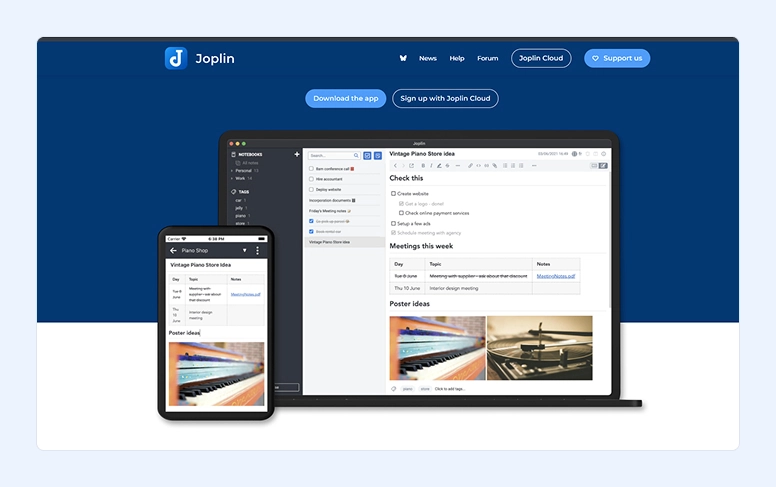
Joplin is a very simple and effective app for taking notes. You can see this open-source app as an evolution of Evernote since it allows you to capture notes. Here you can also organize, find, and save them.
Suitable for: Solo users, privacy‑focused individuals, and small teams.
Key capabilities:
- Markdown for note‑taking
- Search and tagging
- Sync across devices
- Data import from Evernote.
Pros:
- It’s free
- Has a strong security
- Allows sync options
- Works on different platforms: iOS, Android, Windows, macOS, Linux, and the web.
Cons:
- Has only few tools for teamwork
- Offers limited integration
- Some users consider the Markdown format too complicated for beginners.
Pricing: The core Joplin app is completely free, but if you need Joplin Cloud for wider storage, its price starts at €2.99 per month.
2. DocuSign
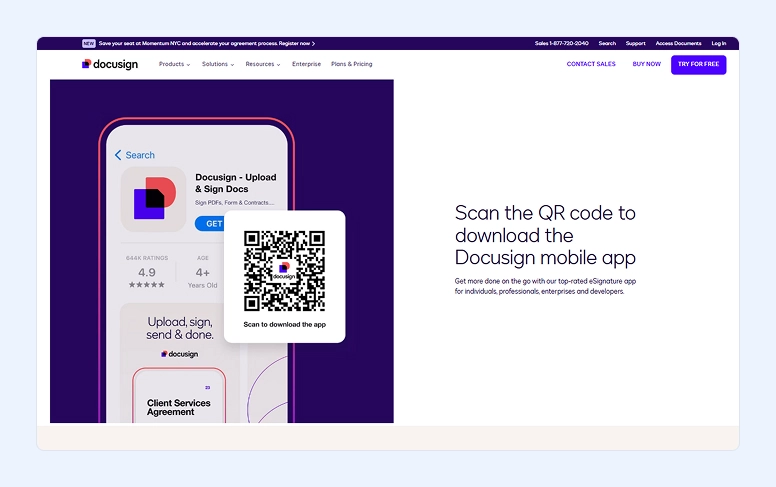
As we mentioned at the beginning of this article, we live in a fast-paced world—and even signing a document needs to be quick. That’s where an app like DocuSign comes in.
Suitable for: Businesses of all sizes. Solopreneurs can also use it to send signed documents.
With DocuSign, you can not only review and sign documents and contracts online using a touchscreen but also manage contracts efficiently.
Key capabilities:
- Electronic signatures
- All-format document uploading.
Pros:
- Friendly interface
- Simple integration with business tools
- Strong security.
Cons:
- Lower pricing plan offers few tools
- Even a personal plan is too expensive.
Depending on your needs, the app may be free or require a paid plan. For example, if you only need to sign forms, there’s no cost. But if you want to collect signatures and send documents, you’ll need a subscription.
Pricing: Starts at $10–$15 per month.
3. Microsoft OneNote
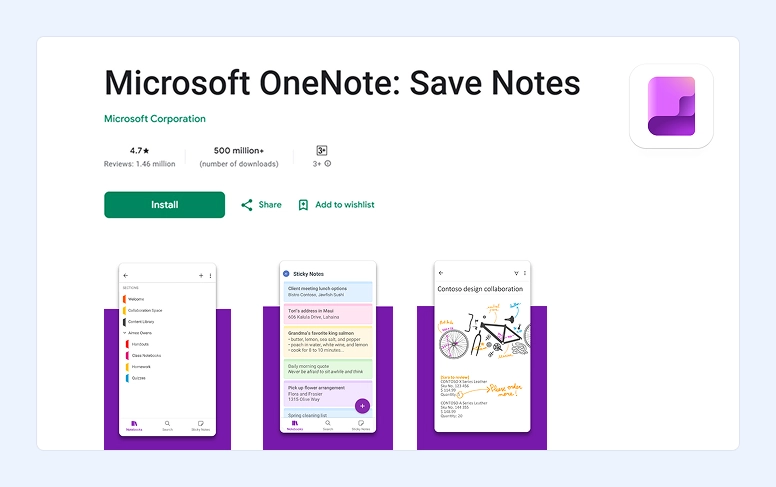
Another solution you might consider for everyday work is Microsoft OneNote. This is a great tool for taking notes, and it’s completely free.
Suitable for: Solo use and collectives.
This note-taking app allows you to use voice notes—just sync it with OCR(optical character recognition). Also, you can use Microsoft OneNote across other platforms.
Key capabilities:
- Note-taking
- Text correction
- Notes customization with images, audio, and handwriting.
Pros:
- It’s free to use
- Offers convenient editing format
- Supports cross-platform sync across iOS, Android, Windows, macOS, and web
- Integrates with other Microsoft 365 apps.
Cons:
- Some new users consider the interface overwhelming
- Some features work better on the desktop version.
We truly believe that you don’t need to pay a dime to use this app. But if you want to expand storage, you should pay.
Pricing: Starts at $6.99 per month.
4. Grammarly
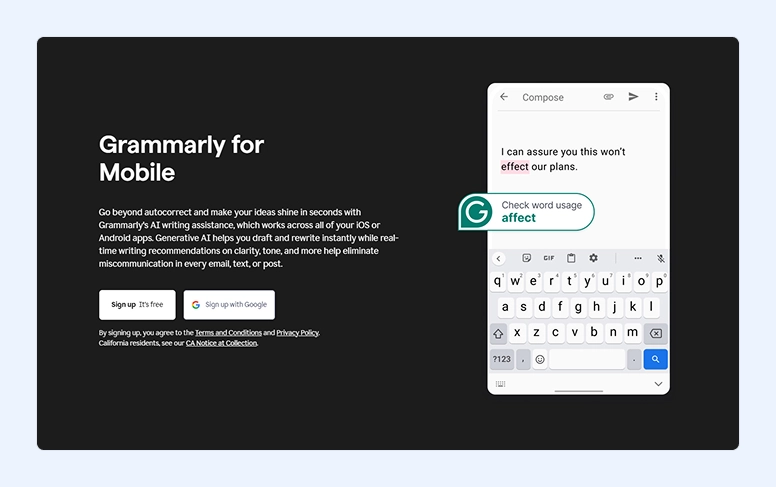
More than a simple spell checker, Grammarly is an app that serves as your individual writing assistant. Once you start using it, you’ll likely keep using it for a long time.
Suitable for: Both solo users and teams.
No matter if you need to send an email, write a report, a proposal, or a simple letter, Grammarly will be there to make your writing immaculate.
What makes Grammarly different is that it doesn’t only correct mistakes or errors; it also makes suggestions and style changes.
Key capabilities:
- Advanced AI writing assistant
- Automatically corrects your text
- Offers a plagiarism checker.
Pros:
- Excellent grammar and spelling correction
- Style guiding
- Works on mobile, desktop, browser, email, and apps.
Cons:
- The free plan is very limited
- The premium plan can be expensive.
Pricing: Although you can use Grammarly for free, the premium plan starts at $12 per month (if you’re going to bill annually).
5. Google Workspace
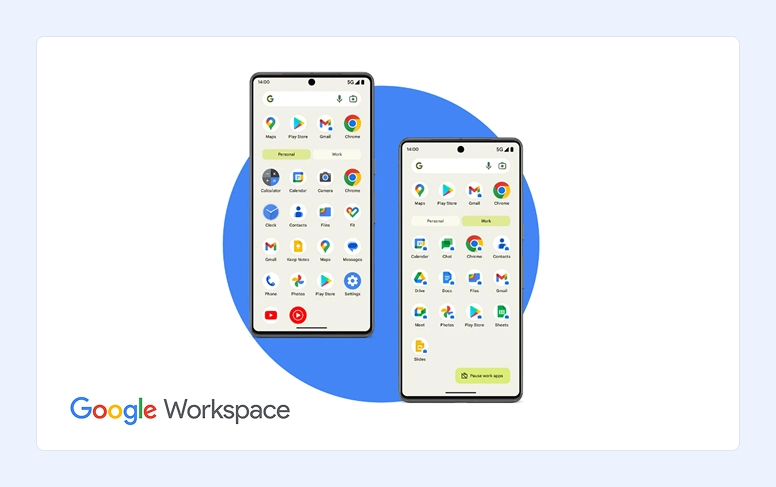
We couldn’t talk about individual work apps without mentioning Google Workspace. Even if you think you’ve never heard of it, it’s just the new name for G Suite, and it includes Google Drive, Docs, Sheets, Calendar, Meet, and Slides.
Suitable for: Small to large businesses, and organizations.
The Drive is a great way to save your important docs and sheets and even to work on new ones. Everything is automatically saved and synced, making it easy to switch between your phone, PC, or other devices. But for productivity, you need to check Google Calendar, which allows you to add a lot of information and reminders.
Key capabilities:
- Business email
- Cloud storage
- Online collaboration in Docs, Sheets, and Slides
- Smart assistance with Gemini AI
- Video conferencing via Google Meet.
Pros:
- Unified work environment
- AI-powered tools
- Strong security.
Cons:
- The pricing can feel expensive, especially for small collectives
- Advanced security is available only on higher-tier plans.
Since you probably already have a Google account, you can use it for free. However, business accounts require a paid subscription.
Pricing: Starts at approximately $7 per user per month.
6. Microsoft 365
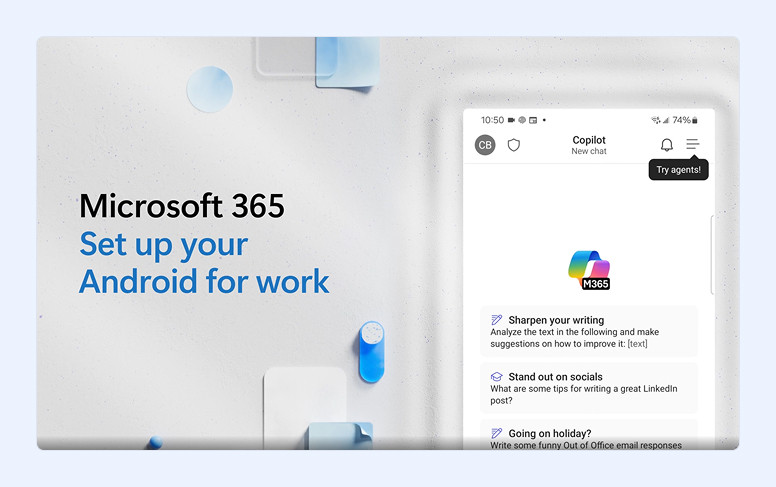
If you’re looking for a more complete set of tools for your work, take a closer look at Microsoft 365.
Suitable for: Businesses, and individual professionals
Think of it as a direct competitor to Google Workspace. After all, this app includes many different tools, such as Word, Excel, PowerPoint, and Outlook. But it also includes Microsoft OneNote, the app we mentioned above.
Key capabilities:
- Copilot AI assistance
- Well-known office productivity suite: Word, Excel, PowerPoint, and more
- OneDrive cloud storage
- Team chat and video conferencing.
Pros:
- Excellent communication tools
- Cross-platform support
- Strong security.
Cons:
- Subscription can be expensive for small groups of employers
- Cloud services require an internet connection
- Advanced tools are available only in higher-tier plans.
It’s completely free, but if you want more OneDrive storage, you’ll need to buy a subscription.
Pricing: Starts at $6.99 per month (for solo use).
Free Tools for Team Collaboration
Working together is key when working with a team, so make sure you’re using the right tools.
Although all the apps we described are free, many developers also offer paid subscriptions for enhanced security or additional functionality.
1. Miro
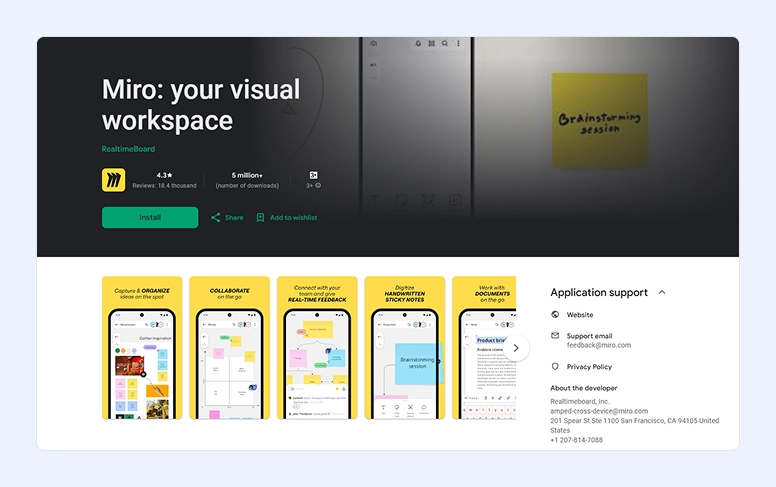
When you’re looking for collaborative tools, check out Miro. With this app, you can easily create unique slideshows, presentations, mind maps, or diagrams.
Suitable for: Teams, especially ones working remotely or in hybrid settings.
Built-in video and audio calling make it easy to discuss ideas with team members—or even your manager.
Key capabilities:
- Whiteboard with an infinite workspace
- Templates for mind-maps, brainstorming, and more
- Tools for real-time communication.
Pros:
- Strong integration with Slack, Jira, Zoom, and more
- Intuitive interface
- All the tools you need for remote interaction.
Cons:
- The mobile version offers fewer tools than the desktop one
- Paid plans can be too expensive.
Keep in mind that this software doesn’t include all of Miro’s features. However, it covers the essentials you’ll need to collaborate effectively.
2. Zoom Workplace
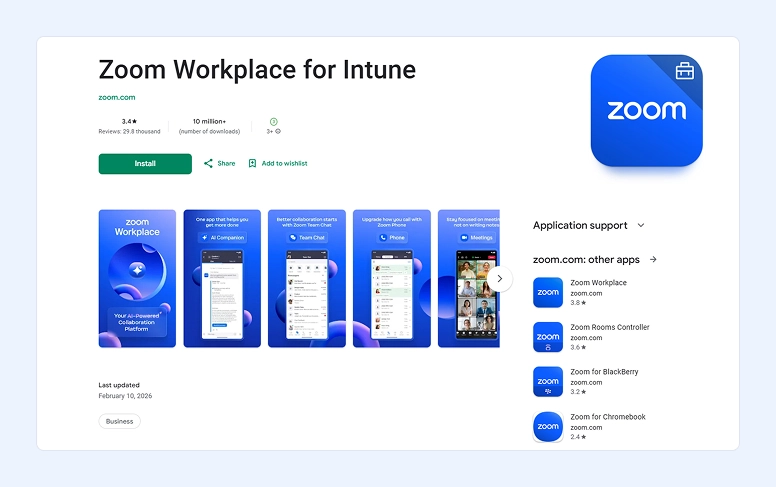
Zoom Workplace is probably not new to you. After all, we all got to know Zoom as one of the most frequently used video conferencing apps during the COVID-19 pandemic.
Suitable for: Businesses of all sizes.
The truth is that Zoom Meetings remain the central part of Zoom Workplace. You might not know this, but you can add face filters like the ones you have on Snapchat and Instagram as well as add a virtual background if you want.
Key capabilities:
- Video conferencing
- Group chat
- Tools for webinars and events.
Pros:
- Reliable admin control
- Also work on iOS, Windows, macOS, and web
- High quality of video and sound.
Cons:
- If you use the free plan, the length of group calls is limited
- Advanced features are available only on higher plans.
The good news is that Zoom Workplace is mostly free. You may only need to pay a fee if you need longer meetings, do some document editing, or take advantage of the advanced AI features.
3. Slack
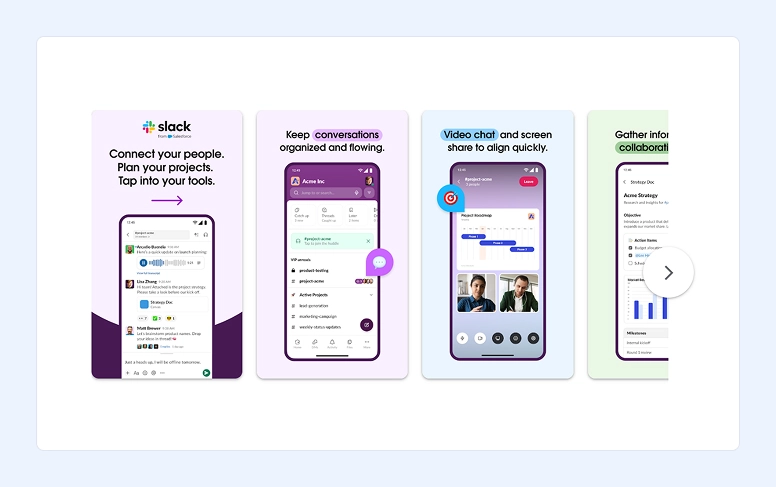
We couldn’t talk about connected work without mentioning Slack. It’s one of the most popular tools for team messaging in businesses.
Suitable for: All sizes teams and businesses.
With Slack, you can send messages or conduct video and audio calls with individuals, groups, or channels. The first option most businesses use is setting up a team group for joint work. After this, each member can decide whether to send a public message to the entire group or a private message to a specific teammate.
What users love more about Slack is that you can communicate in real-time or asynchronously.
Key capabilities:
- Private and public channels for conversations
- Share files, images, videos, and other documents
- Keyword mentions for focused notifications
- Searchable message and file history.
Pros:
- Integration with many popular productivity tools
- High-quality audio and video for online communication
- Convenient channel organization and search.
Cons:
- Advanced tools require a premium subscription
- Can be overwhelming for solo use.
Slack is free to use and includes most of the features businesses need for cooperation. If you want additional functionality, you can upgrade to a paid subscription.
4. Microsoft Teams
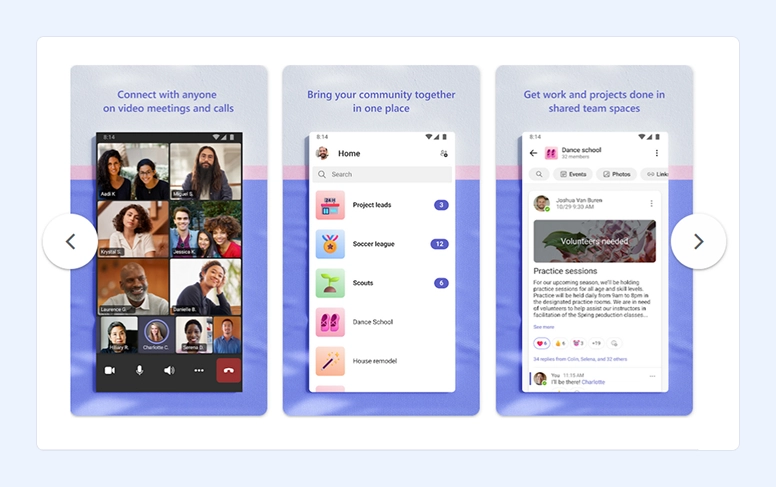
If we mentioned Zoom above, we also have to mention Microsoft Teams. After all, this was the other extremely popular tool for video conferencing and meetings during the pandemic.
Suitable for: Teamwork and organizational communication rather than solo use.
Microsoft Teams is a meeting platform that can hold up to 300 people on a single video call. Featuring an intuitive design, you can use this app to communicate with your team reliably. You may also want to access the meeting summaries and the Copilot (powered chatbot).
Key capabilities:
- Team chat with private and group channels
- Video conferencing
- Screen sharing and recording
- Files storage
- Calendar for team scheduling
Pros:
- Excellent quality of video and audio
- Strong integration with other Microsoft products
- Good security.
Cons:
- Some new users find it complicated
- The best tools are available only with a subscription
- Mobile functionality is more limited than on desktop.
In case you want to try out Microsoft Teams, you’ll be glad to know that the prices start at $4 per user per month.
5. Webex by Cisco
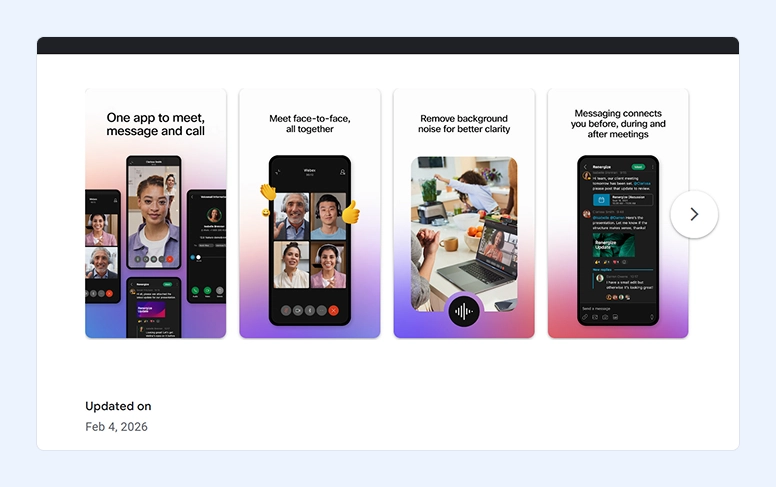
Webex by Cisco is another strong competitor to both Zoom and Microsoft Teams. Beyond video conferencing, it offers additional features that make it stand out.
Suitable for: Businesses of all sizes
Key capabilities:
- HD video meetings
- Recognizes hand gestures and turns them into emojis
- Powerful AI assistant
- Asynchronous video recordings with Native Vidcast
Pros:
- Multi-platform support
- High-quality video
- Strong security
Cons:
- The free plan limits meeting duration and number of participants
- Some users find integrations unintuitive.
Android Apps for Project Management
Working on projects involves many different tasks and many people who are going towards the same goal. It isn’t always easy for the manager to keep things going. Avoiding conflicts and errors and adjusting processes and workflows while maintaining deadlines are just some of the things they need to do. That’s why they truly need a project management app to help them deliver their work on time.
1. Flowlu
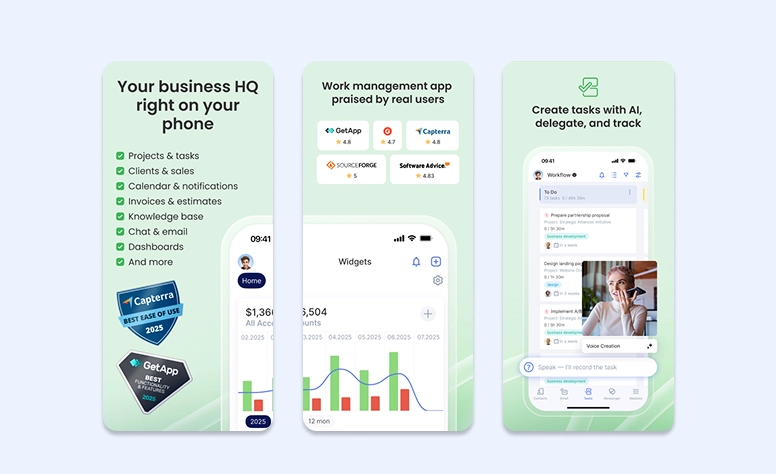
Flowlu is a powerful system based on the cloud that also has a mobile version. It allows you to run and manage your business anywhere, at any time.
Suitable for: SMBs, freelancers, solopreneurs.
Flowlu offers a wide range of features. But at the same time, it remains user-friendly and easy to navigate.

Key features for PM:
- Wide customization for projects: task lists, priorities, subtasks, and more
- Multiple visualization formats: Kanban board, Gantt chart, and list view
- Tools within projects for working together: comments, notes, and activity feeds
- Reports, budgets and finance tied to specific projects
- Automation workflow rules (setup via web version)
- Custom dashboards with selected KPIs
- Integrated CRM: connect deals, clients and contractors
Pros:
- All-in-one workspace
- Clear tools and intuitive interface
- Cross-platform support: iOS, and web
Cons:
- Advanced tools can be complicated for new users.
You can try Flowlu on your smartphone for free—no credit card required. If you like it, you can then choose the subscription plan that best fits your needs.
Pricing: Starts at $9 per user per month (Forever Free plan available).
2. Teamwork
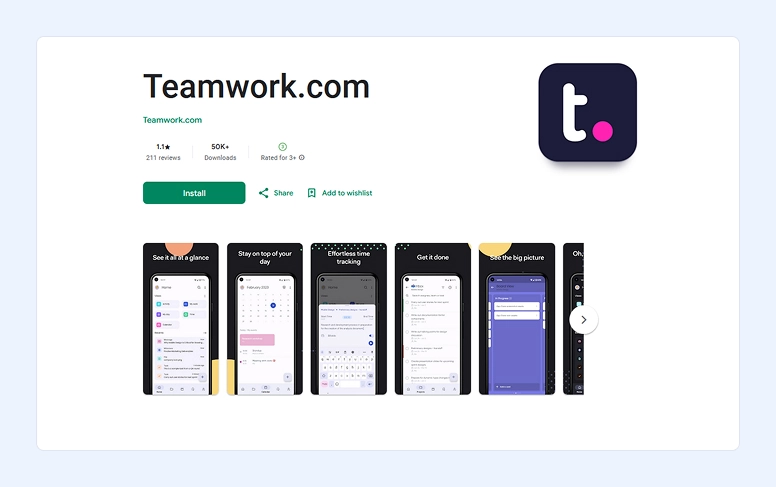
Teamwork is an app designed to help small and medium-sized businesses manage their workflow.
Suitable for: Small, mid‑sized and growing businesses.
Both team members and the manager have access to the project, but only the manager can add milestones and deadlines. Team members are responsible for keeping the manager updated on their task progress.
Key features for PM:
- Many tools for project organization
- Multiply views: table, Kanban, or Gantt
- Convenient teamwork tools
- Built‑in billing and time tracking
- Customizable dashboards and detailed project reports (status, time, budgets).
Pros:
- Client-friendly access
- Strong integration with popular tools.
Cons:
- Advanced features require higher-tier plans
- Can be complex for new users.
Pricing: Starts at $10.99 per user per month.
3. Zoho Projects
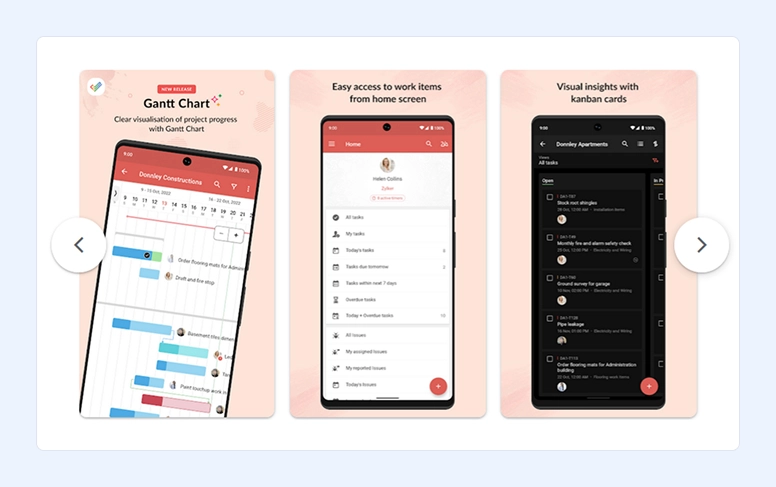
Zoho Projects is a popular management app. It’s known for its many customization features and accessible interface.
Suitable for: Small, mid‑sized and growing businesses.
With the Zoho Projects app, you can keep track of your work.. From tasks and delivery dates to processes and milestones. Every feature is designed to help you meet your deadlines.
Key features for PM:
- AI Assistant (Zia)
- Clear project organization with tasks, subtasks, and team assignments
- Visual planning tools: Gantt charts, Kanban boards, and list views
- Ready‑made templates
- Built-in communication: chat, comments, and feeds
- Reports and analytics.
Pros:
- Competitive pricing
- AI assistance
- Easy-to-use tools.
Cons:
- Limited integrations
- Mobile experience is weaker compared to desktop.
One of the best things about the Zoho Projects is that you can try it for free. However, this app comes with many different add-ons you may find useful since they can help you improve your workflows.
Pricing: Around $5 per user per month.
4. Asana
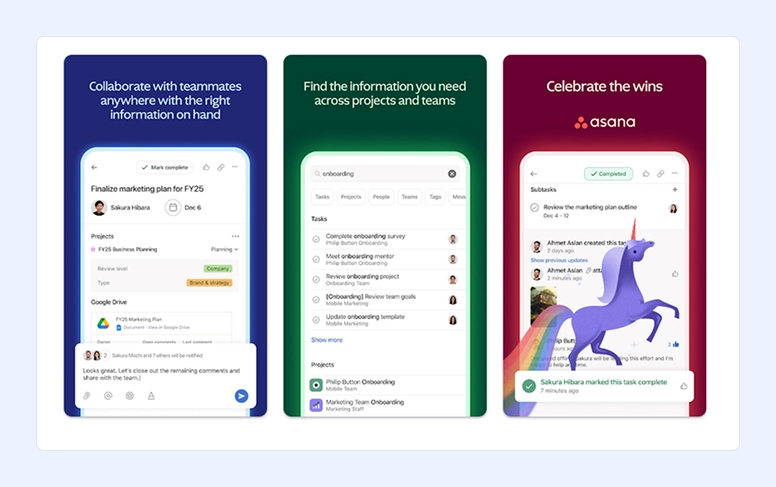
Asana is another project management software that is very popular.
Suitable for: Any businesses.
Here, you can do everything related to project management.
Key features for PM:
- Comprehensive tasks and projects organization
- Multiple project views: List, Timeline (Gantt style), or Calendar
- Task dependencies
- Communication with comments and mentions
- Custom dashboards with metrics
- Reporting.
Pros:
- Also works on iOS, web, and desktop
- Offers a wide range of useful integrations.
Cons:
-
Advanced features are available only in paid plans, which can be expensive for small collectives.
Some of Asana’s tools may be easier to use on the desktop or web version. But, anyway, developers made them available on your smartphone. In addition, you can always sync your account across devices.
If you want to try out Asane, you can do it for free, but you only get basic task management for individuals or small teams.
Pricing: Starts at approximately $10.99 per user per month.
How to Build Your Own Android Productivity Stack
Productivity will be higher if you focus on controlling different aspects of your workflow. The all-in-one solutions usually offer a big variety of functions, which is convenient for both individuals and teamwork.
A general kit of tools should include the following opportunities:
- Task manager
- Calendar
- Time tracker
- Notes
- File manager
If it’s not necessary for you to cover all these parts, give preference to specialized apps. For example, Todoist as the only task-tracking solution, Forest to focus on time tracking, or Evernote to fix ideas and notes.
If you work with outsourcers or collaborate with freelancers, look for tools programs with remote control. Also check they have good quality of video and audio, and offline usage opportunities.
For personal productivity, choose several tools—2-4 are usually enough.
If you manage a small or growing team, such a kit will be inconvenient. In this case, it’s better to consider an all-in-one solution like Flowlu. It combines essential tools for business and offers convenient shared workspace for team interaction and communication with customers. All the projects you start will be well-organized, and you won’t lose any deals or clients.
Your App Comparison Cheat Sheet
Apps for Personal Work
|
Platform |
Best for |
OS (beside Android) |
Starting Pricing |
Key Feature |
|
Joplin |
Solo users, privacy-focused individuals, small teams |
iOS, Windows, macOS, Linux, Web |
Free (€2.99/month for Cloud) |
Open-source note-taking with Markdown and strong security |
|
DocuSign |
Teams, businesses, solopreneurs |
iOS, Web |
From $10–$15/month |
Secure electronic signatures and contract management |
|
Microsoft OneNote |
Solo users and teams |
iOS, Windows, macOS, Web |
Free ($6.99/month for extra storage) |
Flexible note-taking with audio, handwriting, and OCR |
|
Grammarly |
Solo users and teams |
iOS, Desktop, Browser |
Free (Premium from $12/month) |
AI-powered writing and style assistant |
|
Google Workspace |
Teams, businesses, organizations |
iOS, Web |
From ~$7/user/month |
Cloud coordination with Docs, Drive, Calendar, and AI |
|
Microsoft 365 |
Professionals, teams, businesses |
iOS, Windows, macOS, Web |
From $6.99/month |
Full productivity suite with Copilot AI and cloud storage |
Tools for Team Collaboration
|
Platform |
Best for |
OS (beside Android) |
Starting Pricing |
Key Feature |
|
Miro |
Remote & hybrid teams |
iOS, Windows, macOS, Web |
Free (paid plans available) |
Infinite collaborative whiteboard |
|
Zoom Workplace |
Teams and businesses of all sizes |
iOS, Windows, macOS, Web |
Free (paid plans available) |
Video conferencing with webinars and events |
|
Slack |
Teams and businesses |
iOS, Windows, macOS, Web |
Free (paid plans available) |
Real-time and async team messaging |
|
Microsoft Teams |
Organizational team communication |
iOS, Windows, macOS, Web |
From $4/user/month |
Meetings, chat, files, and calendar in one hub |
|
Webex by Cisco |
Businesses and teams |
iOS, Windows, macOS, Web |
Free (paid plans available) |
AI-powered video meetings and async recordings |
Apps for Project Management
|
Platform |
Best for |
OS (beside Android) |
Starting Pricing |
Key Feature |
|
Flowlu |
SMBs, freelancers, solopreneurs |
iOS, Web |
From $9/user/month (Free plan available) |
All-in-one PM, CRM, finance, and automation |
|
Teamwork |
Small to mid-sized teams |
iOS, Web |
From $10.99/user/month |
Client-friendly project tracking with billing |
|
Zoho Projects |
Small to growing businesses |
iOS, Web |
From ~$5/user/month |
AI-assisted project planning and templates |
|
Asana |
Teams of all sizes |
iOS, Web, Desktop |
From ~$10.99/user/month |
Advanced task dependencies and project views |
Bottom Line
This list of the best solutions for productivity in 2026 for Android can help you become more productive.
No matter if you’re a one-man business, have a small, medium, or large business. Productivity is something we should all aim for. It’s what can help us keep focused on the work and, ultimately, on our goals.
From signing documents and discussing ideas in meetings to delivering projects on time, we’ve selected the top options for 2026. What is the outstanding part of these solutions? Many of them are free. So why not give them a try?
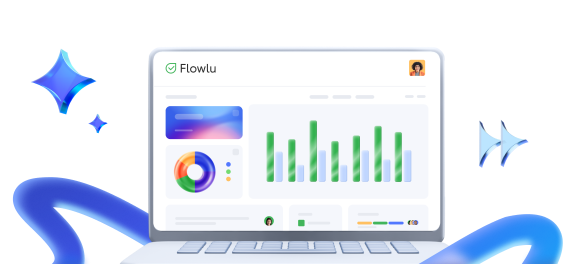
For example, start improving your business workflow with Flowlu. This software goes beyond the standard PM software. Flowlu provides users with an informative visual workspace—a dashboard with customizable widgets. Here, managers and employees can track KPIs and activities in real time, and always stay involved in ongoing processes.
Increasing your productivity isn’t only good for your boss. The more productive you are, the more focused you’ll be on your tasks. Also, with a well-organized work routine, you’ll save energy to spend on the things you enjoy most at the end of the day.
It depends on your needs. Above, we’ve listed the top Android productivity apps, organized into three categories: personal or teamwork, and project management.
Yes, but with some reservations. Most well-known Android productivity tools are designed with security in mind. Especially those ones that are used for business management.
Remember that safety also depends on how you use the tools. Try to avoid unofficial software stores, use strong passwords, and limit sensitive data on free versions.