



Flowlu's October Updates: Automation, Gantt, Account Management, and More


October's updates deserve a separate article because the month brought more than 10 new features and improvements! Looking at them, we'd say the focus was on how you organize your data, whether it's contacts and settings or tasks and knowledge.
Automation in opportunities
New conditions for the Closed Lost stage
Lost opportunities now have their own automation rules.
Before this update, you could only mark an opportunity as lost, select a reason, and add a description.
Now you can use these details to trigger automations!
Why does a lost opportunity deserve its own rule?
Because different loss reasons can call for different follow-up actions!
For example: If an opportunity is lost due to "Price," you can have Flowlu automatically create a task for a sales manager to review the offer. Or, if the description mentions "Next month," you can schedule a notification to remind the manager to revisit the opportunity later.
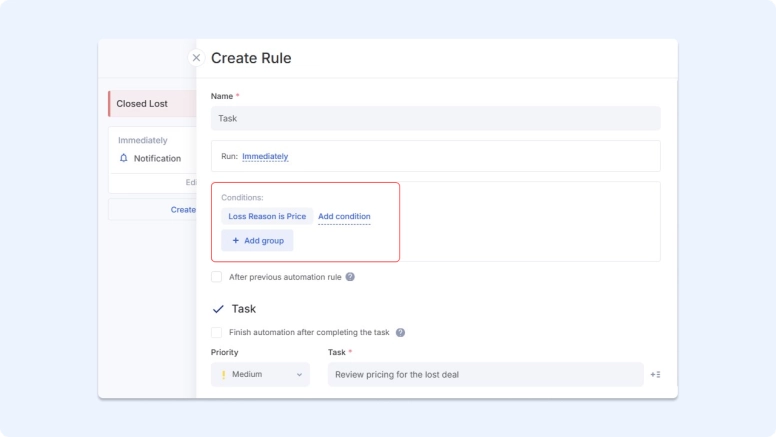
You can also add the loss reason and closing description to automated emails, notifications, or tasks using variables. Your team gets that exact information and knows what happened without opening the opportunity.
How to set up your own rule for lost opportunities:
Go to Automation → Closed Lost → Create Rule, choose an action, and add one or both of the new conditions: Loss Reason and Comment or Description.
Adding products & services
Sometimes, at certain opportunity stages, you need to add specific products or services.
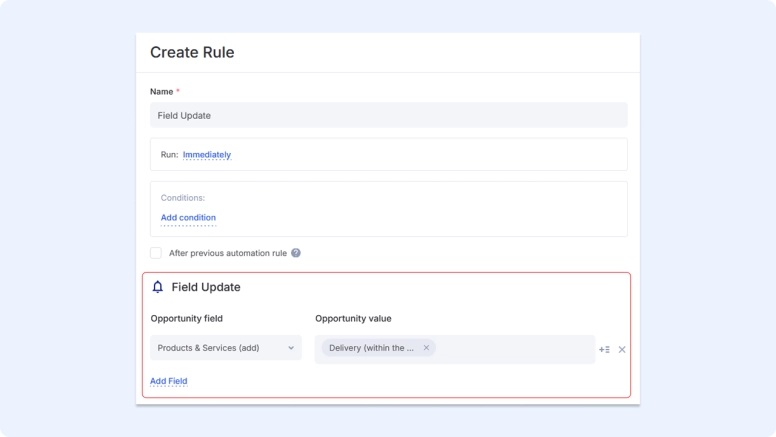
For example: You want the system to automatically add your delivery service at the Delivery stage. The rates are always the same, and adding the service manually every time was getting tiresome.
How to set it up:
Go to Automation, find the relevant stage, and create a Field Update rule. Then select Products & Services (add) in the Opportunity field and choose your service in the Opportunity value field.
You can also replace existing products or automatically copy them when creating a new opportunity using a rule.
Before you start: Make sure the Products & Services module is installed on your portal and the option to use products in Opportunities is enabled in CRM settings.
See how to automate adding Products & Services in detail in our Help Center guide.
All CRM automation features are available on the Advanced plan and higher.
Gantt
More task dependency types
Previously, tasks had only one dependency type — End-Start. That means a new task starts when the previous one ends.
Now you have more ways to link tasks:
- End-End — connected tasks finish at the same time.
- Start-End — one task can't finish until another starts.
- Start-Start — both tasks start at the same time.
- Relates to — links tasks without affecting their schedules.
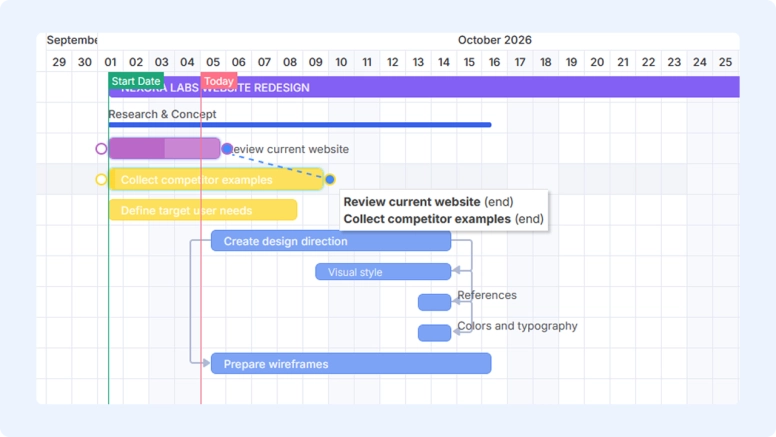
You can set these dependencies in Gantt or task cards, except for "Relates to." This one is available only in task cards.
Now, about how it works:
The logic is the same as with End-Start: Hover over a task, click and hold the left mouse button on a node, then drag a line to a node on another task.
What's especially handy is that Flowlu automatically adjusts linked tasks when deadlines change. No need to manually rearrange your schedule.
By clicking on the link, you can set Lag Time in days or hours or use Block dependency. The latter is available only on the Advanced plan and higher.
Explore the new task dependency types and how to use them in our Help Center.
Task dependencies and Gantt are available on the Essential plan and higher.
More ways to customize your Projects Gantt
We want users to see more details without opening each project when looking at their list of projects.
That's why we've added more options to the Projects Gantt settings.
What exactly can you set and see now?
#1. Project stages in Gantt
Now you can see not only projects but also their stages, with:
- More details: Track dates, statuses, and progress right in the Gantt chart.
- Automatic date adjustments: Change project dates, and Flowlu recalculates the dates of related tasks.
#2. Custom fields and more columns
Display the information that matters to your workflow, from priorities and budgets to deadlines, task counts, and custom fields.
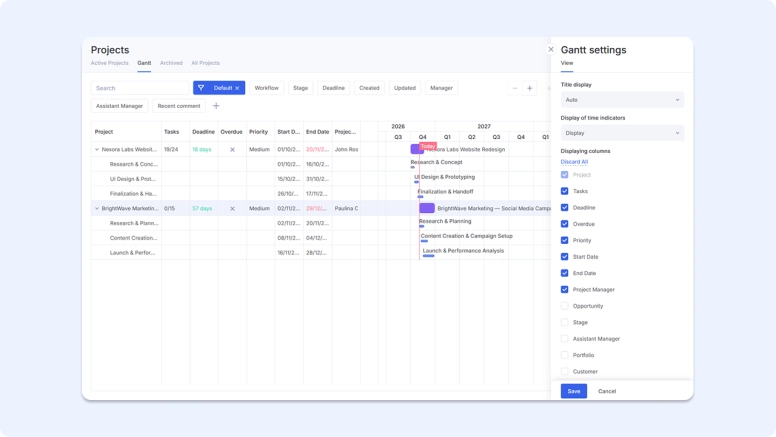
Where to find these settings:
Go to Projects → All Projects → Gantt, click the gear icon to open Gantt settings, and choose the columns you'd like to see.
Gantt is available on the Essential plan and higher.
Accounts
Followers
Previously, you could assign only one person to a contact or organization.
Now you can add multiple followers!
Why is this necessary?
Imagine that your lawyer, accountant, or another team member also needs access to a certain contact. Although you can always set permissions, they apply to a whole role category (such as regular users or managers), not specific team members. So now you have a more precise choice.
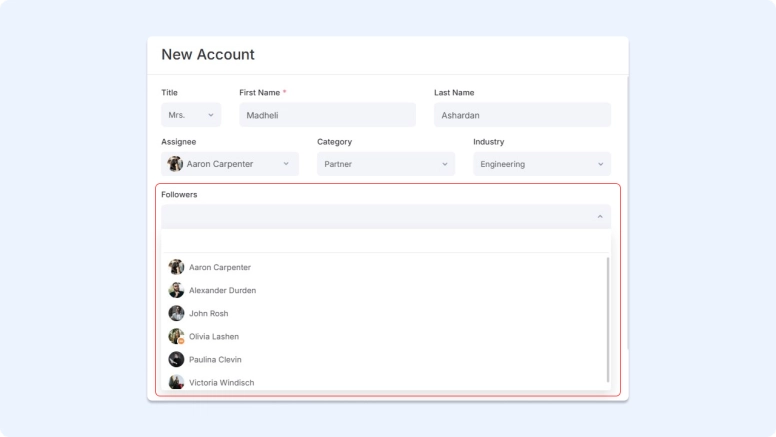
Easy to find:
Just open a contact and add your teammates in the Followers field.
Find more details in our Help Center article.
Available on all paid plans except Solo.
Phone extensions
You may have come across this situation: A client's company has one main phone number, but individual employees have their own extensions.
Now you can add these to any account.
Where and how?
Simply add an extension to the main number in the Phone field of a contact card. Flowlu recognizes different formats, such as #111 or ext 111.
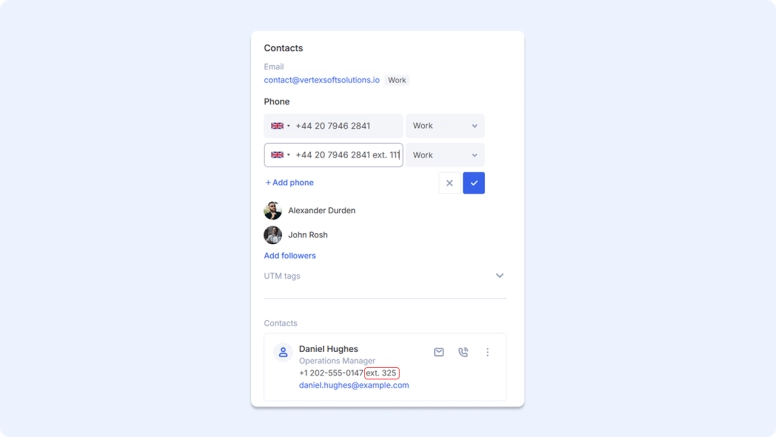
What other formats does Flowlu recognize?
You can also enter extensions as:
- extension 111
- #111
- ext 111
- , 111
- ,, 111
- ;ext=111
Even if you save the same main phone number, different extensions make a difference. So now it's easier to reach the right person.
Read our detailed guide in the Help Center.
Available on all portals.
Smarter duplicate detection
A growing client list is great. A growing mess of duplicate records? Not so much.
But now it's easier to catch them.
Flowlu spots potential duplicates when you work with contacts and companies.
How exactly?
When you create a company, Flowlu checks the company name and tax ID, in addition to phone numbers and email addresses.
If the system detects potential duplicates, it highlights them with a yellow warning icon next to a contact or company and shows exactly which field matches.
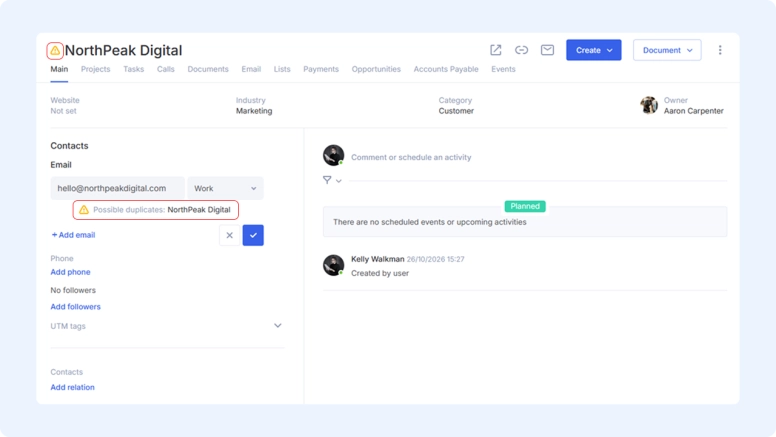
If you add a contact with the same name, the system won't trigger a warning. But if you enter a phone number or email address that's already in the system, Flowlu will flag the potential duplicate.
Give it a try and keep your CRM records from turning into a mess!
Available on every Flowlu plan.
Other updates
Calendar API
First, we updated the Calendar webhook format. And now the Calendar API is open!
Create, update, and manage Calendar events, including recurring ones, through the API.
Project knowledge base
The familiar wiki is now available for your projects, too.
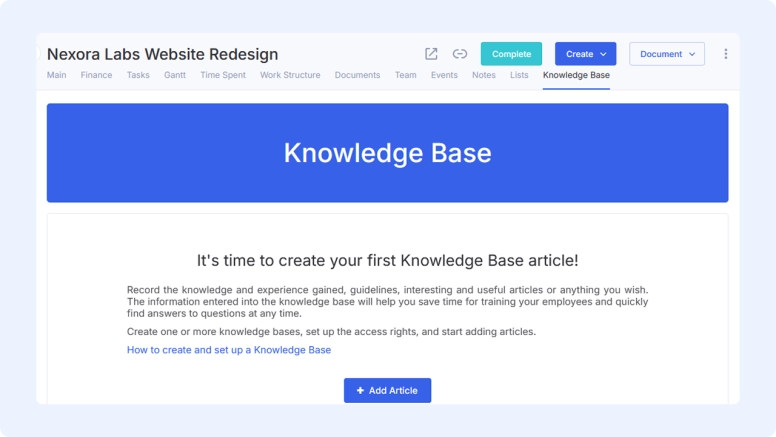
Here you can keep project regulations, task briefs, meeting notes, team instructions, and more in one dedicated space.
What exactly can you do?
- Write and edit content
- Add tags and statuses
- Organize articles into a hierarchy
- Mark articles as important or favorites
- Attach files and start discussions in comments
The Knowledge Base is created automatically when you add your first article, and its name follows the project name.
What's different from a regular Knowledge Base?
- Name — taken from the project title. You can't rename it independently.
- Access — controlled by the project team, not the Knowledge Base settings.
- Public publishing — unavailable. There are no domain, design, or SEO settings.
- Deleting — you can delete individual articles, but not the entire Knowledge Base.
- Plan limit — the project's Knowledge Base doesn't count toward your plan's total Knowledge Base limit.
One more thing: When you create a project from a template, its Knowledge Base isn't transferred.
What else should you know? Find out in our Help Center article.
Available on all paid plans.
Required fields for tasks
Do you remember required fields in CRM?
Here's the same logic.
Now you can decide which fields must be filled in before anyone on your team creates a task or moves it forward.
It works the same way:
If anyone tries to proceed without filling in a required field, Flowlu highlights it in red and prevents them from moving forward.
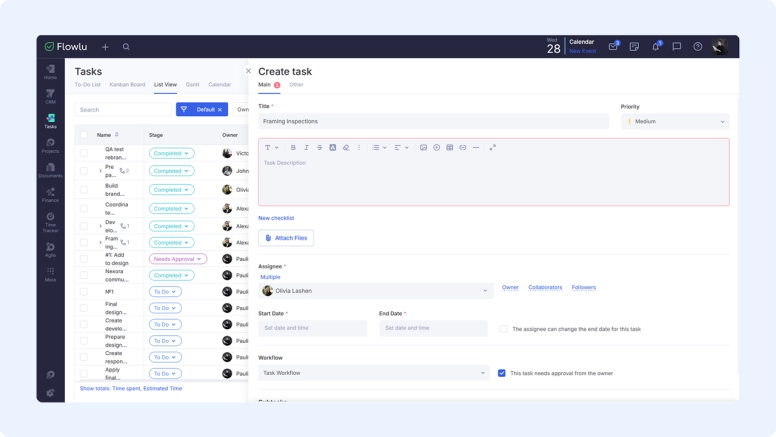
Here's how you can keep your tasks informative:
- Choose required fields like assignees, deadlines, descriptions, and more.
- Apply them to specific workflows and stages.
- Catch missing details with Flowlu highlighting fields that need to be filled in.
For example, you can prevent tasks from being created without an assignee or moved to the next stage without a description.
Try it now:
Go to Portal Settings → Tasks → Required Fields and choose which fields are mandatory and in which workflow or stage.
Available on the Essential plan and higher (excluding Solo).
Kanban board card customization
We've added more options to customize your boards the way you like.
Now you have more control over what your cards display and which details to hide.
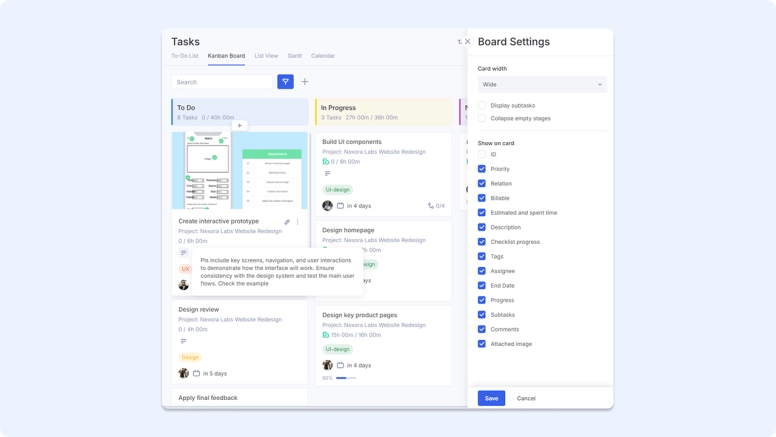
What exactly can you customize?
- Choose which standard and custom fields appear on cards.
- See whether a card has a description and hover to read it.
- Switch to a compact layout to fit more cards on your screen.
- Add or edit tags without opening a task.
- Hide empty stages to reduce clutter.
Where does this work?
Across Tasks, Project and Task Group boards, CRM pipelines, and Project boards.
To get started, click the gear icon in the top-right corner of your board and adjust the settings.
Available on all portals.
Dark theme and fast navigation
Quite an appropriate Halloween update. Although we primarily did it for your comfort, not for fun.
Whether you simply prefer darker colors or want a break from bright screens, give our new Dark theme a try.
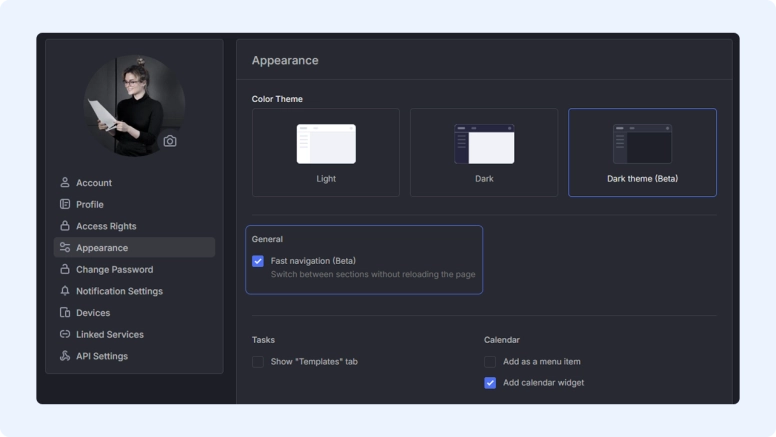
Within the same Appearance settings, you'll find Fast navigation (SPA). It lets you switch between sections without reloading the entire page. Only the page content is updated, which makes navigation faster.
Available to everyone.
Keep up the momentum
We're only one month into Q4, and there's already a lot that's new. And all these updates are here to help you get even more done with Flowlu. So you don't have to waste precious time adding the same products and services to opportunities over and over again. Or frantically fixing messed-up task deadlines just because you moved one task, for example.
Try all the upgrades in your daily work and share your ideas about how to make them even better. And if you notice something going wrong, we're always here at [email protected].
FAQ
In just one month, Flowlu got:
- Two automation improvements: New conditions for Closed Lost opportunities and a Field Update rule for adding Products & Services.
- Expanded Gantt functionality: New task dependency types and more settings to customize your Projects Gantt.
- Better account management: Multiple Followers for contacts and organizations, phone extensions, and smarter duplicate detection.
- Open Calendar API.
- More customization options for Kanban boards.
- Project Knowledge Base.
- Required fields for Tasks.
- Dark theme and Fast navigation (SPA).
With the new conditions for the Closed Lost stage, your opportunity won't just be closed and forgotten. Now, depending on why the opportunity was lost, you can plan follow-up actions. For example, you can remind a manager to review the opportunity after a month or assign a task to a sales manager to investigate why the deal was lost due to a high price.
With the new Field Update rule, you can automatically add products or services from your catalog. So, the next time your opportunity reaches the Delivery stage, managers won't need to add the delivery service manually.
The main differences are:
- Name: You can choose a custom name for a standard Knowledge Base, while a Project Knowledge Base takes its name from the project.
- Access rights: In a Project Knowledge Base, access is inherited from the project team.
- SEO settings, external publishing, domain, and branding: These options aren't available in a Project Knowledge Base.
- Deleting: In a Project Knowledge Base, you can delete individual articles, but not the entire Knowledge Base.
Want to know more? Read our Help Center article for details.