

How to Connect Twilio to Flowlu
Learn how to connect Twilio to your Flowlu account to make and attend calls right from your CRM. Please note that you need to use this integration with the softphone application or VoIP Phone.
Step 1. Install the Telephony Module
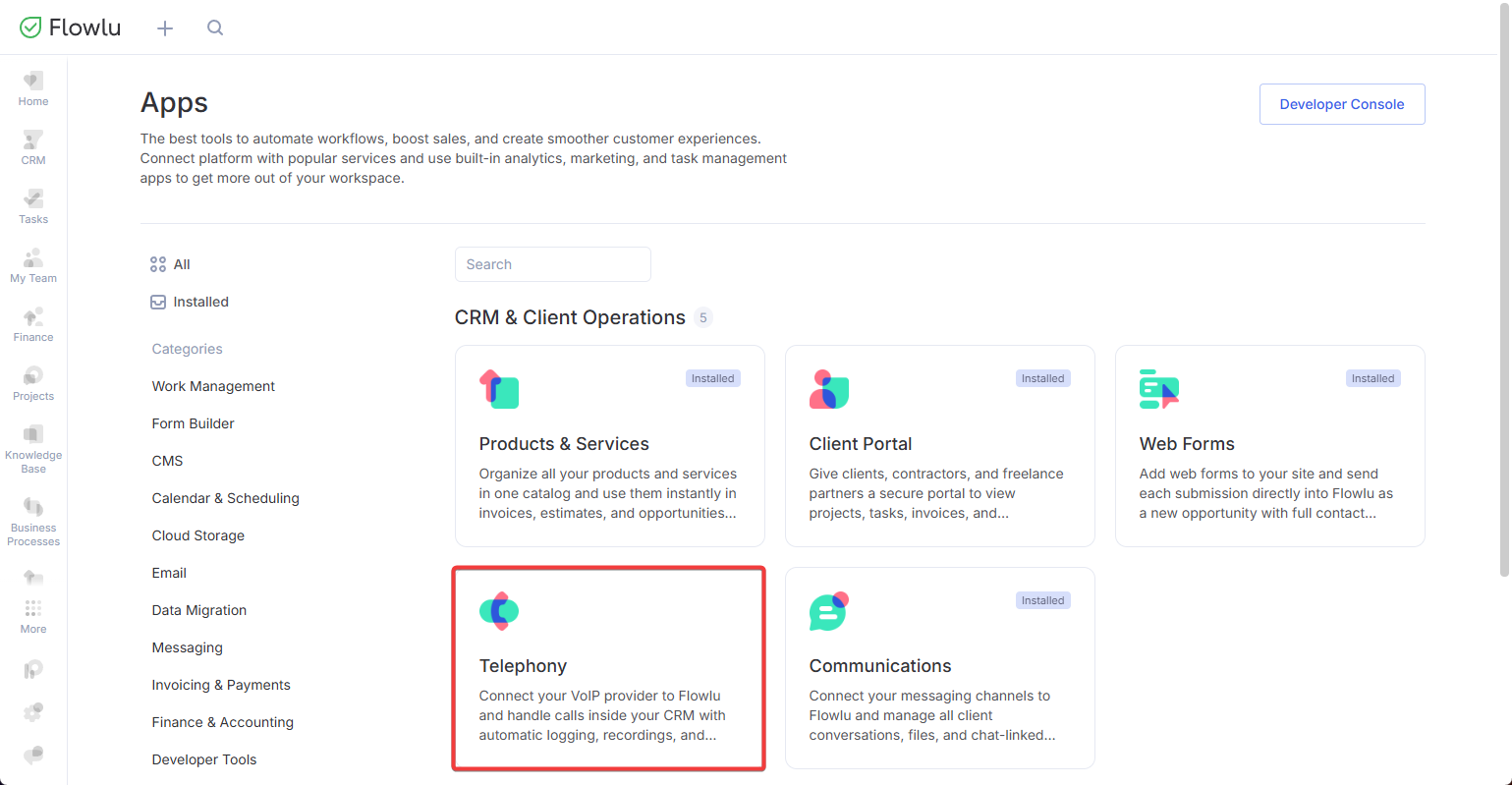
Go to Apps page and install Telephony.
Note: only account administrators can manage your account's applications. Please contact your account administrator in case you do not have access to the Apps page.
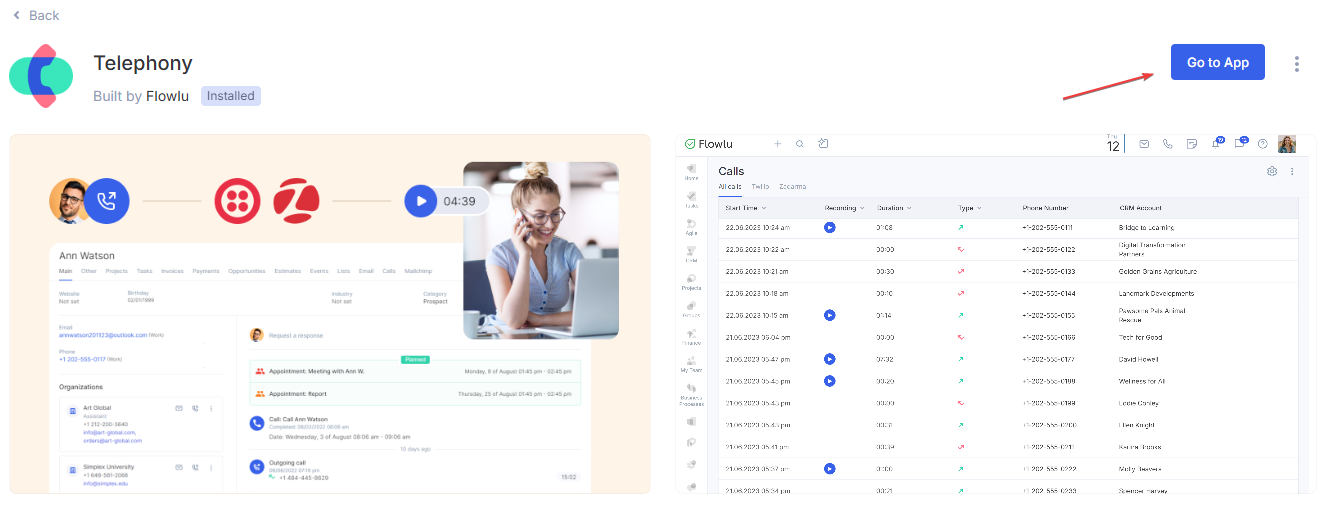
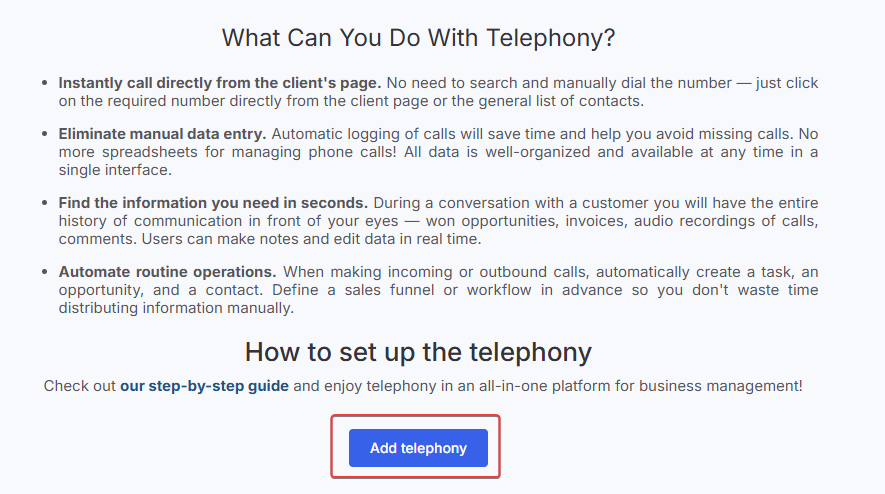
After the app is installed, click Go to App and then click Add telephony.
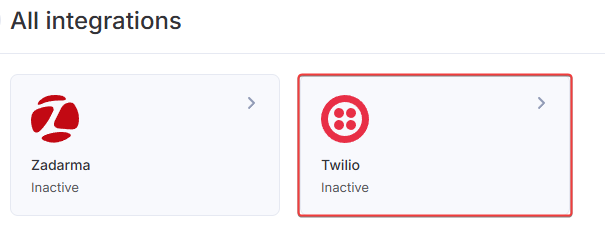
Select Twilio in the pop-up window.
In order to connect your Twilio account with Flowlu, you need to enter the following information:
- Account SID
- Auth Token
- select your Region

These credentials can be retrieved from your Twilio console API Keys & tokens page.
Once you've entered the credentials, click Activate at the bottom of the window and proceed to the next step.
Step 2. Set Up the Integration
First, configure the settings within your Twilio account.
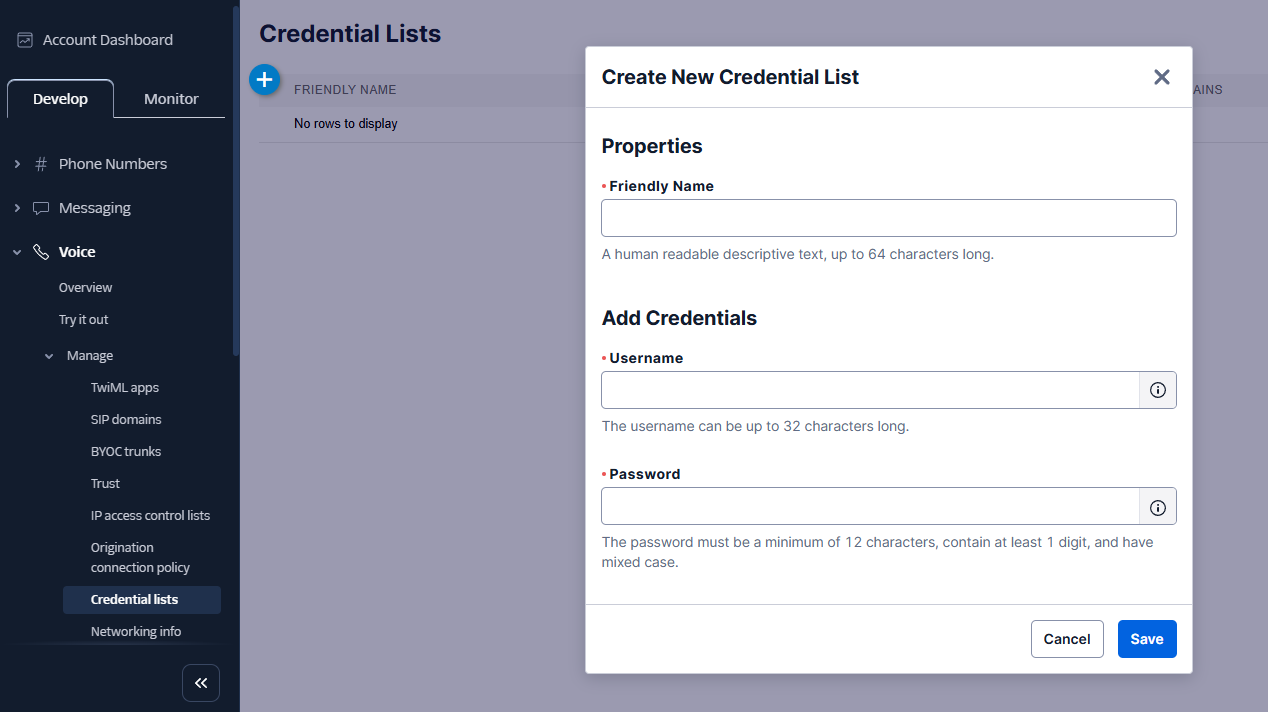
Go to your Twilio Account Dashboard, in the left menu select Voice → Manage → Credential Lists and create a new credential list to add users.
Specify Friendly Name, Username and Password.
Next, select Voice → Manage → SIP Domains in the left menu and create a new SIP Domain.
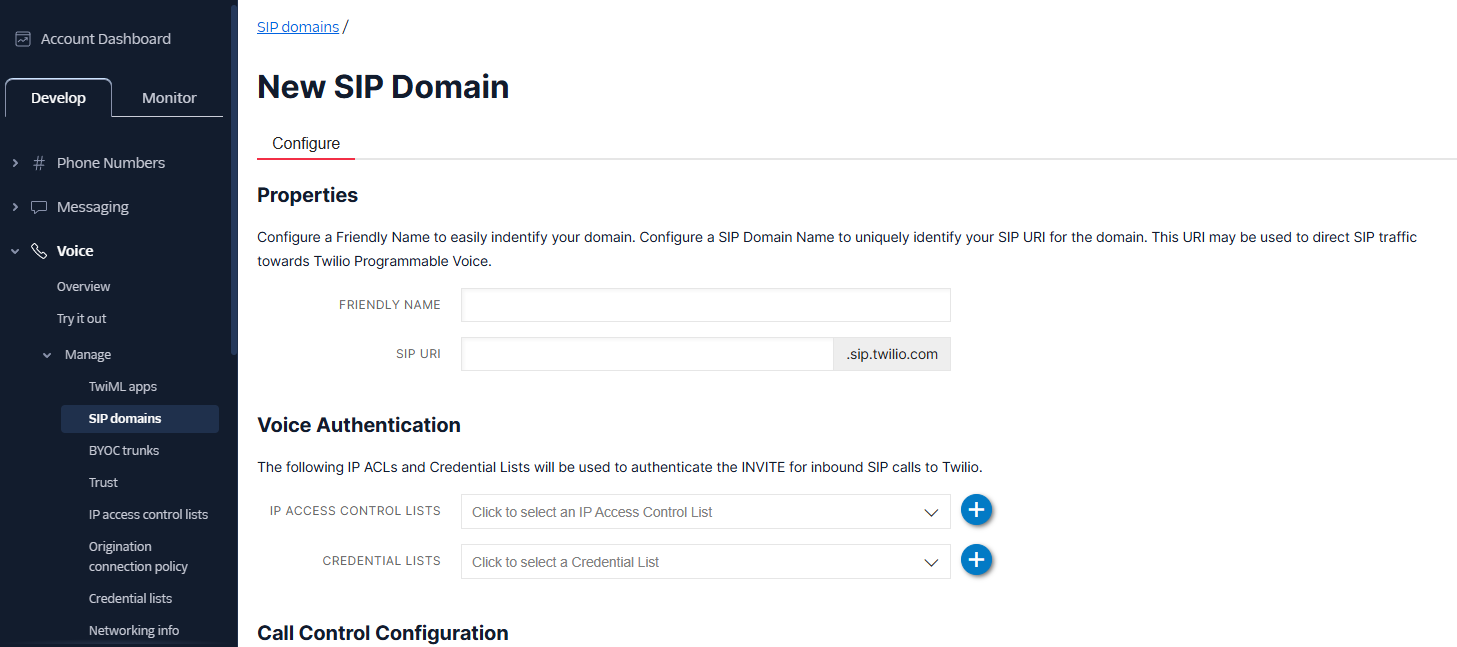
Create a Friendly Name for your domain, SIP URI and select an option from Credential List (choose the one that you've just created).
Next, enable SIP Registration and select your credential lists at SIP Registration section.
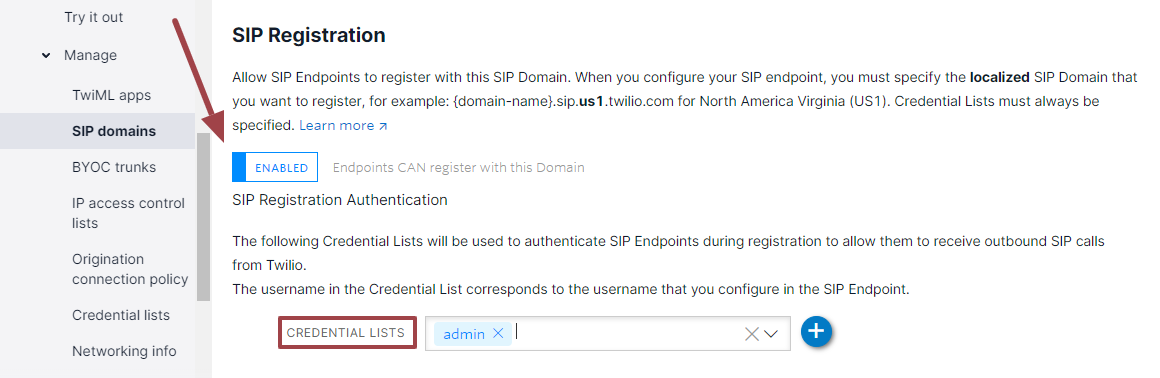
Save.
Go to your Twilio account and find Account SID and Auth Token.
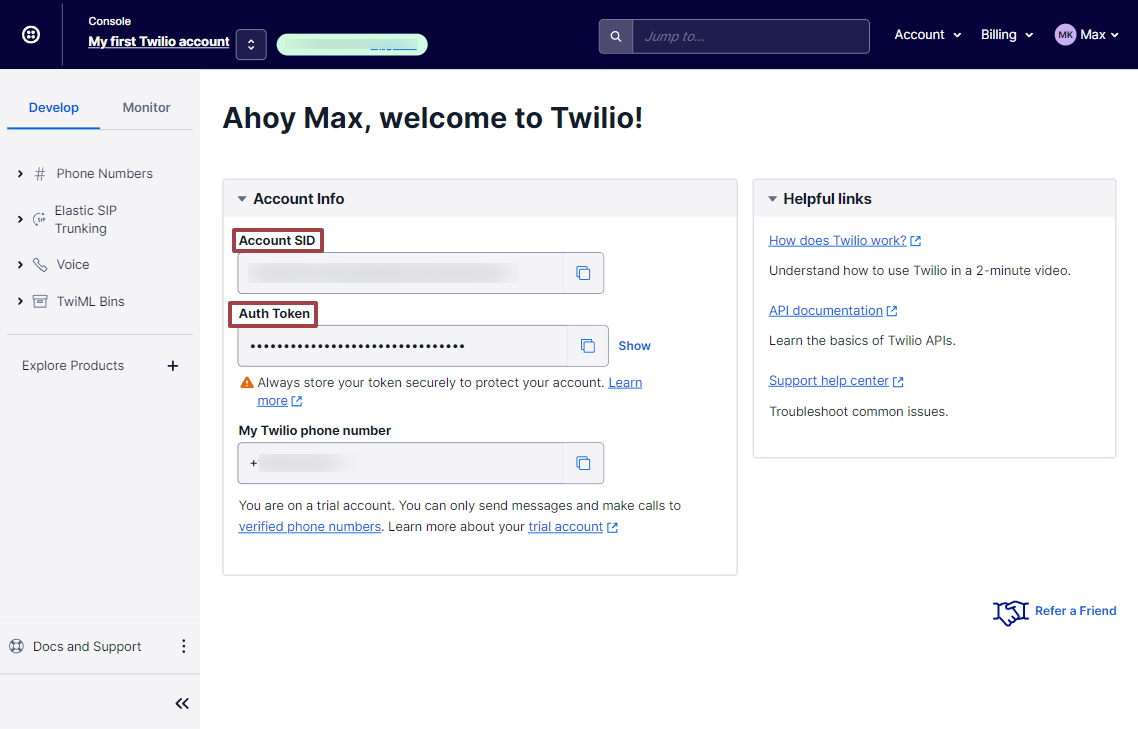
Copy them and insert to your Twilio Integration page in Flowlu.
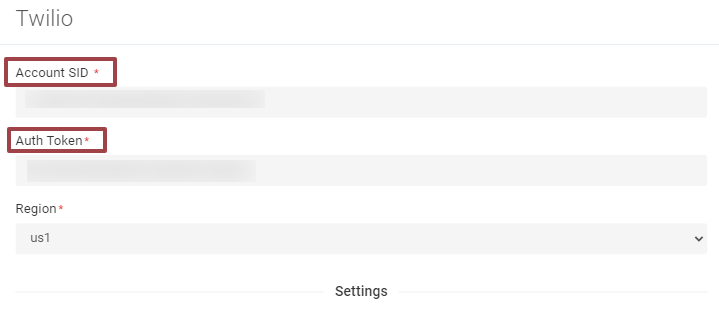
Then, go back to Twilio and navigate to Phone Numbers → Manage → Active Numbers.
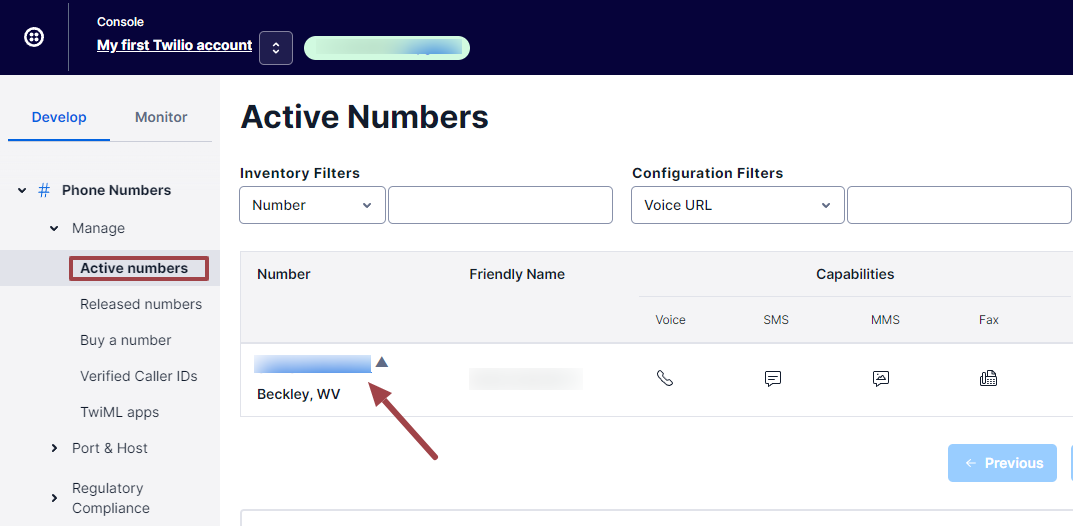
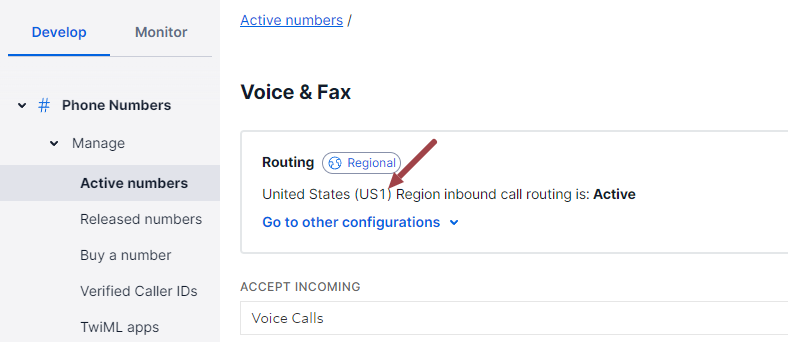
Click on your active number and navigate to the Voice & Fax section. Here you can see your region to fill in this information in your Flowlu account.
After that, click Activate in your Flowlu account. You will be able configure other settings later.
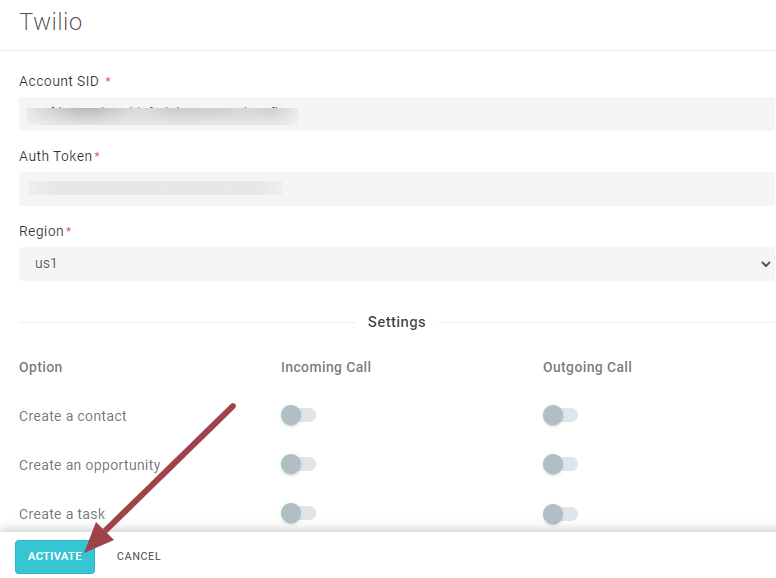
After activating the integration, you'll see a link that you need to insert at your Twilio account at several fields.
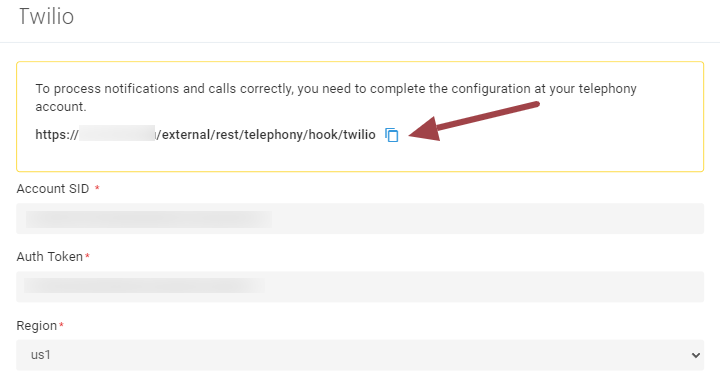
Navigate to Twilio to the Phone Numbers → Manage → Active Numbers. Click on your active number and go to Voice & Fax.
In the Configure With field, select "Webhook, TwiML Bin, Function, Studio Flow, Proxy Service". Then, insert the link from Flowlu to the following fields: A Call Comes In and Call Status Changes. Make sure to choose HTTP Post for both of them.
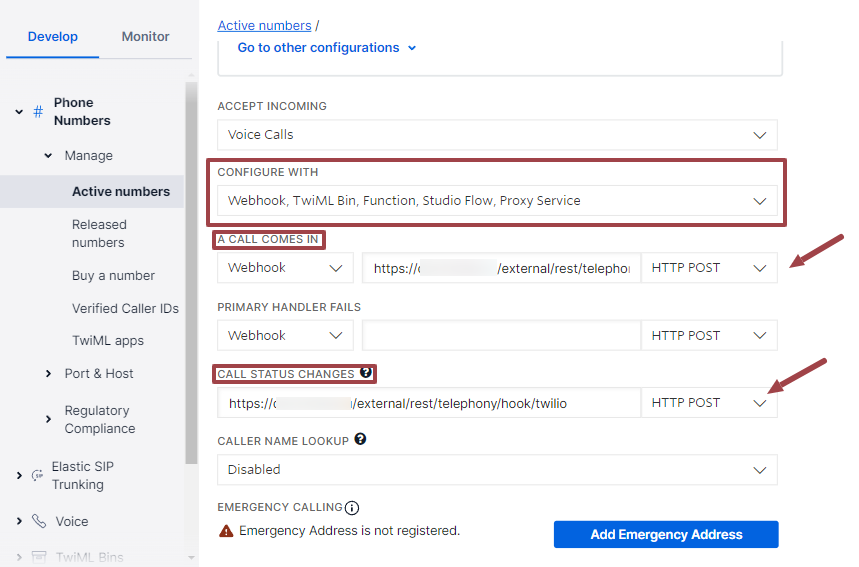
Save.
Next, go to Voice → Manage → SIP Domains. Select your SIP domain.
Navigate to Call Control Configuration.
In the Configure With field, select "Webhook, TwiML Bin, Functions, Studio, Proxy". Then, choose Webhook and insert the link from Flowlu to the fields: A Call Comes In and Call Status Changes. Make sure to choose HTTP Post for both of them.
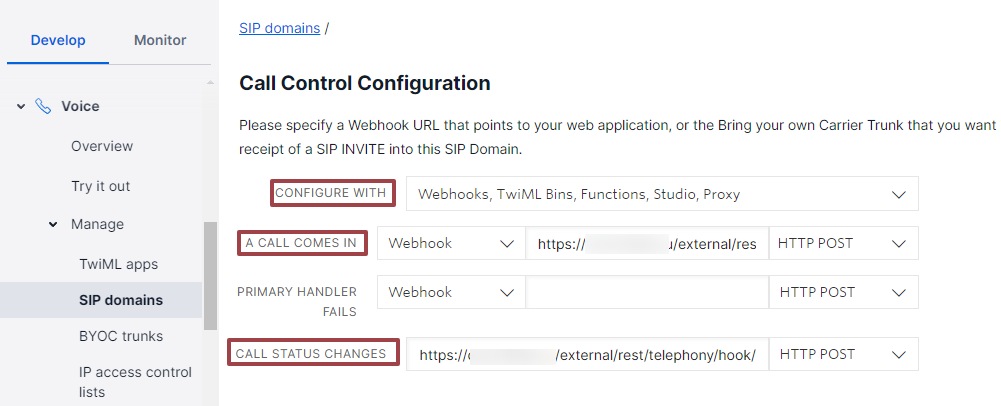
Save.
Step 3. Call Processing
After connecting telephony, you need to define scenarios for processing calls in Flowlu. Flowlu offers the following options for both incoming and outgoing calls:
- Creating a contact.
- Creating an opportunity (always or only for received calls).
- Creating a task (always or only for received calls).
You can pre-define a workflow for tasks, and a sales pipeline and source for opportunities. You can choose whether to create tasks for all calls, only successful calls, or only failed calls.
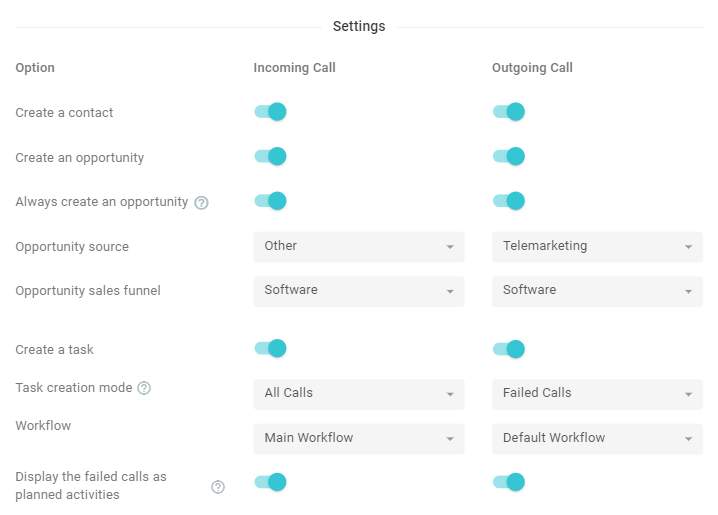
If you want to display the last failed call in the "Planned" section in the opportunity and CRM card, select the appropriate option. In this case, if you have a missed call or failed to reach a customer, this information will be located at the very top of the feed in the "Planned" section.
Step 4. Users
If you successfully connected the telephony, you will have a new section "Users" and SIP Domain Users will be loaded.
You need to manually relate the appropriate employee from your Flowlu account to Twilio user.
If this employee is assigned a specific CRM account, they will be the first to get an incoming call from this person.
If it is a new contact which has no assignee, that the call will be forwarded to the person marked in the list (by dot in the left column).
The "Import" button allows you to refresh the page of users and load the missing users, if you, for example, have just added them to your telephony account.
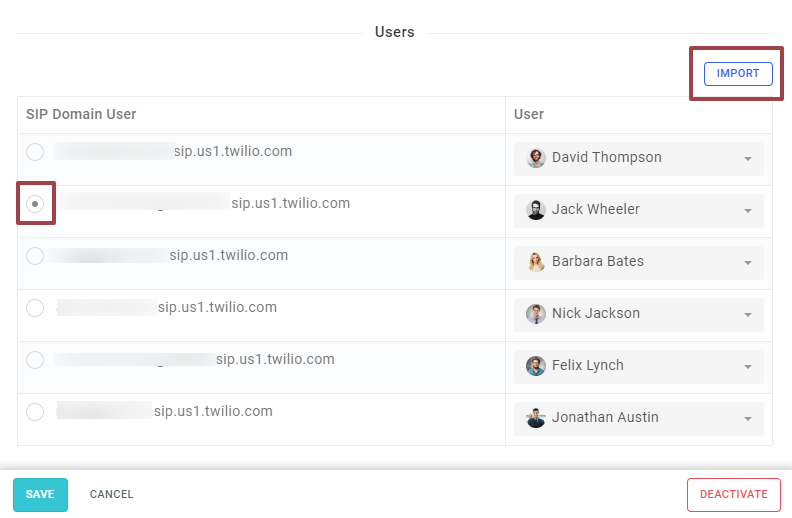
When all the data is filled in, press "Save."
To remove the telephony from you account, select the "Deactivate" option.
Step 5. Connect a Softphone or IP Phone
Next, you need to configure your SIP endpoint. You will need a SIP softphone endpoint (Twilio recommends Zoiper and Linphone, or you can build your own app).
A softphone is a software application that lets you make voice calls over the internet using your computer or mobile device instead of a traditional phone. Softphones connect to SIP servers so you can make and receive calls through your SIP account.
Download a softphone application and configure it to work with your Twilio Credential Lists. Please follow the guide provided by Twilio to learn about the setup process.
When you call someone from Flowlu, it will first call you back through the softphone interface. You need to accept this call and then the connection will be established.
Learn more about other telephony options.

